




Explore the FinOps Center
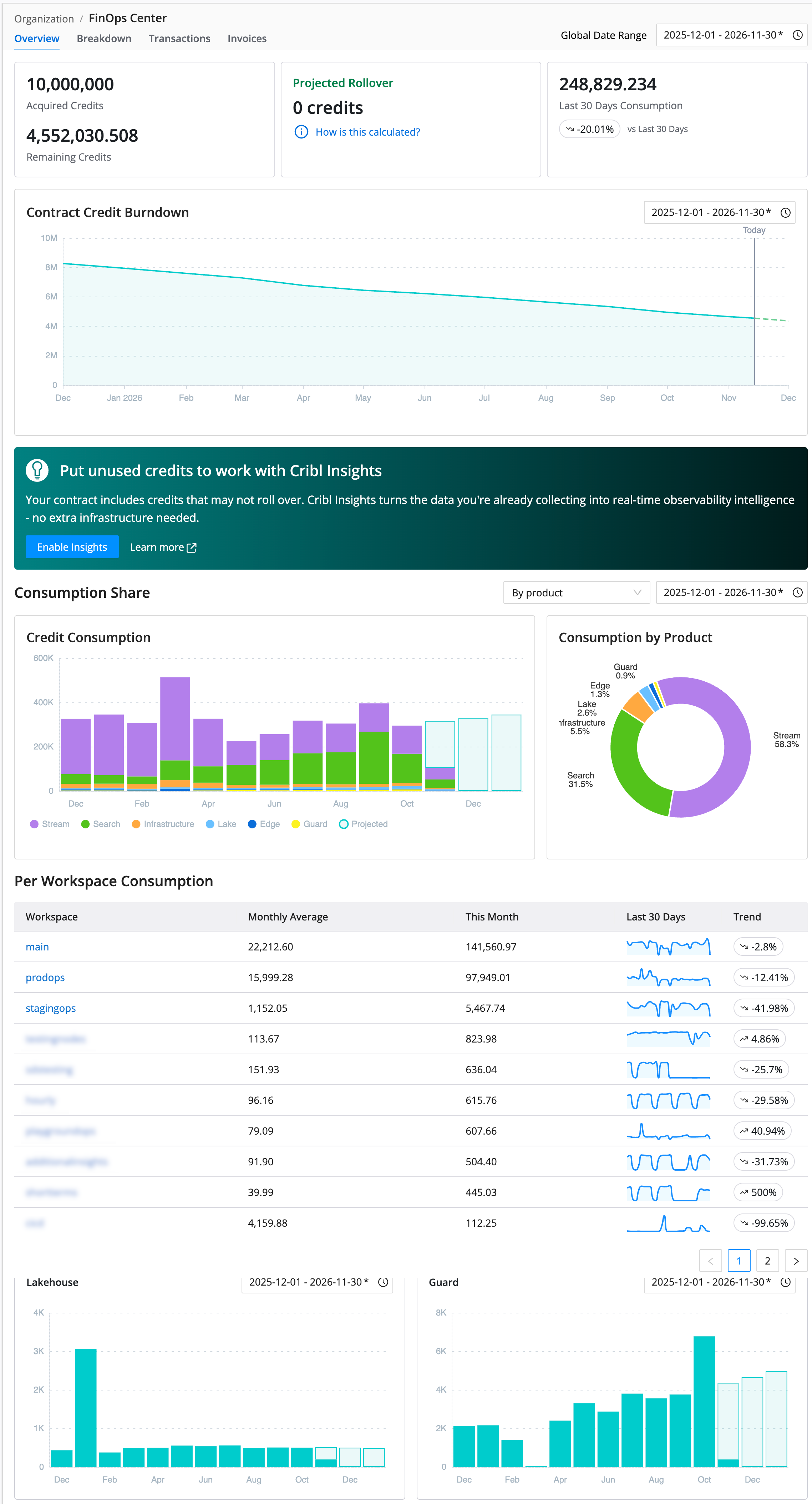
The Cribl FinOps Center shows product usage, credit consumption, contract balances, and monthly invoices for your Organization. You can download finalized invoices to import them into budgeting or spend-analysis tools.
With the FinOps Center, you can:
- See how many credits remain on your contract and whether you are on track to run out before the contract expires.
- Attribute credit spend to individual Workspaces for internal cost allocation.
- Track credit consumption, refunds, and rollovers across Cribl products.
- Set the date range used by consumption charts and tables.
- Review how Cribl calculates usage and cost.
- Compare total and per-Workspace usage and cost, including usage from Connected Environments, hybrid Worker Groups, and Edge Fleets.
For step-by-step tasks, see Track Cribl Product and Credit Usage. For more information about Cribl.Cloud billing and pricing, see Cribl Pricing.
Access the FinOps Center
Log in to Cribl.Cloud.
In the sidebar, select Organization > FinOps Center.
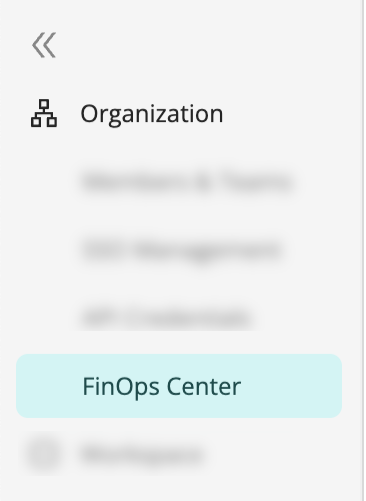
Organization sidebar menu
Note: If you don’t see Organization in the sidebar, select the Organization icon
from the top bar and select your Organization.
You can also retrieve FinOps Center billing and usage data programmatically with the Cribl API. The Billing and FinOps API Code Examples show how to retrieve contract utilization and credit-grant statistics. They also show how to retrieve monthly or daily credit consumption. You can use the API to add Cribl cost and consumption metrics to BI dashboards, internal cost-allocation processes, and automated reports.
Roles and Permissions
Your organization permission determines whether you can view the FinOps Center and download finalized invoices.
| Permission | View the FinOps Center | Download finalized invoices |
|---|---|---|
| Owner | Yes | Yes |
| Admin | Yes | Yes |
| Billing Reader | Yes | No |
Members with the User or IAM Admin permission can’t open the FinOps Center. For the full list of Organization Permissions, see Organization Permissions.
Criteria for the FinOps Center to Display Data
The FinOps Center displays data only when your Organization uses usage-based billing with Cribl.Cloud credits. Your deployment type doesn’t determine whether data appears.
For example, if you use a Cribl.Cloud Leader with hybrid Worker Groups or Edge Fleets but pay through a license-based agreement, the FinOps Center will display no data. License-based agreements don’t provide the usage and billing data that the FinOps Center displays.
Connected Environments are different from hybrid deployments. With a Connected Environment, an on-prem Leader uses the Cribl.Cloud credit-based billing model instead of an on-prem license. Usage and credit consumption from that environment appear in the FinOps Center.
The FinOps Center keeps Plan-era history alongside data from the current contract. Cribl billed a Plan-era month under a Plan and a contract-era month under a contract. A selected date range can include both. To learn how each billing model affects the available details, see Attribute Credit Spend to a Workspace and Understand Your Monthly Invoice.
Explore the FinOps Center
The FinOps Center has four tabs. A global date range picker sets the date range for the charts on every tab at once.
| Tab | Use | Task |
|---|---|---|
| Overview | View contract start and end dates. Review acquired credits, remaining credits, projected rollover, consumption over the last 30 days, and credit burndown. Compare credit consumption by product and Workspace. | View Current Credit Allotment and Spend |
| Breakdown | View credit consumption for a selected product or selected Workspaces. Inspect details for one month. | Explain What Drove Spend |
| Transactions | Review credits added to the active contract through purchases, rollovers, and refunds. | Reconcile Credits Added to Your Contract |
| Invoices | Read monthly invoices and download finalized invoices as .csv or .json files. | Understand Your Monthly Invoice |