




Track Cribl Product and Credit Usage
The FinOps Center provides one place to view your Cribl contract credits and product usage across your Organization and for each Workspace.
To open the FinOps Center, check who can use it, and learn what each tab covers, see Explore the FinOps Center.
View Current Credit Allotment and Spend
Before renewal, a platform administrator often needs to know how many credits remain on the current contract. For example, you might want to check the balance before you approve another Workspace or a higher Cribl Stream ingest tier.
To view the current credit allotment for this contract, open the FinOps Center for your Organization and go to Overview.
Under the summary boxes, Overview shows the start date and end date of the active contract. An Expired badge appears after the end date passes. An Expiring in X days badge appears as the end date approaches.
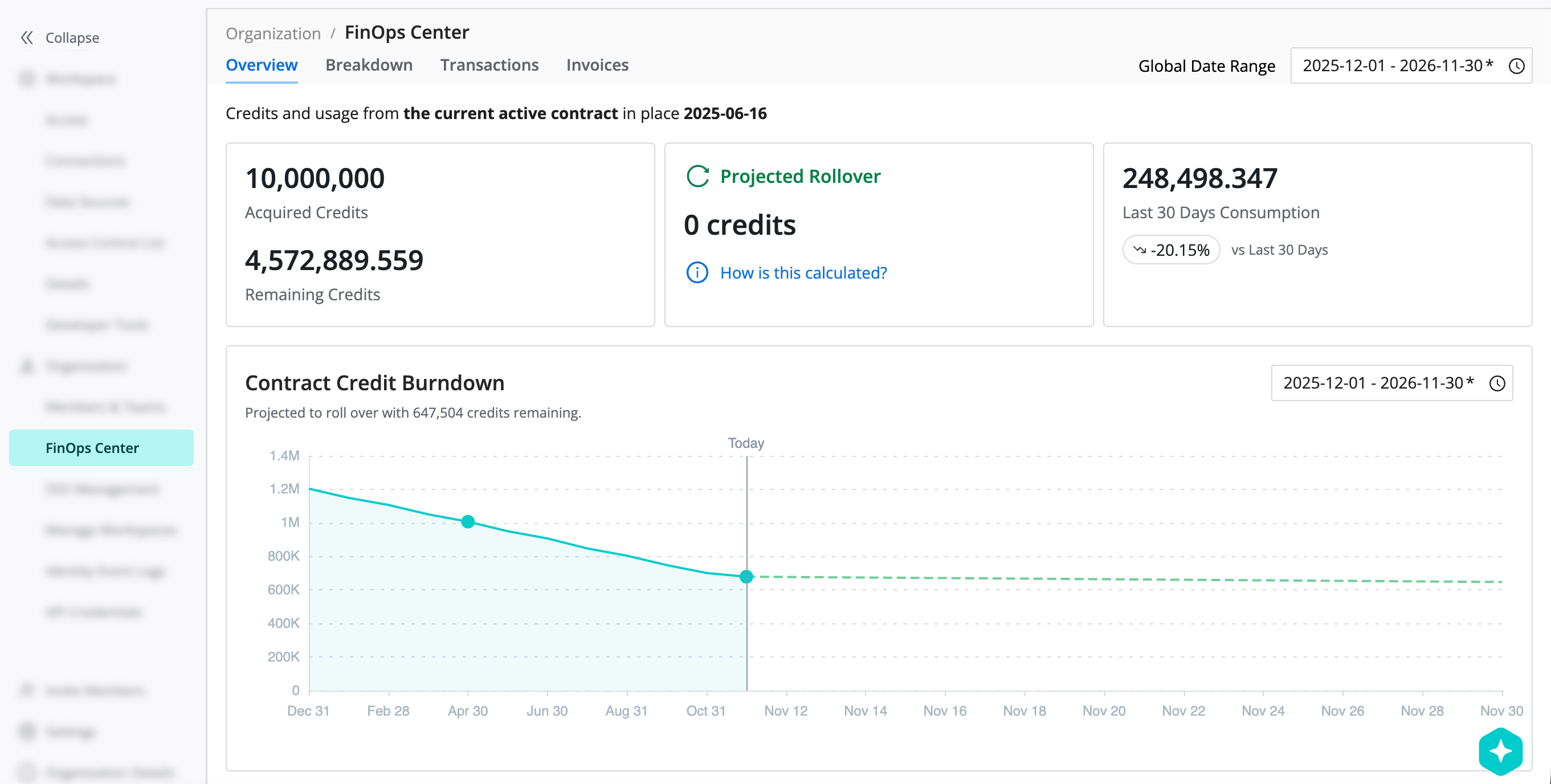
The three summary boxes show:
- Acquired Credits and Remaining Credits for the whole active contract, including a multi-year contract. This lets you compare acquired and remaining credits to see how much of your contract allocation you have consumed.
- Projected Rollover, the credits that the straight-line projection expects to remain at the end of the current contract period. This box needs 90 days of history. Until then, the value is a hyphen (-) and the box reads Not enough history to project yet.
- Last 30 Days Consumption shows the credits consumed during the preceding 30 days. A trend appears after 60 days of history. With less history, the box shows the value alone.
Use Global Date Range to change the date range used by the charts and tables on Overview.
View Projected Credit Rollover Amount
The Contract Credit Burndown chart shows how many credits you have left and how many Cribl predicts you will have left over at the end of your contract period.
- The solid line is your actual remaining credit balance. It already reflects every credit movement: consumption, refunds, grants, and rollovers. Hover over a point to see the credit movements behind it.
- The vertical line marks today. Everything to its left is history. Everything to its right is a projection.
- The projected line estimates whether your recent spending trend will exhaust your credits before the contract ends. It extends that trend in a straight line through the end of the visible date range.
Note: The projection reflects a trend, not a guarantee. Changes in usage, such as seasonal spikes, new Workspaces, and new products, shift the actual outcome. If your selected date range is entirely in the past, the chart shows no projection.
Spend Unused Credits on Insights
If your contract has credits that might not roll over, the banner Put unused credits to work with Cribl Insights offers a way to use them. The banner appears only while at least one Workspace in your Organization can still enable Insights.
- Select an Insights data retention period.
- Select Enable Insights to open the Workspace list for your Organization.
- Enable Insights on the Workspace you want. See Enable Insights on an Additional Workspace.
To read about Cribl Insights first, select Learn more.
Attribute Credit Spend to a Workspace
Use Overview to attribute credit spend to individual Workspaces for internal cost allocation. Cribl billed a Plan-era month under a Plan and a contract-era month under a contract. Only contract-era months include the per-Workspace data required for internal cost allocation.
- Select a predefined date range in Quick Actions. To use a custom range, enter Earliest and Latest, then select Apply.
- Scroll to the per-Workspace table. It lists the average monthly credit consumption of each Workspace, current-month credit consumption, 30-day consumption sparkline, and month-over-month consumption trend. Rows sort by highest recent consumption, 10 rows per page.
- To see which products and resources consumed credits in a Workspace, select the Workspace name. Breakdown opens with Workspace and that Workspace already selected. See Explain What Drove Spend.
In the per-Workspace table, a cell shows a hyphen symbol (-) when there isn’t enough history.
- The monthly average can include a partial month.
- The sparkline needs 30 days of history.
- The trend needs two completed months.
The table is empty when your Organization has no current contract, or when the contract hasn’t started yet. After a contract expires, the table can still show past months.
Explain What Drove Spend
Use Breakdown to view credit consumption by product or Workspace.
The summary at the top of Breakdown shows Total Credits Consumed, Last 30 Days Consumption, and Monthly Average Consumption for your selected date range and selected product or Workspaces.
The last-30-days trend compares the last 30 days of data with the preceding 30 days, so it needs 60 days of history. The monthly average stays hidden until two full months of data exist.
Daily and weekly charts exclude flat-rate subscription charges.
Check Spend per Product
- Select Breakdown.
- For Dashboard Type, select Product.
- From Select Product, select a product. The default is Stream.
The available consumption metrics vary by product:
| Product | What you see |
|---|---|
| Cribl Stream | Credits consumed, ingest in GB, ingest per Workspace, and credits consumed by environment type: hybrid, cloud, and Connected Environment. |
| Cribl Edge | Credits consumed, dropped bytes against total ingest, and usage per Workspace. Dropped bytes don’t count against your credit allowance. |
| Cribl Search | Credits consumed, lakehouse engine credits, federated engine credits, and total and per-Workspace CPU hours. |
| Cribl Lake | Credits consumed, GB stored, and GB stored per Workspace. |
| Cribl Guard | Credits consumed, GB scanned, and GB scanned per Workspace. |
Compare Product Consumption for a Month
In Per Product Consumption, select a monthly bar. Cribl displays a second chart titled <Month>’s Per Product Consumption. The chart compares credit consumption for each product during that month.
Cribl displays Filter by month to be able to see the drilldown when the selected date range does not group consumption by month.
Check Spend per Workspace
- Select Breakdown.
- For Dashboard Type, select Workspace.
- From Select Workspace, select one or more Workspaces.
By default, Select Workspace includes all Workspaces. The chart title is Workspaces Credit Consumption, and the chart has no credit spend projection.
To remove Workspace filters from Select Workspace, select Clear All or select X next to a Workspace name.
View Worker Group Consumption for a Month
In Workspaces Credit Consumption, select a monthly bar. A table lists the average monthly credit consumption for each Worker Group and credits consumed during the selected month. Expand a row to see daily credit consumption for that month.
Plan-era line items have no Workspace or Worker Group, so they don’t appear in the Worker Group table. As a result, its rows can add up to less than the product total.
Reconcile Credits Added to Your Contract
Transactions lists credits added to the active contract. It excludes credit consumption and transactions from expired contracts.
- Select Transactions.
- In Year, select the year to review. The default is the most recent year.
- Review the Date, Type, and Credits added. The table lists the newest transaction first.
Read and Export the Monthly Invoice
Use Invoices to review a month’s costs by Workspace, product, and line item and export the data to an external tool.
Understand Your Monthly Invoice
Each monthly invoice shows costs by product and line item, including costs for Cribl Guard and Connected Environments. Contract-era invoices also show costs by Workspace.
- Select Invoices.
- In Year, select the year to review. Year lists months from most recent to oldest.
- Check the status. An invoice is Draft for the current month until your billing period ends according to your contract. It’s Final after that.
- Expand a month to see its cost items. The invoice hierarchy depends on
whether a Plan or contract covered the month:
- A Plan-era month expands from the month to the product, then to the line item. A Plan-era month has no Workspace level.
- A Contract-era month expands from the month to the Workspace, then to the product, then to the line item. The Workspace row shows the cost for that Workspace.
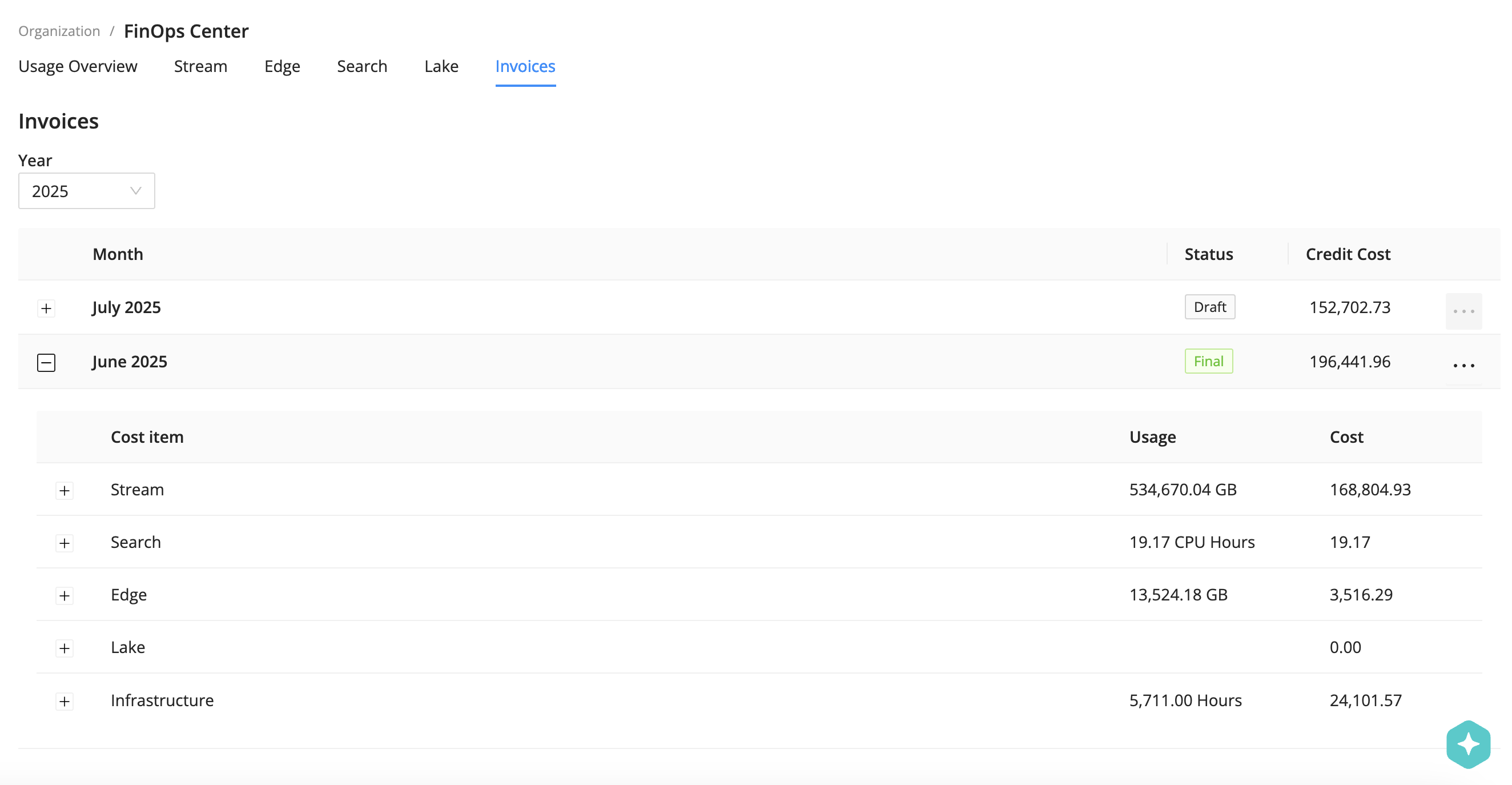
The table groups cost items by product and infrastructure:
Product | Cost item |
|---|---|
| Cribl Stream |
|
| Cribl Edge |
|
| Cribl Search |
|
| Cribl Lake | Cribl Lake Total Storage (Dataset size volume per GB on an assumed 30-day data retention schedule) |
| Infrastructure |
|
| Cribl Guard | Cribl Guard GB scanned. See How You Are Billed for Cribl Guard for more information. |
Download Invoices
You can download your monthly Cribl.Cloud invoices as .csv or .json files.
Import the files into budgeting or spend-analysis tools, or retain them for
your records.
Note: You can download only invoices with a Final status. You can’t download Draft invoices. Downloading requires the Owner or Admin permission.
To download an invoice:
- Select Invoices.
- Select Actions
 for the invoice you want to download.
- Select Download CSV or Download JSON.
Look Up How a Figure Was Calculated
How Is Usage Calculated?
Cribl Stream and Cribl Edge credit consumption includes data-ingest and processing-infrastructure charges. Cribl charges for ingress, or data in, but not for egress, or data out.
The exception is the optional static egress feature, which adds an hourly infrastructure charge and a per-GB charge for each region where you enable it. See How Static Egress Is Billed.
Cribl bases Cribl Lake credit consumption on the volume of compressed data stored.
For Cribl Search, usage depends on the engine type. To see each engine’s credits, check the Search product on Breakdown. See Check Spend per Product.
- Lakehouse engines bill on the engine size you select (a daily ingest tier) and on the data retained on the engine. Cribl meters ingest at the engine, regardless of any upstream processing in Cribl Stream or Cribl Edge. Individual searches over Lakehouse data don’t add per-search charges.
- Federated engine billing depends on your model. Tiered and Search Subscription plans bill while selected and let you search within the performance limits for the tier. Usage-Based (Pay-as-you-go) bills by compute consumed per search.
For background on each engine type, see Cribl Search Engines.
How Is Cost Calculated?
In Cribl.Cloud, one credit equals one US dollar at list pricing. Discounts in your contract can change the dollar value of a credit. Each Cribl product consumes credits at a different rate. For a detailed explanation, see the Cribl Pricing Guide or contact Cribl Sales.
The following table summarizes Cribl.Cloud credit consumption:
Product | General Calculation |
|---|---|
| Cribl Stream | Ingest pricing (infrastructure pricing based on region):
|
| Cribl Edge | Ingest pricing:
|
| Cribl Search | Cribl Search uses two billable engine types:
|
| Cribl Lake | Storage pricing based on 30-day retention:
|
| Cribl Guard |
|
| Cribl Insights | Cribl bases pricing on a rolling data retention period. For more details, visit Insights Pricing. |
Where Can I View Connected Environment Consumption?
- Usage: On Breakdown, check the Stream or Edge product. See Check Spend per Product.
- Cost: On Invoices, expand a month. Connected Environment costs appear as Connected Stream GBs In or Connected Edge GBs In.
How Often Is Credit Data Refreshed in Cribl.Cloud?
Usage and cost figures refresh every five minutes.