





Add a Cribl Search Pack and Create a Lake Dataset with the Cribl API
These code examples demonstrate how to use the Cribl API to add a Cribl Search Pack from the Cribl Packs Dispensary and create a Lake Dataset.
About Code Examples
Code examples use Bearer token authentication. Read the API authentication documentation to learn how to configure authentication. The API Credential that you use to obtain the Bearer token must have the necessary Permissions for the operations in code examples.
Replace the variables in code examples with the corresponding information for your Cribl deployment.
In Cribl.Cloud Government, use
cribl-gov.cloudin request URLs instead ofcribl.cloud. For example,https://${workspaceName}-${organizationId}.cribl-gov.cloud/api/v1/m/default_search/packs.Cribl Search and Cribl Lake are available only on Cribl.Cloud, so this page does not include examples for on-prem deployments.
Code examples do not include all available body parameters. For a complete list of body parameters for specific endpoints, refer to the documentation in the API Reference.
Add a Search Pack
This example adds the Search Pack named Cribl Search AWS VPC Flow Logs from the Cribl Packs Dispensary. It includes the Pack URL for Cribl Search AWS VPC Flow Logs, which is used as the value of the source parameter. To get the URL for a different Pack, see Get the URL for a Search Pack.
curl --request POST \
--url "https://${workspaceName}-${organizationId}.cribl.cloud/api/v1/m/default_search/packs" \
--header "Authorization: Bearer ${token}" \
--header "Content-Type: application/json" \
--data '{
  "id": "cribl-search-aws-vpc-flow-logs",
  "source": "https://packs.cribl.io/dl/cribl-search-aws-vpc-flow-logs/0.1.1/cribl-search-aws-vpc-flow-logs-0.1.1.crbl"
}'Create a Lake Dataset
This example creates a Lake Dataset in the default lake with a basic configuration: Dataset ID, Cribl Lake storage location, retention period of 30 days, and Direct Access (HTTP) disabled.
curl --request POST \
--url "https://${workspaceName}-${organizationId}.cribl.cloud/api/v1/m/products/lake/lakes/default/datasets" \
--header "Authorization: Bearer ${token}" \
--header "Content-Type: application/json" \
--data '{
  "id": "aws-vpc-flow-logs-dataset",
  "storageLocationId": "cribl_lake",
  "retentionPeriodInDays": 30,
  "httpDAUsed": false
}'Get the URL for a Search Pack
To add a Search Pack from the Cribl Packs Dispensary or the Dispensary GitHub Repository, provide the Pack URL as the value for the source parameter in your request. The URL must be the direct URL location of the .crbl file for the Pack.
Read Pack Repositories to learn about the differences between the Cribl Packs Dispensary and the Dispensary GitHub Repository.
Here’s how to get a Pack’s URL from the Cribl Packs Dispensary:
Search the Cribl Packs Dispensary to find the Pack that you want to add. Select the Pack’s tile to open the Pack sidebar.
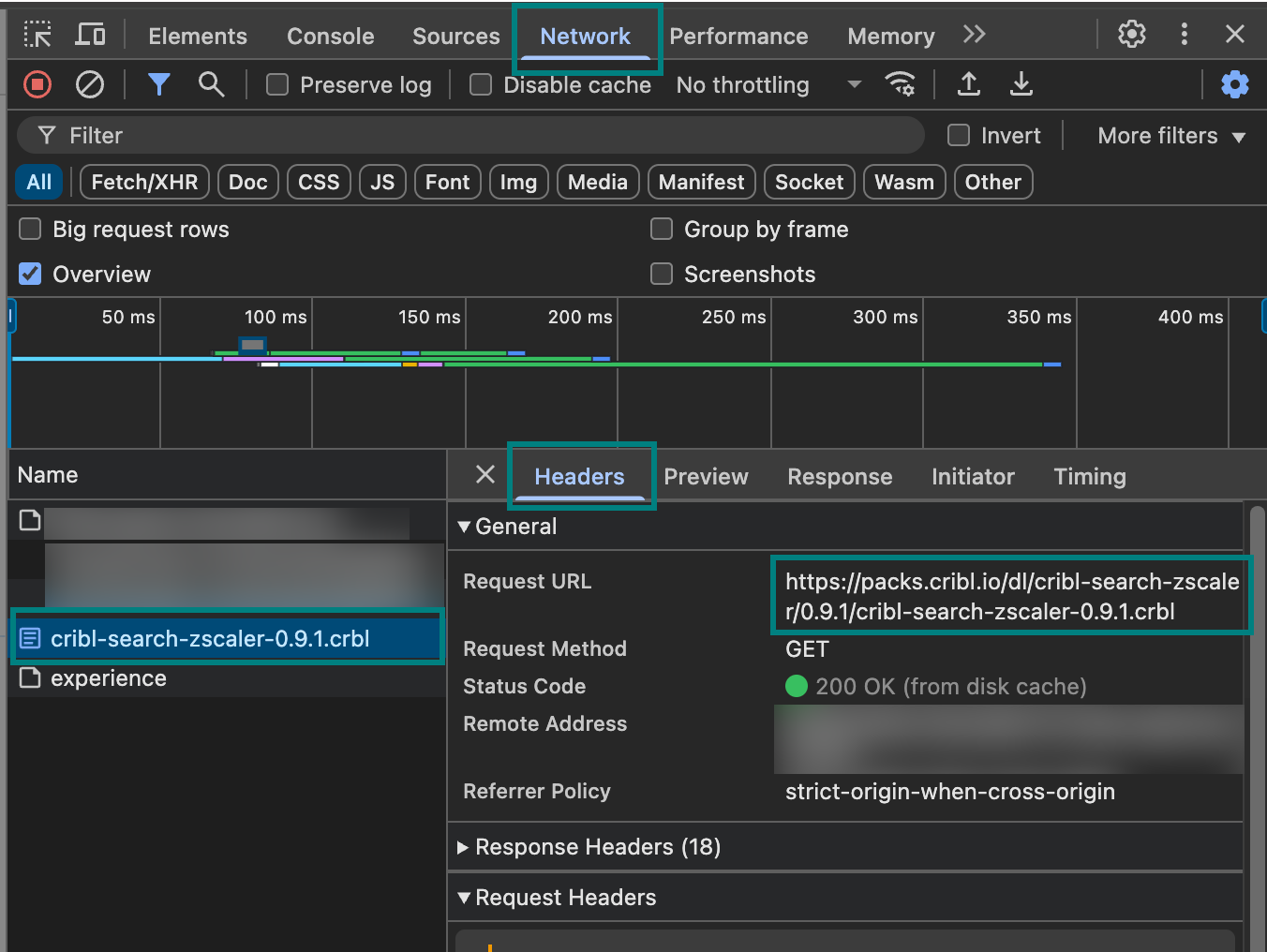
Open the developer tools for your browser and select the Network tab.
At the upper-right of the Pack sidebar, select the download icon.
In your browser’s developer tools, in the Name column, select the entry for the Pack’s
.crblfile and the Headers tab. Copy the Request URL: the copied URL is the value to provide for thesourceparameter in your request.
To get a Pack’s URL from the Dispensary GitHub Repository:
Search the Dispensary GitHub Repository to find the repository for the Pack that you want to add. Select the Pack’s repository to open it.
In the right sidebar, select Releases.
On the Releases page, find the release that you want to use and expand the Assets section.
In the Assets section, find the
.crblfile for the Pack. Right-click the.crblfile and select the option to copy the link. The copied link URL is the value to provide for thesourceparameter in your request.
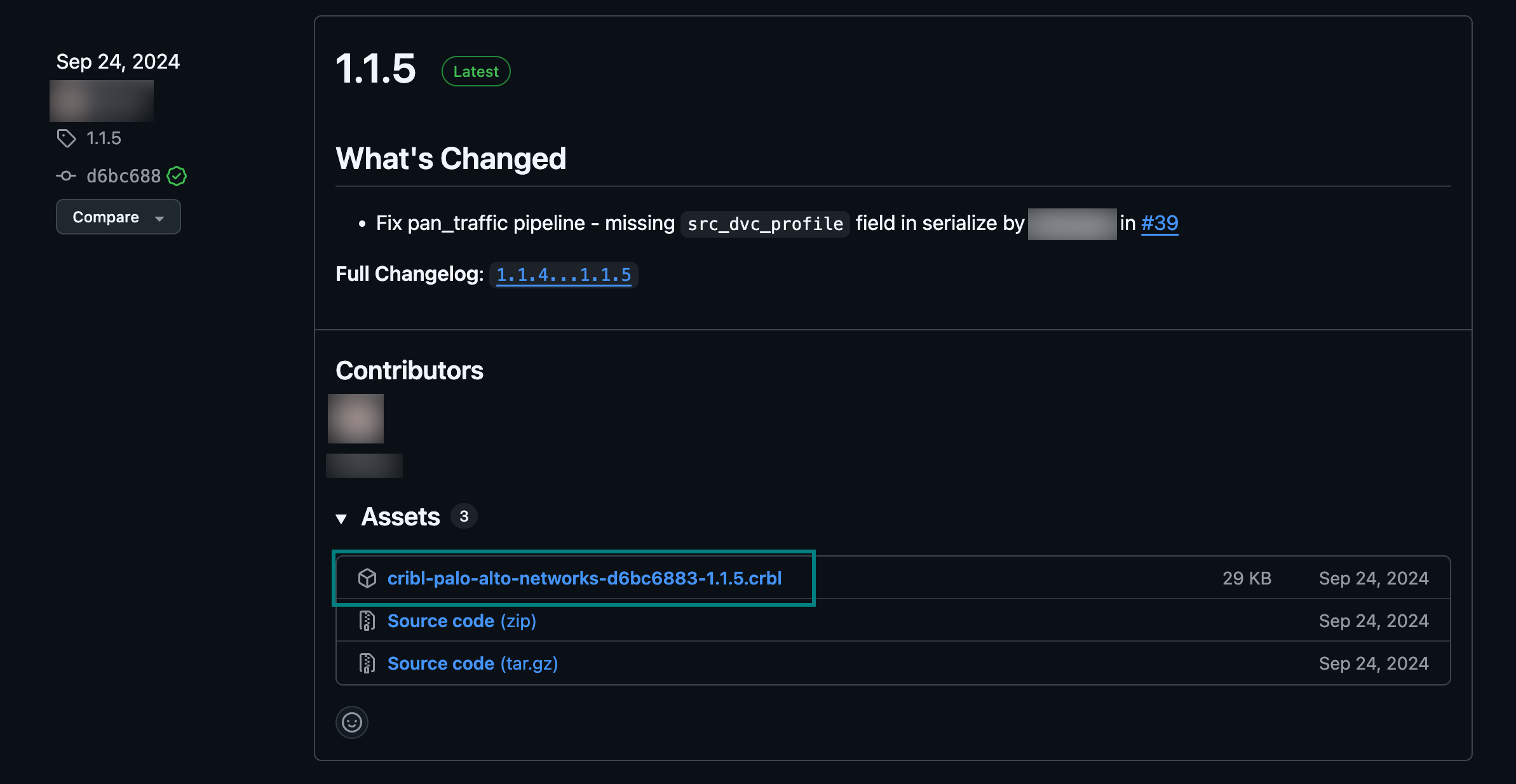
.crbl File Link to Use as the Pack URL