Functions
When events enter a Pipeline, they’re processed by a series of Functions. At its core, a Function is code that executes on an event, and it encapsulates the smallest amount of processing that can happen to that event.
The term “processing” means a variety of possible options: string replacement, obfuscation, encryption, event-to-metrics conversions, and so on. For example, a Pipeline can be composed of several Functions - one that replaces the term foo with bar, another one that hashes bar, and a final one that adds a field (say, dc=jfk-42) to any event that matches source=='us-nyc-application.log'.
How Do They Work
Functions are atomic pieces of JavaScript code that are invoked on each event that passes through them. To help improve performance, configure Functions with filters to further scope their invocation to matching events only. See Build Custom Logic to Route and Process Your Data: Filter Expressions for more information.
You can add as many Functions in a Pipeline as necessary, though the more you have, the longer it will take each event to pass through. Also, you can enable and disable Functions within a Pipeline as necessary. This lets you preserve structure as you optimize or debug.

You can reposition Functions up or down the Pipeline stack to adjust their execution order. Use a Function’s left grab handle to drag and drop it into place.
The Final Toggle
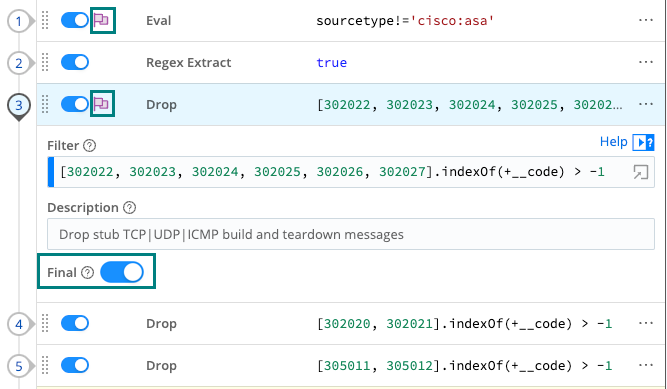
The Final toggle in Function settings controls what happens to the results of a Function.
When Final is toggled off (default), events will be processed by this Function, and then passed on to the next Function below.
When Final is toggled on, the Function “consumes” the results, meaning they will not pass down to any other Function below.
A flag in Pipeline view indicates that a Function is Final.
Functions and Shared-Nothing Architecture
Cribl Stream is built on a shared-nothing architecture, where each Node and its Worker Processes operate separately, and process events independently of each other. This means that all Functions operate strictly in a Worker Process context - state is not shared across processes.
For example, consider two events that meet a Pipeline’s criteria to be aggregated. If these two events arrive on separate Workers or Worker Processes, Cribl Stream will not aggregate them together.
This is particularly important to understand for certain Functions that might imply state-sharing, such as Aggregations, Rollup Metrics, Dynamic Sampling, Sampling, Suppress, and so on.
If you have a large number of Worker Processes, consider implementing a distributed caching tier, such as Redis, to aggregate events across Workers. (See our Redis Function topic.)
Access Event Fields with __e
The special variable __e represents the (context) event inside a JavaScript expression. Using __e with square bracket notation, you can access any field within the event object, for example, __e['hostname']. Make sure to use single quotes around the field name. Functions use __e extensively.
You also must use this notation for fields that contain a special (non-alphanumeric) character like user-agent, kubernetes.namespace_name, or @timestamp. For more details, see MDN’s Property Accessors documentation. In any other place where such fields are referenced - for example, in an Eval Function’s Field names - you should use a single-quoted literal, of the form: '<field-name-here>'.
Supported JavaScript and Regex Standards
Cribl Stream supports the ECMAScript® 2015 Language Specification.
Regular expressions in Cribl Stream use the JavaScript regex engine, which conforms to ECMAScript 2015. This applies to all regex-related Functions, including Regex Extract, Regex Filter, Mask, and others, as well as Event Breakers and the Regex Library.
If you test patterns in external tools such as Regex101, select the ECMAScript (JavaScript) flavor to ensure compatibility.
Very Large Integer Values
Cribl Stream’s JavaScript implementation can safely represent integers only up to the Number.MAX_SAFE_INTEGER constant of about 9 quadrillion (precisely, {2^53}-1). Cribl Stream Functions will round down any integer larger than this, in Data Preview and other contexts. Trailing 0’s might indicate such rounding down of large integers.
Specify Fields’ Precedence Order in Expressions
For Sources that support adding Fields (Metadata), you can use a Value expression to allow fields in events to override the predefined field values. For example, the following expression’s left-to-right OR logic ensures that if an inbound event includes an index field, its value is used: ${__e['index'] || 'myIndex'}.
If no index field is present, the expression falls back to the constant myIndex defined in the expression.
Which Functions to Use and When
Cribl Stream provides a diverse library of Functions that allow you to shape, enrich, and reduce your data at scale. Use the following categories to find the specific Function that aligns with your goals.
For more usage examples, download the official Tip Sheet: Cribl Stream.
Basic Field and Data Manipulation
Use these Functions for cleaning up events and adjusting schemas.
Add, update, or remove fields:
Change or normalize fields:
- Rename
- Auto Timestamp
- Fold Keys (Collapses multiple fields into an object)
- Numerify (Converts strings to type number)
Extraction and Parsing
Transform raw, unstructured text into structured, searchable data.
Extract fields from raw strings:
Handle nested structures and arrays:
Data Masking and Enrichment
Protect sensitive data and add external context to your logs.
Obfuscate, redact, or hash data:
Data enrichment from lookups:
- Lookup
- Redis
- GeoIP
- DNS Lookup
- Windows SID Lookup (Cribl Edge only)
Event Filtering and Volume Reduction
Control your costs by dropping low-value data or sampling high-volume streams.
Drop events or dimensions:
Sample data:
Suppress duplicates:
Metrics and Observability (OTel)
Convert standard logs into metrics or transform data into OpenTelemetry formats.
Aggregate and summarize:
Handle metrics data:
Standardize to OTLP (OpenTelemetry):
Serialization and Formatting
Change the shape of your data for specific downstream Destinations.
Convert data formats:
SIEM-specific formatting:
Advanced Logic and Routing
Use these for complex Pipelines that require custom code or non-linear data flows.
- Code (Executes custom JavaScript for complex logic)
- Chain (Calls another Pipeline)
- Clone (Creates a copy of events with optional added fields)
- Event Breaker (Re-parse data within a pipeline)
- Comment (Adds descriptive labels within a Pipeline to explain logic without affecting event data)
Deprecated Functions
Don’t use deprecated Functions in production and ensure they are not part of your data flow configuration:
Function Groups
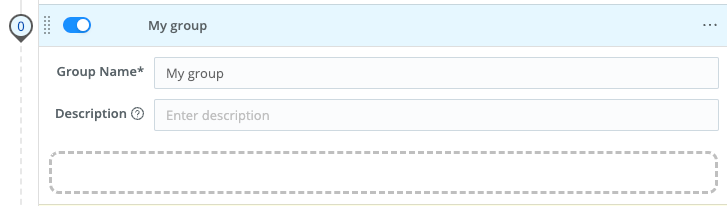
A Function group is a collection of consecutive Functions that can be moved up and down a Pipeline’s Functions stack together. Groups help you manage long stacks of Functions by streamlining their display. They are a UI visualization only, purely for visual context, and do not affect the movement of data through Functions. While Functions are in a group, those Functions maintain their global position order in the Pipeline: data moves down the listed Functions, ignoring any grouping assignments.
Function groups work much like Route groups.
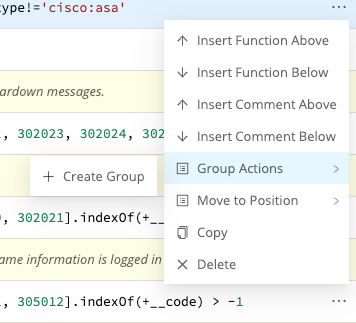
To build a group from any Function, select the Function’s ••• (Options) menu, then select Group Actions > Create Group.
You’ll need to enter a Group Name before you can save or resave the Pipeline. Optionally, enter a Description.
Once you’ve saved at least one group to a Pipeline, other Functions’ ••• (Options) > Group Actions submenus will add options to Move to Group or Ungroup/Ungroup All.
You can also use a Function’s left grab handle to drag it into, or out of, a group. A saved group that’s empty displays a dashed target into which you can drag Functions.