





Collect Windows Event Logs and Metrics
Collecting Windows Event Logs and metrics in Cribl Edge allows you to gain real-time visibility into system health, security, applications, and performance of your Windows environment.
Collect Windows Event Logs
To collect Windows Event Logs, you need to create and configure a Windows Event Log Source and point it at correct logs on the server.
For a full description and reference of the Source’s settings, see Windows Event Logs Source.
Locate Windows Event Logs on the Server
Event logs in Windows Servers are classified into the following broad categories:
- System: Events related to the system and its components. Failure to load the boot-start driver is an example of a system-level event.
- Applications and Services: Events related to software or an application hosted on a Windows computer get logged under the application event log. For example, if a user encounters a problem in loading the app, it will be logged.
- Security: Events related to the safety of the system. The event gets recorded via the Windows auditing process. Examples include failed authentication and valid logins.
- Setup: Events occur during the installation of the Windows operating system. On domain controllers, this log will also record events related to Active Directory.
- Forwarded Events: Contains event logs forwarded from other computers in the same network.
To find out what other event logs might be of interest:
Go to your Windows Server Event Viewer.
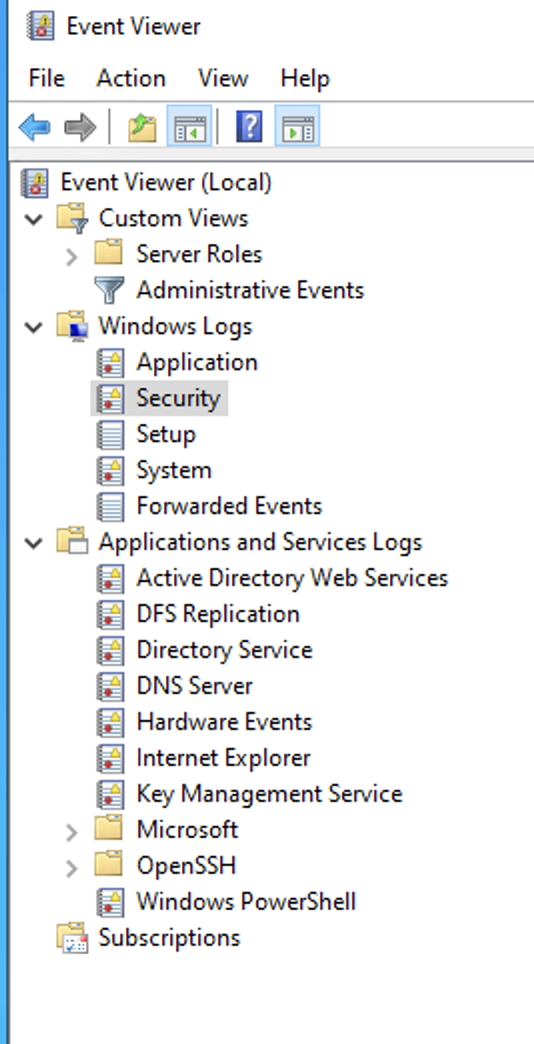
Event Viewer To get the accurate name of a given event log, right-click it and select Properties.
From the Properties modal, copy the Full Name value to your clipboard. You’ll use this value when configuring a Windows Event Log Source.
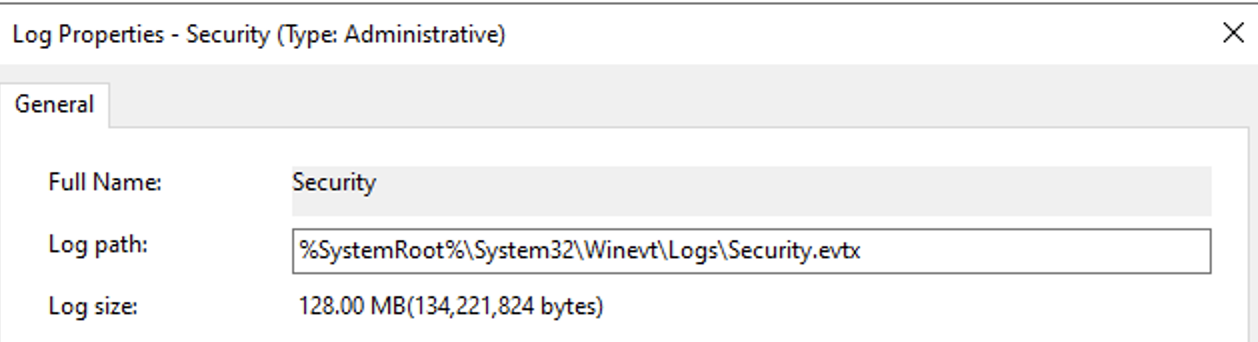
Log properties: Full name from the UI
Alternatively, you can execute the following PowerShell command to list a particular log’s name. In this example, we are using a * wildcard.
powershell Get-WinEvent -ListLog Hardware*
From the Powershell output, the LogName field is what you would specify in the Cribl UI. In the above screenshot, for example, you would enter Active Directory Web Services in the Cribl UI.
Configure the Windows Event Logs Source
Once you have the accurate names of the event logs you want to collect, you can configure and enable the Windows Event Logs Source in Cribl Edge.
On the top bar, select Products, and then select Edge. Under Fleets, select a Fleet.
Select More > Sources (Edge). Select Windows Event Logs
Next, select Add Source.
Enter a unique identifier for the Source in Input ID.
In Event logs, enter the log name you copied from the Event Viewer.
Optionally, configure other Source settings.
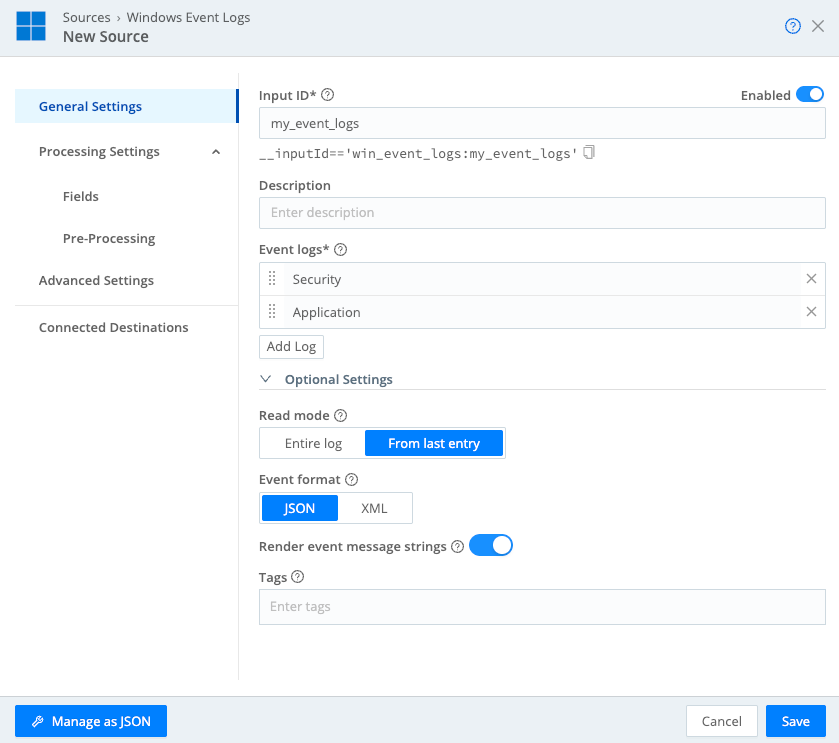
Configuring Windows Event Logs Save the Source configuration.
To start the Source, select Commit, enter a commit name, and select Commit & Deploy.
After a few moment, you can check the Live Data tab and capture some data to make sure the logs are generated.
You can now send the event logs to your visualization tool of choice or any of Cribl Edge’s supported Destinations.
Collect Windows Metrics
To collect Windows metrics rather than log events, configure Cribl Edge’s Windows Metrics Source.
For a full description and reference of the Source’s settings, see Windows Metrics Source.
A Windows Metrics Source is preconfigured for each of your Fleets with basic settings and enabled automatically. To have further control over the collection, modify its configuration. In particular, decide on the level of granularity for the metrics you want to collect.
To do this, in the Windows Metrics Source modal, select Host Metrics, then Custom. Here, we recommend setting the following granularity options for three of the configurable types:
- CPU: Select Custom, then enable Per-CPU metrics.
- Network: Select Custom, then enable Per interface metrics.
- Disk: Select Custom, then enable Per volume metrics.
When done, remember to commit and deploy your changes.
For an example of how to connect to a Windows Metrics Source to a Grafana Cloud Destination and visualize the data in Grafana, see Monitoring your Infrastructure with Cribl Edge.