





Get Pre-Built Pack Content
Packs created by Cribl and the Cribl Community let you speed up configuring your data flows by providing ready-made solutions for many common integrations and use cases.
On the Cribl Packs Dispensary, Cribl officially publishes and maintains a variety of validate Packs that you might use to solve a particular challenge or process data from a variety of vendors, including many that do not yet have full Cribl Edge integrations. The Dispensary also hosts validated Packs submitted from the larger Cribl developer and user community.
Packs created by Cribl and the Cribl Community let you speed up configuring your data flows by providing ready-made solutions for many common integrations and use cases. These Packs are hosted on the Cribl Pack Dispensary. You can download and customize each Pack as needed.
This page describes how to use Packs to accelerate the onboarding process with Cribl Edge. However, you can also use Packs for advanced environment templating as your Cribl Edge deployment becomes more complex and needs to scale. See Packs for more information about this advanced configuration management use case.
Add a Pack From the Dispensary
To import a Pack from the Dispensary directly into your deployment:
Navigate to the Packs page.
Select Add Pack at the upper right and select Add from Dispensary.
The Packs Dispensary will open in a drawer.
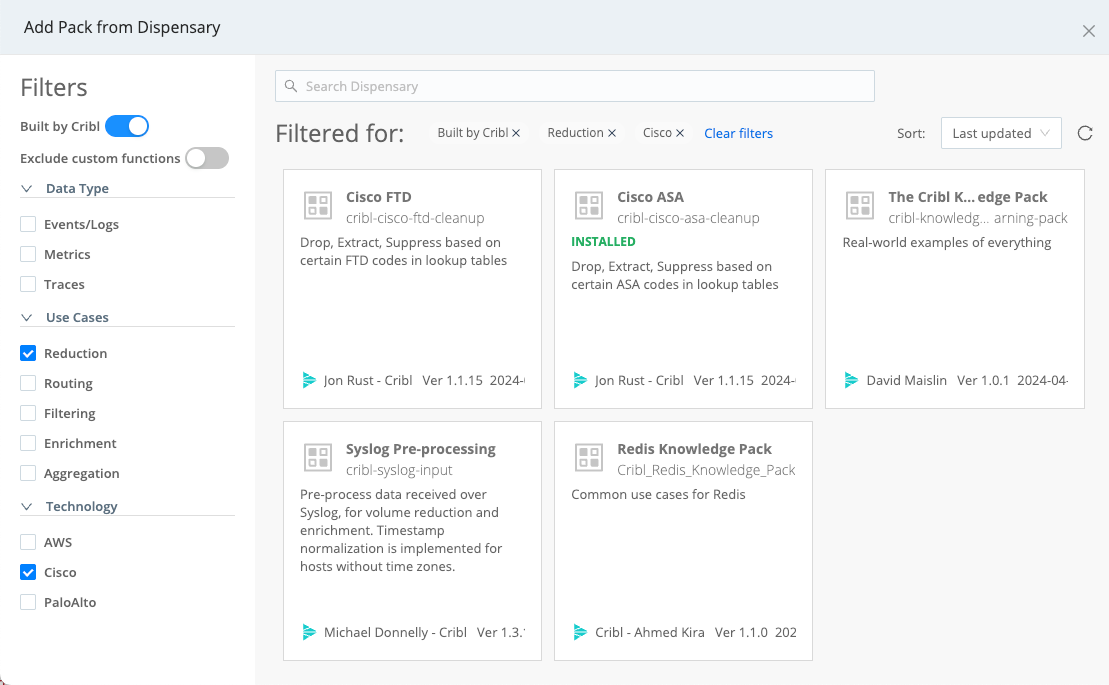
Cribl Packs Dispensary Using the drawer controls, browse or search for the Pack(s) you want. (You can use the check boxes at the left to filter by data type, use case, and technology.)
Select any Pack tile to display its details page with its README. This will typically outline the Pack’s purpose, compatibility, requirements, and installation.
To proceed, select Add Pack on the Pack details page.
If the Pack you are importing binds variables to any fields, you will see a Configure Variables button in the notification about successful import.
Select it to go to the Variables page, where you can configure the values for the variables for your deployment.
Explore and Customize the Pack
Click inside the new Pack. In the Pack submenu you can see all the components that the Pack contains: Routes, Pipelines, Sources, Destinations, and Knowledge Objects.
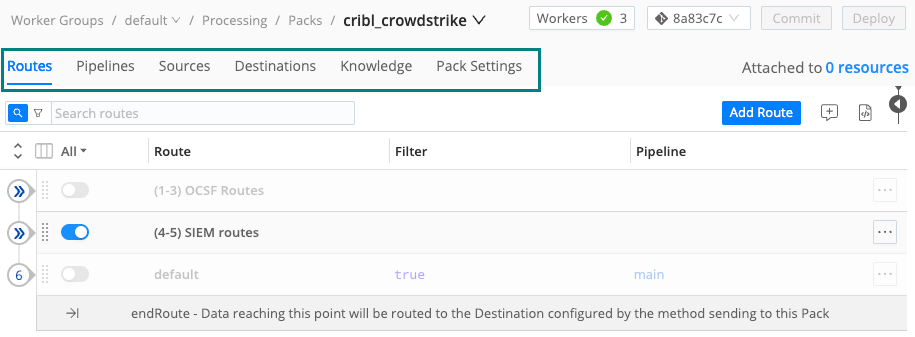
At this point you can edit any elements in the Pack to customize it to your needs. Do it the same way you would when working directly in any Fleet.
Remember that all elements inside the Pack, including Knowledge Objects, are scoped to that Pack. This means you cannot use, for example, a Knowledge Object defined inside a Pack outside it.
Upgrade a Pack from the Dispensary
When a new version of a Pack is published to the Dispensary, you can upgrade your local Pack to get all the latest improvements.
If you didn’t introduce local changes to the Pack, you can upgrade the Pack directly from the UI. On the Packs page, open the Options ••• menu for your Pack, and then select Upgrade.
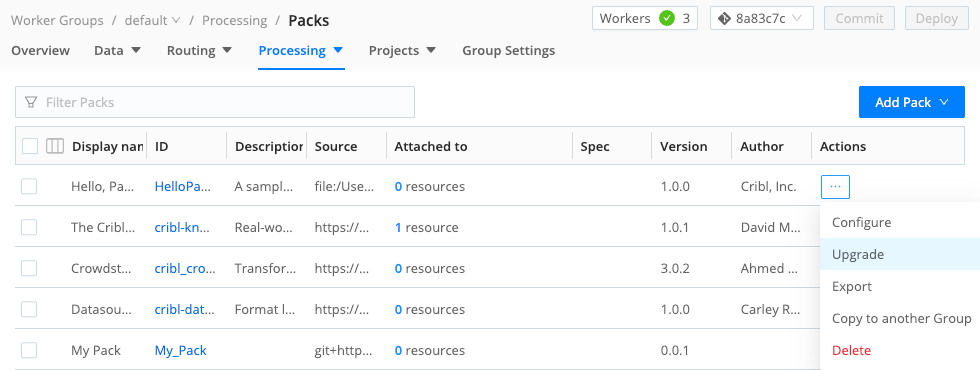
If you’ve modified the Pack, Cribl Edge will not overwrite it during upgrading, to prevent deletion of your locally created resources. To reconcile your own changes with improvements coming in from a new Pack version:
Import the updated Pack as a separate Pack with a new name.
Give it a name that includes the version number (for example,
cribl-syslog-input-120).Do a side-by-side comparison of the previous and new versions of the Pack.
Copy configurations from your modified Pack into the upgraded Pack.
Review all comments in the upgraded Pack to understand changes introduced in the new version.
Enable or disable any Functions in the new Pack as necessary.
Update any Routes, Pipelines, Sources, or Destinations that use the previous Pack version to reference the new Pack.
If you modified default Cribl Edge Knowledge Objects (for example, lookup files), copy the modified files locally for safekeeping, before upgrading the Pack.
After you install the upgrade, copy those files back to the upgraded Pack, overwriting the default versions in the Pack.
Commit and Deploy.