





Regexes
Regexes offer predefined regular expressions that you can use in regex-related Functions.
Cribl ships with a collection of commonly-used regexes and gives you the possibility of adding your own custom ones.
Regexes let you quickly identify and filter data that conforms to specific patterns, including commonly-used patterns like credit card numbers, IP addresses, or personal identification numbers. You can use expressions from the regex collection in several Functions, such as Regex Filter, Regex Extract, or Mask, in configuration for certain Sources and Destinations, as well as in other settings.
Prerequisites
You configure regexes per Fleet, or within a Pack. You can only use the regex within its scope, that is, in the Fleet or Pack you defined it in.
Regexes defined in an Edge Fleet are subject to Fleet inheritance.
Regex Priority
Built-in Regexes are listed with the Cribl tag, while those you add are tagged with Custom. When you edit any built-in regex, it changes to a Custom one as well.
If two regexes with the same ID exist, the custom pattern takes priority in listings and search.
For example, if a Cribl-provided pattern and a Custom one are both named ipv4,
the one from Cribl will not be displayed or delivered as a search result.
Use a Regex
To insert a regex into a field that supports it, for example in a Function, select the
 Advanced mode or
 Edit icon beside that field.
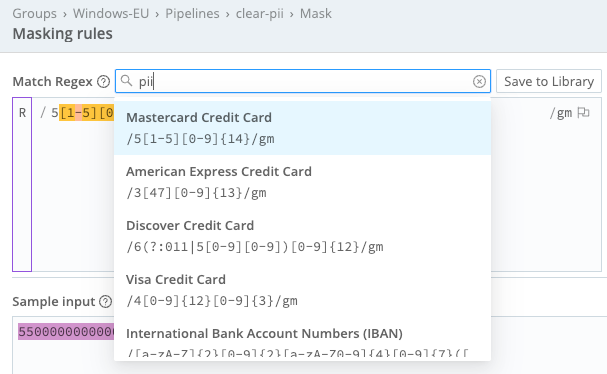
In the resulting modal, regexes will appear as typeahead options. Select a pattern to paste it in. You can then use the pattern as-is, or modify it as necessary.
Create a Regex
To create a new regex:
In the sidebar, select Fleets and choose a Fleet.
In the Fleets submenu, select More.
If you are adding regex to a Pack, select Packs and choose your Pack.
Select Knowledge, then Regexes. You will see a list of prebuilt and custom regexes.
Select Add Regex.
Enter an ID for the regex and an optional Description.
In Regex pattern, enter the pattern, using the JavaScript (ECMAScript) regex flavor. Use the flag icon to select options for regex matching.
In Sample data, you can enter a sample text to check the expression against. Matches will be indicated visually.
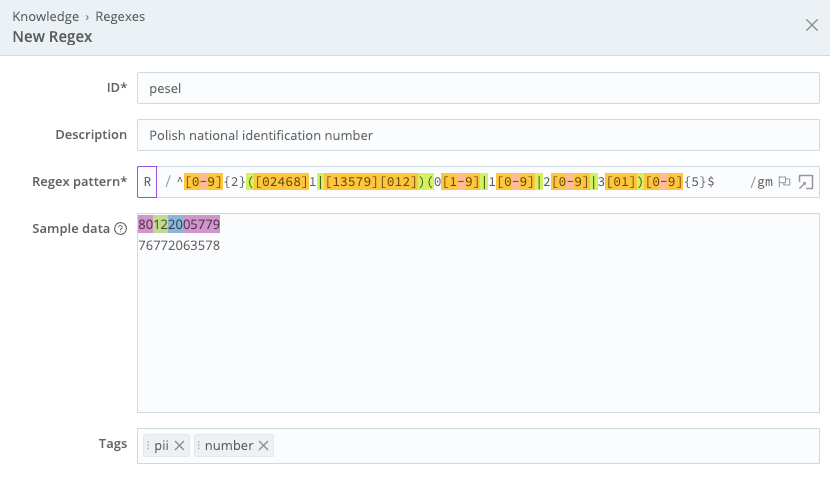
Adding a custom regex Optionally, add one or more Tags that will help you search for this regex.
Select Save.
Examples
Mask SSN Numbers
If you need to mask personal identification numbers, you can use a build-in regex in conjunction with the Mask Function.
Add a Mask Function to your Pipeline. In the Function’s Masking Rules modal, search and select the US Social Security Numbers regex in the Match Regex box. In Replace Expression, select the string or expression you want to mask the number with.
Mask Other Personal Identity Numbers
You can also extend the masking functionality to personal identity numbers used in other countries by creating a regex that matches those patterns.
For example, you can add a regex for the Finnish personal identity code (\d{6}[-+ABCDEFYXWVU]\d{3}[\dA-Z]),
or the Polish PESEL number (^[0-9]{2}([02468]1|[13579][012])(0[1-9]|1[0-9]|2[0-9]|3[01])[0-9]{5}$).
Search for and select this custom regex in a Mask Function to make sure those numbers are masked.