





Monitors
Create and manage Monitors that raise alerts when conditions cross the thresholds you define.
Use Monitors to watch key signals across your environment and raise alerts when conditions cross defined thresholds. The page shows a set of default Monitors for common signals and lets you create custom Monitors when you need metric-based checks the defaults do not cover. You can enable, disable, tune, and mute Monitors, delete custom Monitors, adjust firing conditions and rule thresholds, add metadata, and route notifications to targets such as email or webhooks.
Default Monitors focus on:
- System health: Resource and component health signals such as Worker availability, CPU, memory, and other metrics that indicate whether Cribl products are up, responsive, and within safe operating thresholds.
- Data flow and reliability: Key data-path behaviors such as dropped events, queue buildup, ingestion or delivery gaps, and other symptoms that your Pipelines are backing up, losing data, or behaving unexpectedly.
- Monitoring and alerting behavior: Conditions that validate that Cribl Insights is working as intended, such as failures in Monitor evaluation or Notification delivery, so you can trust that if something is wrong you’ll actually get alerted.
Configure a Monitor
- Go to Insights > Alerts > Monitors.
- Do one of the following:
- Select Add Monitor to create a new custom Monitor.
- Select an existing Monitor (custom or default) to edit it.
On the Monitor modal, you configure:
- General settings - for default Monitors, the name, product, and description are fixed and read-only.
- Query - for default Monitors, all query fields (metric, label filters, operator, group by, evaluation window, and unit) are fixed and read-only.
- Firing Conditions
- Rules
- Metadata
- Notifications
General Settings
For default Monitors, these fields are read-only. For custom Monitors, they are fully editable.
- Name: A unique name for the Monitor. Names can include spaces and other allowed characters.
- Product: The product context, such as Stream, Edge, Search, Lake, Insights, or Outpost.
- Description: (Optional) A short note that explains the purpose of the Monitor.
The Monitor Query
The query defines what data the Monitor evaluates. You configure it with the visual builder. There is no raw code editor.
For default Monitors, the query settings are fixed and read-only. You tune these Monitors using Firing Conditions, Rules, Metadata, and Notifications. Calculation/binary operations are not available.
Custom Monitors:
- Metric: Choose the base metric to evaluate from the options available to your org. For the metric names, types, units, and definitions, see the Metrics Reference.
- Label filters: Limit the data series using key/value matchers. The UI supports
=and!=for each row. Regex match operators (such as=~or!~) are not supported. Label filters are metric-specific, not free-form: the key list only includes labels emitted by the metric you selected, and typing an unsupported key will returnNo Results. You cannot add an arbitrary label through the visual builder; instead, select a metric that emits the desired label. Select each label’s value from a drop-down, or type to anticipate a label value that will appear later. For metrics that Data Insights also reports, add anamespacefilter. See Filter Shared Metric Names. - Operator: Select the aggregation to apply. The list includes
sum,avg,max,min, andcount. These determine how samples are rolled up over the evaluation window. To alert when a series stops reporting data, selectabsent_over_timeinstead; see Detect Silent or Missing Sources. - Group By: Select one or more dimensions from the labels that exist for the Metric you selected. Each group is evaluated independently and can create its own alert entities, so use grouping sparingly if you want a small number of alerts.
- Evaluation window: Set the rolling lookback window, such as
5mor1h. Longer windows smooth out noise, shorter windows react faster to spikes. - Unit: Select the display unit that matches your metric (for example, Percent, Bytes, or Milliseconds) so charts and thresholds are accurate.
Filter Shared Metric Names
Some Data Insights metrics share names with other Insights metrics. Those series are distinguished by the namespace label, which will appear in the Label Filter drop-down when
a metric that emits namespace is selected. Custom Monitors do not set that filter automatically.
If you launch the Monitor builder from a Data Insights node, Insights pre-fills namespace for that node. If you select Add Monitor, add a namespace Label filter and set its value to match the series you want to evaluate:
- Leaving the value drop-down empty selects the default system series.
- Entering
data-insightsas the value selects the Data Insights series.
Without the namespace filter, the query can aggregate more than one matching series. Charts and alerts can then over-count (for example, roughly double the values you expect).
Firing Conditions
Firing Conditions control how long a condition must hold before an alert opens or clears.
- Trigger delay: The amount of time a condition must remain true before an alert opens. Increase this for spiky metrics to discard transient issues.
- Clear delay: The amount of time a condition must remain healthy before the alert resolves. Set Clear delay greater than or equal to Trigger delay so the metric has stabilized before closing the alert.
Rules
Rules map evaluated values to severity levels. You can define a default rule and add overrides for specific scenarios.
Rule Configuration:
- Name: Give the rule a name.
- Show on chart: Toggle this to visualize the threshold line or band on the metric chart.
- Included/Excluded tags: Scope the rule to specific subsets of metric series. For example, include
env=prodor excludewg=dev. For where tag keys and values come from and how the UI populates them, see Included and Excluded Tags.
Severity Table:
For each rule, configure the rows for Critical, Warning, and Info:
- Severity: Check the box to enable the severity level.
- Operator: Select the comparison logic. For example,
greater_thanorless_than. - Threshold: Enter the numeric value to trigger the alert.
- Times Triggered: (Optional) Require the condition to match for a number of consecutive evaluations before triggering. This reduces noise without lengthening the Trigger delay.
Metadata
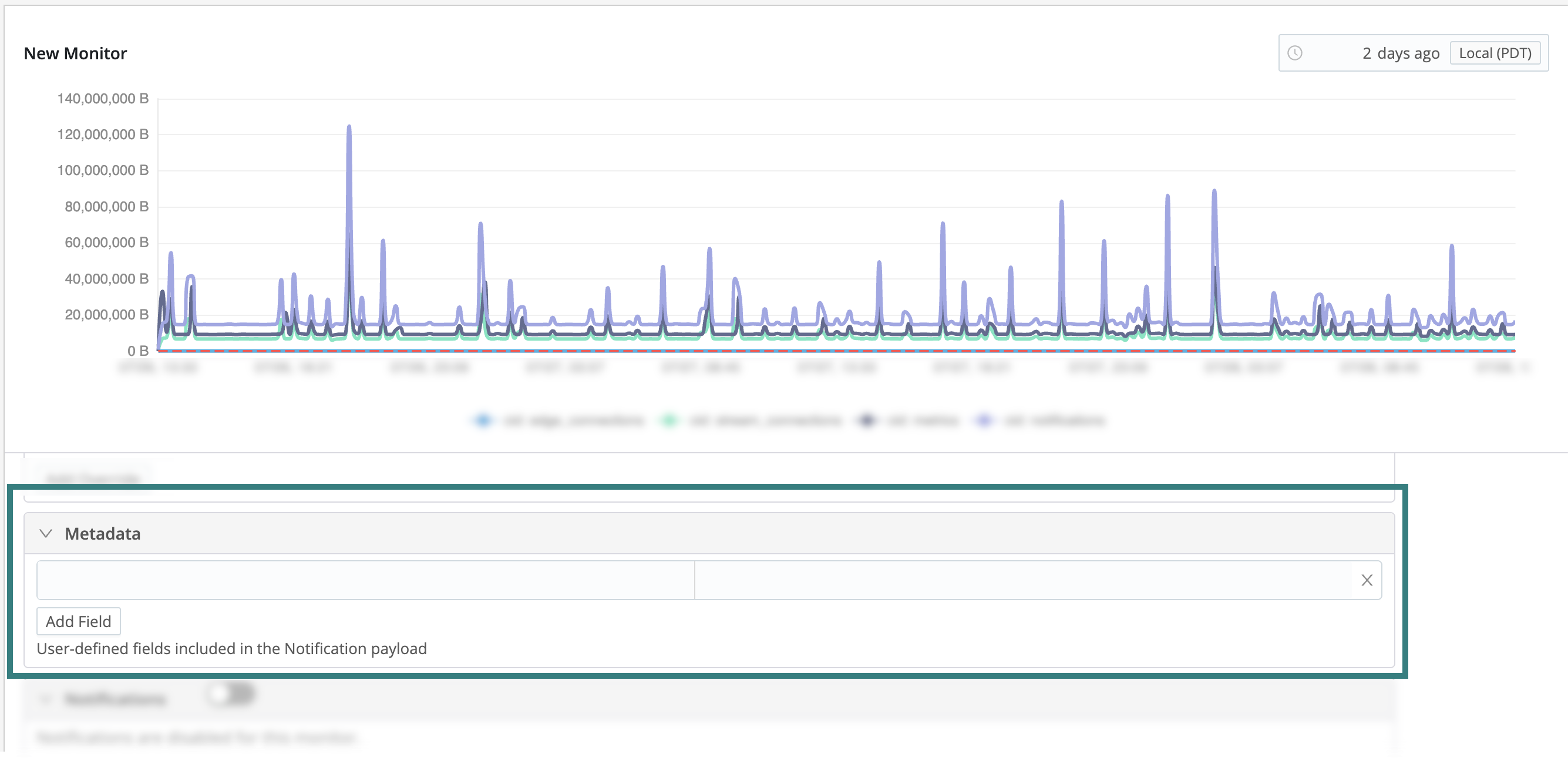
In the Metadata section, use Add Field to attach arbitrary key/value pairs to the Monitor. For example, env=prod, team=platform. These labels are included on every alert that the Monitor generates and become part of the labels map, so they can be used by both Notification policies and templates for emails, routing, filtering, and formatting.
Notifications
Notifications determine how to deliver alerts. Choose a Notification Mode from the following options:
- Route via Notification Policies: (Recommended) Route alerts based on labels. Each policy’s label conditions test labels on the alert, including labels (fields) you added in the Monitor Metadata.
- Select Specific Notification Target: Select specific Destinations like Email, Slack, or Webhook. Use this for ad-hoc or temporary routing.
Validate a Monitor
After you save and enable a Monitor:
- Use the preview chart to confirm the rule lines align with your data. The timepicker on the chart includes Quick Actions for calendar periods such as Today and Previous week. If the chart is slow or shows a timeout, choose a shorter time range and try again.
- To test safely, temporarily lower a threshold (or target a non-production tag) to force an alert, then revert the change.
- If the Monitor is too noisy, consider increasing the Trigger delay, increasing Times Triggered, or (for custom Monitors) widening the Evaluation window.
Included and Excluded Tags
Included/Excluded tags scope a rule to specific subsets of metric series.
In Cribl Insights, tags for this control come from the label keys and values in the Monitor query, not from arbitrary tags on Cribl Stream or Cribl Edge configuration. For example, if your query groups by output, output_type, and __worker_group, those become the available tag keys, and their values populate from metrics that have actually been ingested with those labels.
- Drop-down values only appear after metrics with those label values have been observed in the selected time range.
- You can manually type a value to anticipate a label that will appear later.
- Tags that you add on Sources and Destinations in Cribl Stream or Cribl Edge do not automatically become alert tags unless they are also emitted as metric labels and referenced in the Monitor query.
How Tag Matching Works
When a rule specifies more than one tag, the Monitor combines them as follows:
Different label keys use
AND. The series must match every key you specify. For example, includeenv=prodandteam=sreto scope the rule to series that are bothenv=prodandteam=sre.Multiple values for the same label key use
OR. The series matches when its value for that key equals any value you selected. For example,team=sreandteam=devopsmatches series whereteamis either value.
A rule applies to a series only when the series matches all Included tags (when any are set) and is not blocked by the Excluded tags. Excluded tags block a series only when it matches all of them, using the same AND/OR logic. When the tag filters put a series out of scope, that rule does not apply to it, but other rules on the same Monitor are still evaluated independently.
To alert only on a single Destination, add an Included tag with output=<destination_name>, preferably selected from the drop-down after that Destination has generated total_dropped_events metrics.
Email Metadata
For SMTP (email) notifications, use metadata to drive recipients without cloning the default template. For example:
- Add
to:alerts-oncall@example.com - Add
cc:sre@example.com(optional)
These are read from the email template fields {{metadata.to}} and {{metadata.cc}} to populate the email’s headers.
Detect Silent or Missing Sources
Aggregation operators such as sum, avg, and count only return results for series that have data. When a source stops reporting entirely, the query returns nothing, and a Monitor that relies on those operators can stay healthy even though a source has gone silent.
The absent_over_time operator solves this. It returns a result for every matching series, so you can alert when a source stops sending data and identify exactly which one went silent:
- A series returns
1when it has no samples in the evaluation window (absent). - A series returns
0when it has samples in the evaluation window (present or recovered).
Because the operator returns 0 for recovered series, alerts clear automatically when a source resumes sending data, after the Clear delay elapses.
Requirements
- Monitor type: Available for custom Monitors only.
- Metric: Use a heartbeat-style metric that reports regularly when the source is healthy, such as
total_in_events. Avoid sparse or event-driven metrics, such as an error count, which report only when something happens. - Threshold: Set the rule condition: operator
greater thanand threshold0. A value of1means the series is absent. - Evaluation window: Required. It defines how long a series can go without data before it counts as absent.
- Group By: Not supported. Detection is always per series.
Configure a Monitor with absent_over_time
- Go to Insights > Alerts > Monitors, then select Add Monitor.
- Enter a name for this Monitor and an optional description.
- Select the product to monitor.
- For Metric, select a heartbeat-style metric, such as
total_in_events. - (Optional) Add Label filters to narrow which series to watch, such as
input=syslog:my-sourceor__worker_node_hostname=worker-1. Scoping to the sources you expect to be reporting avoids alerting on your entire environment. - For Operator, select
absent_over_time. - Set the Evaluation window to define how long without data counts as absent, such as
5m. A window of 5-15 minutes suits most sources: shorter windows fire more aggressively, and longer windows tolerate longer gaps. - Set Trigger delay and Clear delay to control how long a condition holds before the alert opens or clears.
- Under Rules, add at least one condition:
- Operator:
greater than - Threshold:
0 - Severity: for example, Critical
- Operator:
- Save and enable the Monitor.
Each series gets its own alert, so one silent source does not mask others. When a source stops reporting for longer than the evaluation window, the alert opens after the Trigger delay. When the source resumes, the alert clears after the Clear delay.
Limitations
- First-evaluation burst: When you first enable the Monitor, every matching series that is not currently reporting can alert at once, including decommissioned nodes and old test sources that still appear in recent data. To reduce noise, use tight label filters, enable the Monitor during a known-good baseline, and set a trigger delay.
- Permanently removed sources: A source that is gone for good keeps returning
1until its series ages out of retention, then stops appearing in results. Its alert can stay open with no automatic resolution. Manually resolve or mute these alerts. - Retention: Series that have not reported within the Insights data retention period stop appearing in results, and any related alert stops updating.
- Instant results only:
absent_over_timeevaluates the current state at each evaluation. It does not support historical range queries in the preview chart.
Clone a Monitor
You can clone a default or custom Monitor to use its configuration as the starting point for a new Monitor:
- Go to Insights > Alerts > Monitors.
- Do one of the following:
- To clone one Monitor, open its actions menu, then select Clone.
- To clone multiple Monitors, select their checkboxes, then select Clone at the bottom of the page.
Each resulting cloned Monitor is a custom Monitor, even when you clone a default Monitor. Its name contains the original name followed by -clone. If that name already exists, Insights appends -clone-<next available number> instead.
Disable a Monitor
You can disable a Monitor by toggling Enabled off, or by selecting the check box of one or more Monitors on the Monitors page and choosing Disable.
Disabling a Monitor stops new evaluations and clears any active alert instances for that Monitor. The Monitor configuration remains in place so you keep history, auditability, and references from other settings, such as Notification policies or muting rules.
Delete a Custom Monitor
You can delete custom Monitors that you no longer need, but you can’t delete Default Monitors.
- Go to Insights > Alerts > Monitors.
- Select the check box to the left of one or more custom Monitors.
- Scroll to the bottom of the page and select Delete.
If your selection includes a default Monitor, Delete is disabled and shows the tooltip Default Monitors cannot be deleted. Deselect any default Monitors to delete the custom ones in your selection.
Deleting a custom Monitor removes its configuration. Use disable when you want to keep the Monitor for history, auditability, or references from Notification policies or muting rules.