


Integrated AI Experience (Preview) in Cribl Search
Preview Feature
Cribl is still developing this Preview feature. We don’t recommend using it in a production environment, because the feature might not be fully tested or optimized for performance, and related documentation could be incomplete.
Please continue to submit feedback through normal Cribl support channels, but assistance might be limited while the feature remains in Preview.
Ask Cribl AI to explain your data, run searches, and build content, without leaving the page you’re on.
About the Integrated AI Experience in Cribl Search
Cribl AI is integrated across Cribl Search as a sidebar that stays with you as you move between the Logs page, Dashboards, Notebooks, and saved searches.
The assistant keeps your conversation and knows which page you’re viewing. This means you can ask follow-up questions about what’s in front of you, instead of restating context each time.
What Cribl AI Can Do
Explain and analyze. Ask what a set of results, a Dashboard panel, or a Notebook contains. Cribl AI reads the page you’re on, including the current Dashboard definition and its panels, and answers in plain language. It reads a live snapshot each time, so it reflects edits you just made.
Run searches. Describe what you want to find and Cribl AI writes and runs the KQL for you. It can run a query in the live Search view from anywhere in the product, so you don’t have to navigate to the Logs page first.
Create and update content. Use Cribl AI to create, update, and delete Dashboards, Dashboard Collections, Notebooks, and saved searches. You can also build Dashboard chart panels, set up Notifications on saved searches, manage search jobs, and create and update Macros and Notebook Templates.
Adjust what you’re viewing. While you’re on a Dashboard, ask Cribl AI to change an input to filter or re-scope the Dashboard without leaving the page. The change applies only to your current view and resets when you reload the page.
Share resources. Cribl AI can grant or revoke user and team access to Dashboards, Datasets, Dataset Providers, Macros, Notebooks, and Notebook Templates.
When Cribl AI creates or updates something that has its own page, it offers a View it here link. Selecting the link opens the resource and leaves the sidebar open, so your session continues.
Cribl AI works only with Cribl Search objects. It can’t change Cribl Stream or Cribl Edge configuration, and it can’t create or edit Packs.
Before You Start
- Use Cribl.Cloud. This Preview isn’t available in on-prem deployments or in Cribl.Cloud Government.
- Confirm that an AI provider is configured for your Organization. See Cribl AI Availability.
- (Optional) Enable Dataset Intelligence on the Datasets you search most often. Cribl AI reads this analysis to write more accurate queries.
Cribl AI doesn’t appear on the Metrics and Monitors pages, which are out of scope for this Preview. If you open the sidebar and then navigate to either page, the sidebar closes.
Run a Cribl AI Session
On the top bar, select the Cribl AI icon at the upper right. The sidebar opens on the right side of the page, alongside your content rather than on top of it.
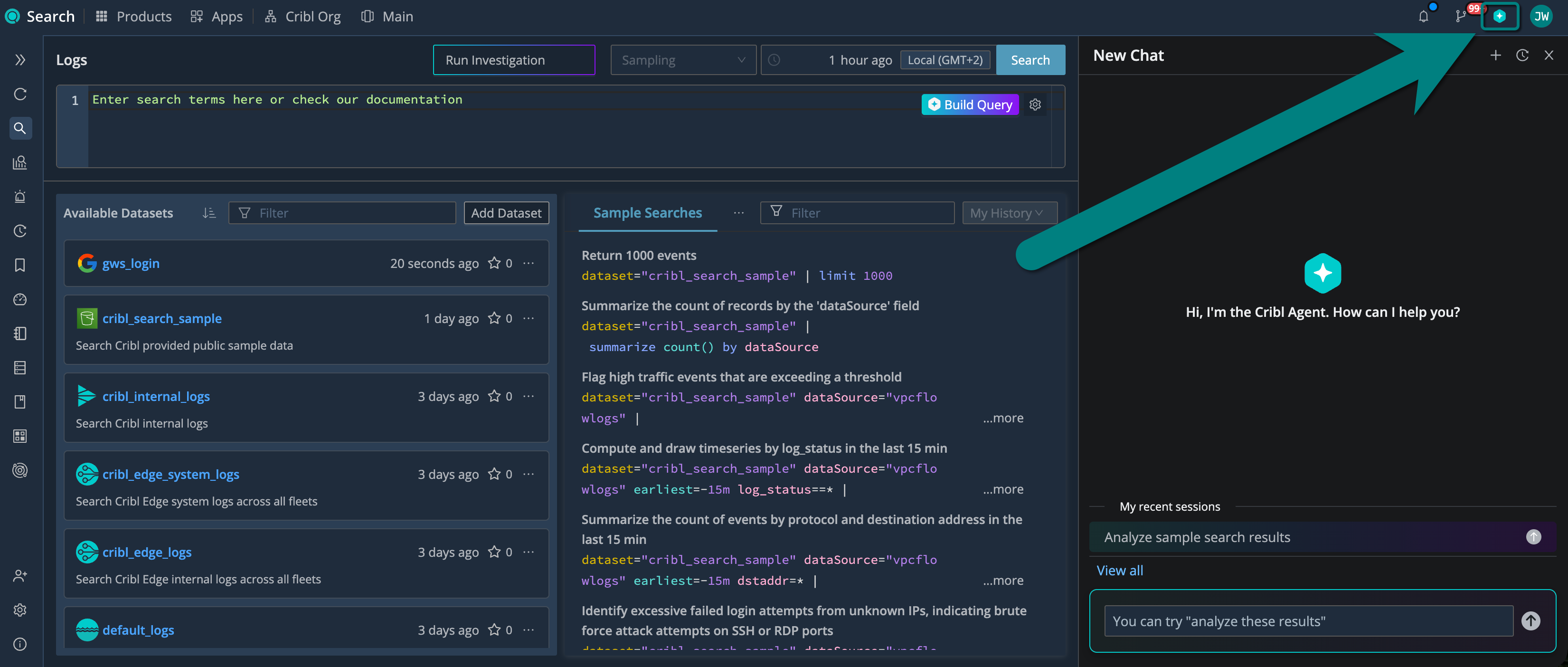
Select the icon again, or select Close AI sidebar, to close it. Closing the sidebar doesn’t end your session.
A session is one continuous conversation. Cribl AI keeps your session as you move between Search pages, so you can build a Dashboard on one page and keep asking about it on another.
A new session is titled New Chat. After your first prompt, Cribl AI replaces the title with a topic it derives from what you asked, which makes sessions easier to recognize later.
The sidebar header offers these actions:
- Expand to full width: Make the sidebar fill the page. The button then changes to Restore width.
- New chat: Start a fresh session. Your previous session remains available in your history.
- View session history: Open the sessions drawer, which lists every session you have access to.
- Close AI sidebar: Hide the sidebar without ending the session.
In the sessions drawer, Cribl AI sessions appear with a Context of Cribl AI, and the sidebar lists your latest ones under My recent sessions. Sessions from Cribl Search investigations appear separately with a Context of Investigations. The two surfaces are distinct, so starting a Cribl AI session doesn’t affect your investigations or vice versa.
Point Cribl AI at a Panel or Cell
To ask about part of a page, select the AI icon on a Dashboard panel (Ask AI about this panel) or Notebook cell (Ask AI about this cell).
To have Cribl AI add content to a Notebook, select Use Cribl AI on the Add menu between cells or in the bar at the bottom of the Notebook.
Cribl AI then uses that panel, cell, or position as context in every message you send. This continues until you select Clear selected panel, Clear selected cell, or Clear insert position above the message box, or start a New chat.
How Permissions Apply
Cribl AI acts as you, so it can only do what your Search Permission already allows.
Before it offers a change, Cribl AI checks your permissions and shows Checking permissions… briefly. If you don’t have permission, the card tells you so and offers only Dismiss. Cribl AI never sends the request, and no Run request button appears.
Confirm Changes Before They Happen
Cribl AI asks before it changes saved content. When it proposes a change, the sidebar shows a confirmation card describing the action in plain language.
To review the exact change first, expand View request. This shows the HTTP method and URL that Cribl AI will call, along with the request body when there is one.
Then choose one of the following:
- Run request: Apply the change.
- Cancel: Reject the change. Cribl AI continues the conversation without applying it.
Reading data, running a query in the live Search view, and changing a Dashboard input don’t need confirmation, because they don’t change saved content.
Undo a Change
After a completed update, select Revert to reapply the previous definition. After a completed delete, select Recreate to create a new copy. The copy doesn’t have the permissions, sharing, or Notifications of the original.
Undo is available only immediately after the change, and only in the same browser tab. Reloading the page removes it. Undo also fails if someone changed the item after your edit, so Cribl AI doesn’t overwrite the newer change.
Report a Problem
To report a problem with Cribl AI, type /report and describe what went wrong. Cribl AI submits the report to the
Cribl Search team and shows a confirmation message.
Find Searches That Cribl AI Ran
Searches that Cribl AI runs on your behalf have a job type of agentic. Search History excludes them by
default, because a single conversation can generate many searches and they would otherwise crowd out the searches you
ran yourself.
To see them, select agentic in the Type column filter. Search History then refetches and includes them.
Other Cribl AI Features in Cribl Search
Cribl Search offers several AI features. Use this page for the integrated sidebar, and see the following for the others:
- Run Investigations: A guided experience for incident investigation, with investigation plans, hypotheses, and Notebook output.
- Write Queries Using Billy: Natural-language to KQL translation in the query box, plus suggested follow-up queries.
- Add Visualizations Using Billy: Dataset analysis that suggests Dashboard visualizations.
For what each feature sends to an AI provider, see Cribl AI and Your Data.