


Add Interactions to Your Cribl Search Dashboard
Enable Dashboard viewers to drill down into specific values in a visualization panel.
Why Use Dashboard Interactions
Interactions enable Dashboard viewers to take action directly from visualizations. By clicking on data points, users can trigger context-driven searches, follow external URLs, or open other Dashboards filtered by the value clicked.
This helps you design a workflow that connects your Dashboard to other Cribl or third-party tools and resources. The result is a better experience for the people consuming your Dashboards.
Dashboard Interaction Types
An Interaction controls what happens when you select a specific data point on your Dashboard. Each Interaction can trigger one of the following actions:
- Run a new search, filling the query with the value clicked and other contextual information.
- Open an external link, enriching the URL with the value clicked or with metadata about the user’s Cribl.Cloud Workspace.
- Open another Dashboard, populating one of its Inputs with the value clicked or other context.
Add a Dashboard Interaction
Map and Gauge visualizations do not support Interactions. The Interactions tab does not appear in the Edit Visualization drawer for these visualization types.
- Go to the Dashboards page in Cribl Search: On the top bar, select Products > Search > Dashboards.
- Open a Dashboard.
- Select Edit
 at the top right, or press E on your keyboard.
 - At the top right of the visualization panel you want to modify, select the Edit button. The Edit Visualization drawer opens.
- At the bottom of the drawer, select Interactions.
- Configure the Interaction you want. For more information, see Interaction Types.
- At the top of the Dashboard, select Save.
- Go to the Dashboards page in Cribl Search: On the top bar, select Products > Search > Dashboards.
- Open a Dashboard.
- Select Edit
at the top right, or press E on your keyboard.
- At the top, select Add > Visualization. The Edit Visualization drawer opens.
- Run the visualization query and configure the visualization as needed.
- At the bottom of the drawer, select Interactions.
- Configure the Interaction you want. For more information, see Interaction Types.
- At the top of the Dashboard, select Save.
- Start creating a new Dashboard.
- Configure the Dashboard, and select Save.
- Select Add Visualization. The Edit Visualization drawer opens.
- Run the visualization query and configure the visualization as needed.
- At the bottom of the drawer, select Interactions.
- Configure the Interaction you want. For more information, see Dashboard Interaction Types.
- At the top of the Dashboard, select Save.
Run a New Search From a Visualization
You can set up a visualization so that clicking on it runs a new search.
For this, add a Run a New Search Interaction:
- Start adding or editing a Dashboard visualization panel.
- At the bottom of the Edit Visualization drawer, select Interactions.
- From the Action drop-down, select Run a new search.
- Enter your search query. (See the following examples.)
- At the top of the Dashboard, select Save.
Your search query can reference the following tokens:
$earliest$$environment.baseUrl$$environment.type$$environment.workspace$$field.name$$field.value$$latest$$rowData.<fieldname>$$value$
If you configure a Run a new search Interaction with this query using the $value$ token…
dataset="users" email=$value$ | project id, email, last_login…then clicking on sam@example.com triggers this query…
dataset="users" email="sam@example.com" | project id, email, last_login…encoded in this URL:
https://<yourWorkspace>-<yourCloudInstance>.cribl.cloud/search/new?q=dataset%3D%22users%22%20email%3D%22sam%40example.com%22%20%7C%20project%20id%2C%20email%2C%20last_login&et=-1h<=now&run=trueIf you configure a Run a new search Interaction with this query…
dataset="cribl_search_sample"
| where host==$value$ and $field.name$=="$field.value$" and status==$rowData.status$…then clicking on a data point where $value$ is server1, $field.name$ is email, $field.value$ is sam@example.com,
and $rowData.status$ is 200 triggers this query…
dataset="cribl_search_sample"
| where host==server1 and email=="sam@example.com" and status==200…encoded in this URL:
https://<yourWorkspace>-<yourCloudInstance>.cribl.cloud/search/new?q=dataset%3D%22cribl_search_sample%22%20%7C%20where%20host%3D%22server1%22%20and%20email%3D%22sam%40example.com%22%20and%20status%3D200&et=-1h<=now&run=trueFor an Interaction to pass time parameters, it must either link to a Time Range Input directly, or have no timepicker at all. If an Interaction links to a parent search that has a timepicker, it will fail.
Open a URL From a Visualization
You can set up a visualization so that clicking on it opens an external URL.
For this, add an Open External Link Interaction:
- Start adding or editing a visualization on your Dashboard.
- At the bottom of the Edit Visualization drawer, select Interactions.
- From the Action drop-down, select Open external link.
- Enter a URL. (See the following example.)
- At the top of the Dashboard, select Save.
The URL can reference the following tokens:
$earliest$$environment.baseUrl$$environment.type$$environment.workspace$$field.name$$field.value$$latest$$rowData.<fieldname>$$value$
Example
If you configure an Open external link Interaction with this URL…
https://www.virustotal.com/gui/domain/$value$…then clicking on a data point with the value of server1 opens this URL:
https://www.virustotal.com/gui/domain/server1Include Your Organization and Workspace in a URL
To construct a URL that includes your Cribl.Cloud Organization and Workspace, use the
$environment.baseUrl$ token.
For example, if you configure an Open external link Interaction with this URL…
$environment.baseUrl$…then clicking on the visualization in a Workspace named main, in an Organization called amazing-heady-brcc3nr, opens
this URL:
https://main-amazing-heady-brcc3nr.cribl.cloudOpen Another Dashboard From a Visualization
You can set up a visualization so that clicking on it opens another Dashboard.
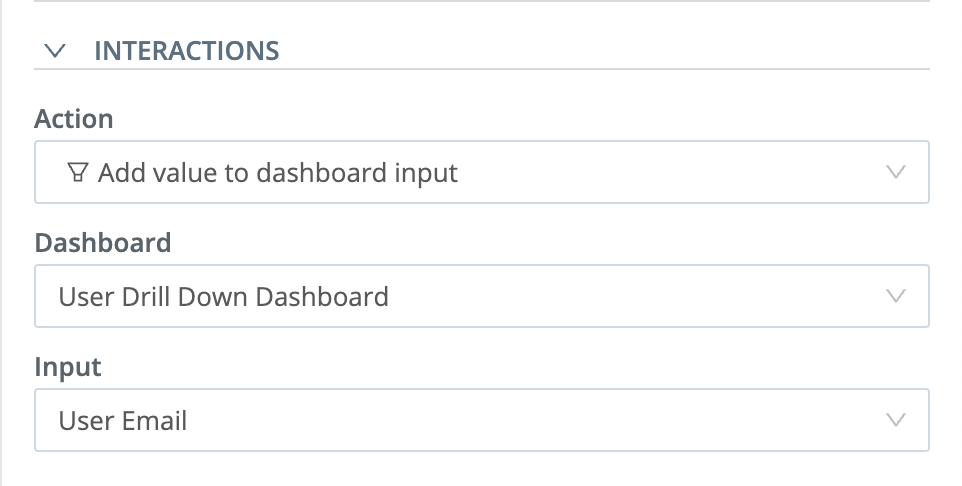
You can also pass the value clicked to one of the Inputs on the target Dashboard, effectively filtering the new Dashboard by that value.
- Start adding or editing a visualization on your Dashboard.
- At the bottom of the Edit Visualization drawer, select Interactions.
- From the Action drop-down, select Add value to dashboard input.
- From the Target Dashboard drop-down, select the target Dashboard.
- From the Target Dashboard Input drop-down, select one of the Inputs on the target Dashboard.
- Optionally, from the Time range value drop-down, select one of the Time Range Inputs on the target Dashboard. Selecting one passes a time range along with the value clicked. Leave it blank to pass only the value clicked, and let the target Dashboard keep its own time range.
- At the top of the Dashboard, select Save.
Cribl Search passes the time range only when the current Dashboard has a Time Range Input whose Input ID matches the one you select in Time range value. If both Dashboards keep the default Time Range Input, they share the Input ID
time, and the time range carries over.
Dashboard Interaction Tokens Reference
Tokens are placeholders that get replaced with actual values when an Interaction is triggered.
A token can be a static value, such as a specific string, or dynamic, such as the value of a field that was clicked.
You can use the following tokens in your Interactions:
| Token | Type | Description |
|---|---|---|
$earliest$ | Static | The start timestamp of a time range to use. |
$environment.baseUrl$ | Static | The base URL of the user’s Cribl.Cloud Organization. |
$environment.type$ | Static | The type of the user’s Cribl.Cloud Workspace (development, staging, or production). |
$environment.workspace$ | Static | The name of the user’s Cribl.Cloud Workspace. |
$field.name$ | Dynamic | The name of the field clicked. |
$field.value$ | Dynamic | The value of the field clicked. |
$latest$ | Static | The end timestamp of a time range to use. |
$rowData.<fieldname>$ | Dynamic | The value of the specified field in the clicked row. |
$value$ | Dynamic | The value of the data point clicked. |
$earliest$
The start timestamp of a time range to use with the timestats operator.
| Token Type | Interaction Types Supported |
|---|---|
| Static | Open an external link Run a new search |
For example, if you configure a Run a new search Interaction with this query…
dataset="cribl_search_sample" | timestats count by host | where _time >= $earliest$…and the current time range is earliest=1729290112 latest=1729376512, clicking the visualization triggers this
query…
dataset="cribl_search_sample" | timestats count by host | where _time >= 1729290112…encoded in this URL:
https://<yourWorkspace>-<yourCloudInstance>.cribl.cloud/search/new?q=dataset%3D%22cribl_search_sample%22%20%7C%20timestats%20count%20by%20host%20%7C%20where%20_time%20%3E%3D%201729290112&et=-1h<=now&run=true$environment.baseUrl$
The fully qualified base URL of the Cribl.Cloud Organization in which the user triggered the Interaction.
| Token Type | Interaction Types Supported |
|---|---|
| Static | Open an external link Run a new search |
The base URL includes:
https://prefix- Workspace name (
$environment.workspace$) - Organization ID (for example,
amazing-heady-brcc3nr) - Environment type (
$environment.type$) cribl.cloudsuffix
For example, if you configure an Open external link Interaction with this URL…
$environment.baseUrl$/status…for an Organization with the base URL https://main-amazing-heady-brcc3nr.cribl.cloud, the Interaction opens this
URL:
https://main-amazing-heady-brcc3nr.cribl.cloud/status$environment.type$
The type of the Cribl.Cloud Workspace in which the user triggered the Interaction. Possible values are: development,
staging, or production.
| Token Type | Interaction Types Supported |
|---|---|
| Static | Open an external link Run a new search |
For example, if you configure an Open external link Interaction with this URL…
status.$environment.type$.example.com…for a Workspace of type production, the Interaction opens this URL:
status.production.example.com$environment.workspace$
The name of the Cribl.Cloud Workspace in which the user triggered the Interaction.
| Token Type | Interaction Types Supported |
|---|---|
| Static | Open an external link Run a new search |
For example, if you configure an Open external link Interaction with this URL…
dashboards.example.com/$environment.workspace$…for a Workspace named marketing, the Interaction opens this URL:
dashboards.example.com/marketing$field.name$
The name of the field clicked.
| Token Type | Interaction Types Supported |
|---|---|
| Dynamic | Open an external link Run a new search |
For example, if you configure a Run a new search Interaction with this query…
dataset="cribl_search_sample" | where $field.name$="foo"…then clicking on a field named host triggers this query…
dataset="cribl_search_sample" | where host="foo"…encoded in this URL:
https://<yourWorkspace>-<yourCloudInstance>.cribl.cloud/search/new?q=dataset%3D%22cribl_search_sample%22%20%7C%20where%20host%3D%22foo%22&et=-1h<=now&run=true$field.value$
The value of the field clicked.
| Token Type | Interaction Types Supported |
|---|---|
| Dynamic | Open an external link Run a new search |
For example, if you configure a Run a new search Interaction with this query…
dataset="cribl_search_sample" | where status=$field.value$…then clicking on a field with the value 200 triggers this query…
dataset="cribl_search_sample" | where status="200"…encoded in this URL:
https://<yourWorkspace>-<yourCloudInstance>.cribl.cloud/search/new?q=dataset%3D%22cribl_search_sample%22%20%7C%20where%20status%3D%22200%22&et=-1h<=now&run=true$latest$
The end timestamp of a time range to use with the timestats operator.
| Token Type | Interaction Types Supported |
|---|---|
| Static | Open an external link Run a new search |
For example, if you configure a Run a new search Interaction with this query…
dataset="cribl_search_sample" | timestats count by host | where _time <= $latest$…and the current time range is earliest=1729290112 latest=1729376512, clicking the visualization triggers this
query…
dataset="cribl_search_sample" | timestats count by host | where _time <= 1729376512…encoded in this URL:
https://<yourWorkspace>-<yourCloudInstance>.cribl.cloud/search/new?q=dataset%3D%22cribl_search_sample%22%20%7C%20timestats%20count%20by%20host%20%7C%20where%20_time%20%3C%3D%201729376512&et=-1h<=now&run=true$rowData.<fieldname>$
The value of a specific field in the clicked row (regardless of which row was actually clicked). Replace <fieldname>
with a real field name.
| Token Type | Interaction Types Supported |
|---|---|
| Dynamic | Open an external link Run a new search |
Example
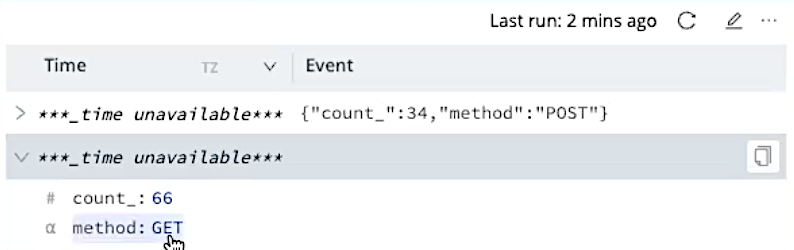
If you configure the visualization in the preceding image with a Run a new search Interaction like this…
dataset="cribl_search_sample" | where method=$rowData.method$ & count=$rowData.count_$…then no matter whether the user selects count_: 66 or method: GET, the Interaction runs a query with both…
dataset="cribl_search_sample" | where method=GET & count=66…encoded in this URL:
https://<yourWorkspace>-<yourCloudInstance>.cribl.cloud/search/new?q=dataset%3D%22cribl_search_sample%22%20%7C%20where%20method%3DGET%20%26%20count%3D66&et=-1h<=now&run=true$value$
The value of the data point clicked.
| Token Type | Interaction Types Supported |
|---|---|
| Dynamic | Open an external link Run a new search |
For example, if you configure a Run a new search Interaction with this query…
dataset="cribl_search_sample" | where host=$value$…then clicking on a data point with the value of server1 triggers this query…
dataset="cribl_search_sample" | where host="server1"…encoded in this URL:
https://<yourWorkspace>-<yourCloudInstance>.cribl.cloud/search/new?q=dataset%3D%22cribl_search_sample%22%20%7C%20where%20host%3D%22server1%22&et=-1h<=now&run=true