



View Live Data in Cribl Search
Get a real-time sample of the data flowing into your lakehouse engine to verify that it parses and routes as expected.
Highlights
- Capture a live sample of logs or metrics at the Source, after Datatyping, or after Dataset routing.
- Filter by Source, Datatype, Dataset, event type, or KQL expression to focus on specific data.
- Identify uncategorized events missing a Datatype, and orphaned events with no valid Dataset.
Verify Data Flowing Into Your Lakehouse Engine
When data flows from a Source into a lakehouse engine, Live Data shows you a real-time sample of what’s actually arriving.
You can inspect events at different stages of ingestion and filter them by specific objects, event types, or a KQL expression. This way, you can quickly spot ingest and parsing issues before they reach your Datasets.
Live Data samples both logs and metrics. It captures data at the Source, before Cribl Search separates log events from metric events, so metrics appear in the sample alongside logs, with their metric name, type, and dimensions.
Keep in mind that Live Data is a preview for troubleshooting and debugging, and may not show every event in the monitored period. For the ultimate source of truth, query the Dataset directly, or explore your metrics (Preview).
To quickly test ingest before you set up Sources, send sample data.
See Live Data
On the Cribl.Cloud top bar, select Products > Search > Data > Live Data. Cribl Search captures a sample of events and displays them in the event viewer on the right.
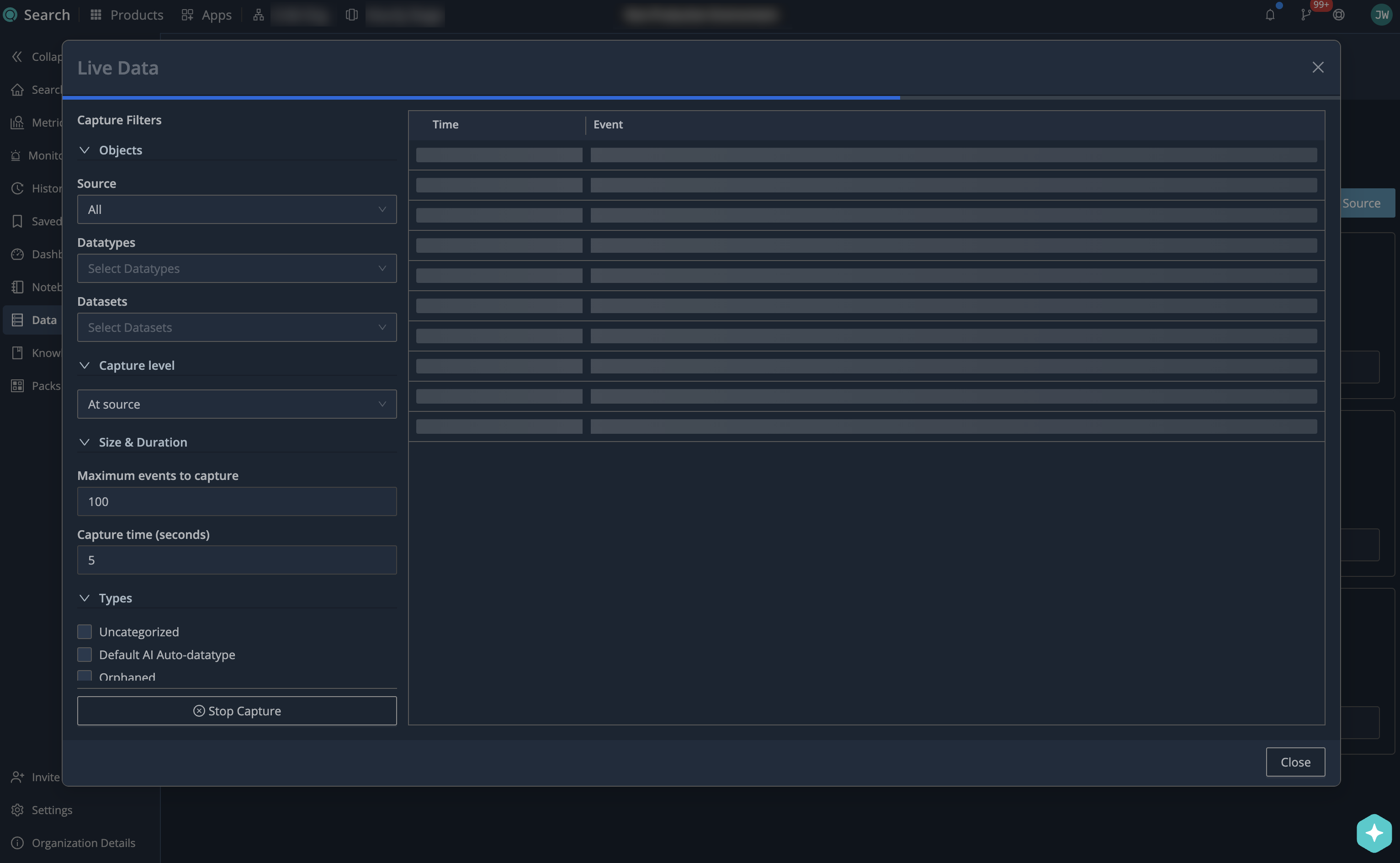
To narrow down the sample to the events you care about:
- In Live Data, set the Capture Filters.
- Select Capture to start sampling incoming events.
Cribl Search stops capturing automatically when it reaches the Maximum events to capture limit or the Capture time expires. Select Stop Capture to end the capture early.
- Review the captured events in the event viewer on the right.
Select Capture again to refresh the results with the latest events.
Live Data Capture Filters
The following Capture Filters let you narrow down the sample to a specific set of events:
Enter a KQL expression in the field at the top of Capture Filters to capture only the events that match it. Leave the field empty to capture all events.
You can enter a predicate, such as status >= 400, or start with the where operator for a match
that a predicate can’t express, such as | where name startswith "Sec".
The expression works together with the other Capture Filters. An event must match all of them to appear in the sample. Maximum events to capture counts only matching events.
Select a Capture Level to choose the processing stage at which the expression runs:
| Capture Level | What the expression evaluates |
|---|---|
| At Source | Original events as they arrive from the Source, before Datatyping. |
| After Datatyping or After Dataset detection | Events after your Datatype and Dataset rules run, including fields that those rules add or parse. |
If the expression contains a syntax error, Cribl Search outlines the field in red, shows Invalid filter expression, and disables Capture until you fix it.
Filter events by Source, Datatypes, or Datasets.
| Filter | Description |
|---|---|
| Source | Show only events from a specific Cribl Search Source. |
| Datatypes | Show only events of specific Datatypes. |
| Datasets | Show only events routed to specific Datasets. |
Select at which stage in the data flow you want to capture events.
| Level | Description |
|---|---|
| At Source | Capture original events as they arrive from the Source. |
| After Datatyping | Capture events after Datatyping to see how they got parsed. |
| After Dataset detection | Capture events after Datatyping and Dataset routing, reflecting what gets stored where. |
Datatyping and Log Dataset rules apply to logs, not metrics. Capture At Source to inspect arriving metrics. To preview draft Metric Dataset rules, select Live Data on the Metric Rules tab.
Set the scope of the capture.
| Setting | Description |
|---|---|
| Maximum events to capture | Set the sample size limit, up to 10,000 events. |
| Capture time (seconds) | How long to capture events, up to 3600 seconds. |
Filter for specific types of events, to catch ingest and parsing issues. These types reflect Datatyping and Dataset rule outcomes, so they apply to logs.
| Type | Description |
|---|---|
| Uncategorized | Events not matching any Datatype. |
| Default AI Auto-Datatype | Events categorized by the default Auto-Datatyping process. |
| Orphaned | Events with no valid Search Dataset. This happens when a Dataset rule routes an event to a deleted or invalid Dataset. |
| Dropped | Events configured to be discarded by a Dataset rule. |
Find Events with No Datatype (Uncategorized)
Events that don’t match any Datatype rule and aren’t recognized by Auto-Datatyping appear as Uncategorized. Filter for them in the Live Data sample to find gaps in your Datatyping configuration.
- On the Cribl.Cloud top bar, select Products > Search > Data > Live Data.
- In Capture Filters, expand Types and select Uncategorized.
- Set other filters to focus on the events you want to see.
- Select Capture.
- Review the captured events. Examine the raw event structure to determine which Datatype rules to add or adjust.
Find Events with No Dataset (Orphaned)
Events that match a Dataset rule pointing to a deleted or invalid Dataset appear as Orphaned. Filter for them in the Live Data sample to identify which Dataset rules need fixing.
- On the Cribl.Cloud top bar, select Products > Search > Data > Live Data.
- In Capture Filters, expand Types and select Orphaned.
- Set other filters to focus on the events you want to see.
- Select Capture.
- Review the captured events. Check which Source or Datatype they come from, then update your Dataset rules to route those events to a valid Dataset.
Filter Live Data with a KQL Expression
Use a KQL expression to capture only the events that matter to your investigation, such as failed requests.
- On the Cribl.Cloud top bar, select Products > Search > Data > Live Data.
- In Capture Filters, enter a KQL expression in the field at the top, such as
status >= 400. - In Capture Level, select At Source to filter original events. To match fields that your Datatype or Dataset rules add, select After Datatyping or After Dataset detection.
- Set other filters to focus on the events you want to see.
- Select Capture.
- Review the captured events. If the sample is empty, check that the fields in your expression exist at the selected Capture Level.
Next Steps
Now that you’re sure your data is arriving and parsing as expected, you can start putting it to work. For example: