


Explore the Metrics Catalog
Preview Feature
Cribl is still developing this Preview feature. We don’t recommend using it in a production environment, because the feature might not be fully tested or optimized for performance, and related documentation could be incomplete.
Please continue to submit feedback through normal Cribl support channels, but assistance might be limited while the feature remains in Preview.
See what metrics you have and understand their cardinality, so you can control storage footprint and query speed.
About the Summary Tab
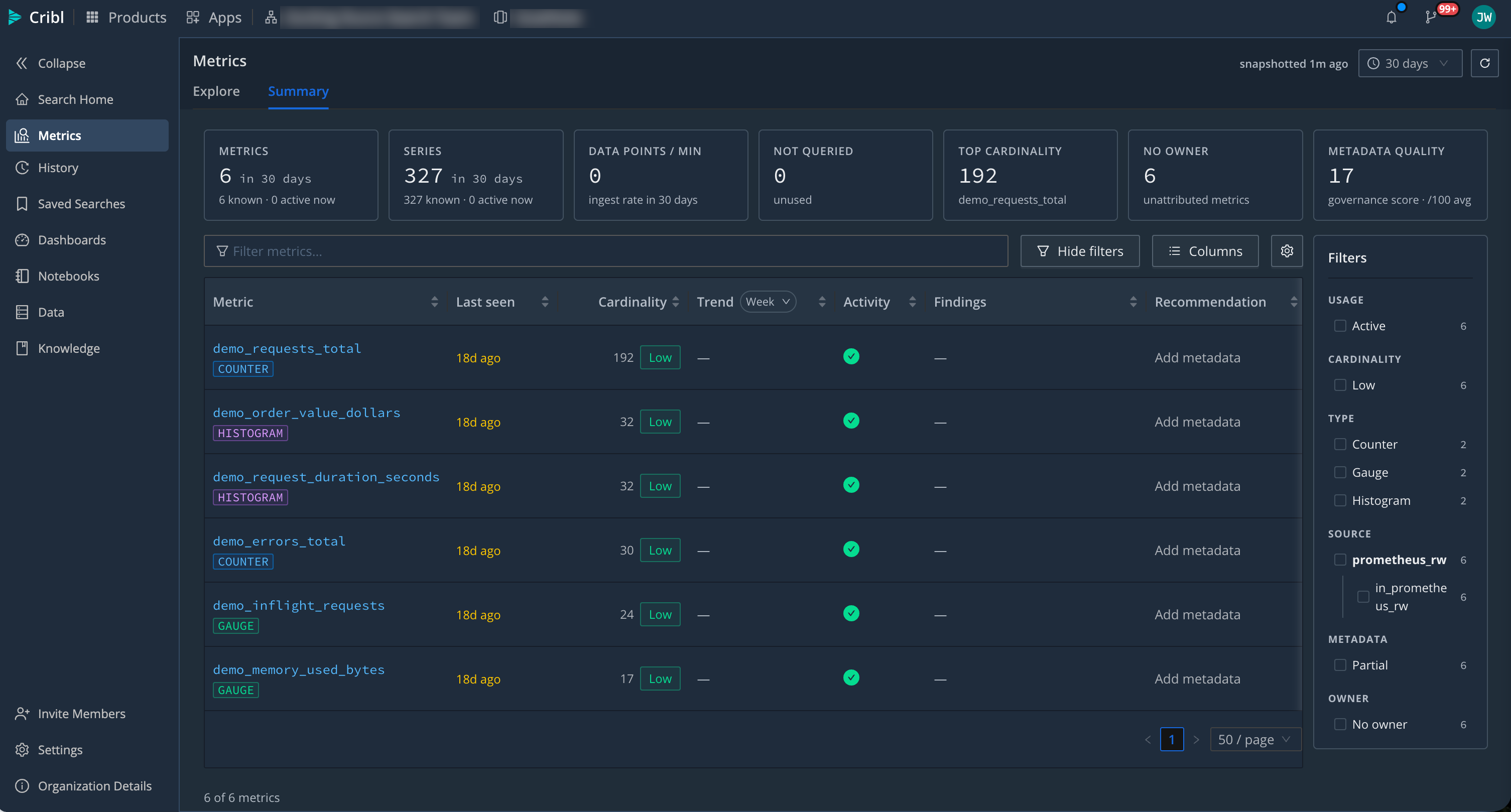
The Summary tab in the Metrics Explorer is a catalog and health view of every metric in the selected Dataset. Use it to see what metrics you have and to understand their cardinality - the number of unique time series a metric generates, which drives its storage footprint and query speed.
Analyze Cardinality
Select a metric, then its Cardinality anatomy tab, to see the series count broken down by label. Cribl Search classifies each label - for example, ID-like, High-cardinality, or Constant - and suggests whether to drop, aggregate, or keep it. Expand a label to see its top values.
A suggestion is a hint, not a rule. Keep a high-cardinality label when the per-value detail is worth it, or drop or aggregate it when you only chart the metric at a coarser grain.
Edit Metric Metadata and Thresholds
The catalog supports two kinds of edit, and both need the Editor or Admin Permission on Cribl Search. Editing
a metric’s own metadata, such as its unit or description, also needs access to the metrics Dataset that the metric
belongs to. Changing the cardinality band thresholds that classify every metric applies across your Organization, so
it needs no Dataset Permission. See Metrics Permissions.