





Notebook Templates
Notebook templates are reusable layouts for Search investigations. Each template stores the same kinds of Logs Search, Metrics Search, and note cells as a Notebook, including saved queries and chart settings, so teams can start from a known structure for incidents, audits, or onboarding. You can treat a template as an operational runbook: a fixed sequence of steps your Organization follows every time.
Templates are separate objects from Notebooks. Creating or editing a template does not write to a Notebook’s activity history the way collaborative investigation work does, and template editing is focused on maintaining the template itself rather than preserving job-by-job search lineage like a live investigation.
Open the Templates List
- Go to the Notebooks page in Cribl Search: On the top bar, select Products > Search > Notebooks.
- Select the Templates tab.
For each template, the table lists Name, Last Modified, Last Modified By, Created By, and Tags, so you can see ownership and freshness at a glance.
From the list you can open a template, use it to create a Notebook, or use row actions where your permissions allow. At the top of the list, select All, Custom, or Cribl to switch between every template, the ones your Organization created, and the ready-made ones from Cribl.
To filter by tag, select the Tags control and choose one or more tags. A template matches only if it carries every tag you chose. You can also select a tag directly in a row to filter by just that tag. The Tags control appears only when at least one template has a tag. See Tag a Template.
Create a Template
Add a New Template From Scratch
- On the Templates tab, select Add Template. Cribl Search creates a template and opens it in edit mode.
- Add or adjust search cells and note cells the same way you do in a Notebook. You need Maintainer-level access on the template to edit it.
- Select Save when you are finished. Select Exit to leave edit mode, or confirm discarding changes if you exit without saving.
Save an Existing Notebook as a Template
- Open the Notebook you want to capture.
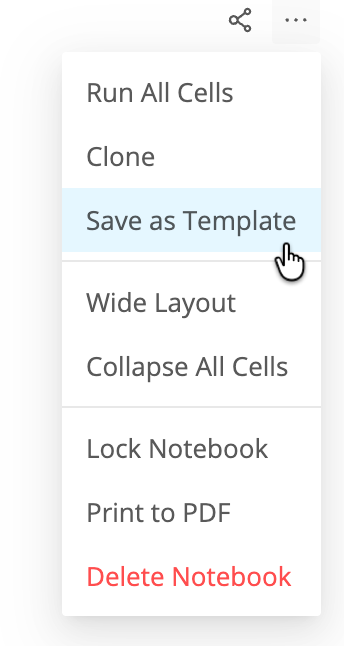
- In the top-right corner, select the Actions drop-down, then select Save as Template.
- Cribl Search creates a new template from the Notebook and opens it in template edit mode. The template name starts from the Notebook name, and you can rename it from the header.
You can also start from a ready-made Cribl template (for example, one that walks through sample data) by choosing it from the Templates tab or from the Choose Template flow when you create a Notebook from a template.
View or Edit a Template
On the Templates tab, select a template row to open it.
Templates open in view mode first. If you have Maintainer access, select Edit Template to change cells, queries, notes, and chart settings. While you edit, use Save to keep changes or Exit to leave edit mode. If you exit with unsaved edits, confirm whether to discard them.
Read Only access on a template lets you review the layout and results-style content and use Use Template or Clone from the list or template header, but not change the template or share it. Maintainer access is required for Edit Template, Share Template, and Delete Template actions where those controls appear.
For how object-level permissions map to Read Only and Maintainer in Search, see Cribl Search Notebooks Permissions. Template sharing uses the same permission model as Notebooks at the object level.
Outline a Template
Templates carry the same Table of Contents panel as Notebooks, built from the same note headings and search cell titles. In the template header, on the Last modified row, select Table of Contents. The panel works in view, preview, and edit mode.
Notebooks and templates share a single open or closed preference, so a panel you leave open in a template is still open the next time you open a Notebook.
Select an entry to scroll that cell into view, in any mode. Dragging entries to reorder cells works only while you have Maintainer access and the template is open in edit mode.
Tag a Template
Tag templates to group them by team, use case, or the kind of investigation they support, the same way you tag Notebooks. Templates and Notebooks draw from a shared pool of tags, so a tag you create in one place is suggested in the other.
You need Maintainer access, and the template has to be open in edit mode:
- On the Templates tab, select a template to open it, then select Edit Template.
- Below the template header, select the Edit tags icon. On a template that has no tags yet, the tag area reads Add tags.
- Enter one or more tags, separating them with commas, then select the check mark to save. Select the close icon or
press
Escto discard your changes.
In view mode, and for anyone with Read Only access, tags are visible but not editable. Templates do not have a status, because status applies only to Notebooks.
Share a Template
If you are a Maintainer on a template:
- Open the template in view or edit mode.
- Select Share Template.
- Under Add Members, Teams, and API Credentials, choose who to add and assign Read Only or Maintainer for the template, then select Add Access and Save.
Grant No Access to remove someone from the template. Members without access cannot open the template from the list.
Clone or Delete a Template
- Clone: From the Templates tab, open the row actions for a template you can access and select Clone. Cribl Search creates a copy whose name includes (Clone) so you can adapt it without changing the original.
- Delete: From the Templates tab, select one or more templates you maintain, then select Delete and confirm. You need Maintainer access on each template you remove.