





Organize Data with Dataset Rules
Once you’ve created your Search Datasets, set Dataset rules to control which data lands in which Dataset.
Highlights
- Each Log Dataset rule routes matching log events to one Log Dataset that you created.
- Each Metric Dataset rule routes matching metrics to a
metricsDataset, from a catch-all rule down.- Verify Dataset assignment to make sure your data lands where you expect.
Dataset Rules Overview
Each Dataset rule captures data that matches a KQL expression, and then sends that data to a Search Dataset.
Dataset rules come in two types:
| Rule Type | Matches | Routes Into |
|---|---|---|
| Log Dataset Rules | Log events | A Log Dataset that you created |
| Metric Dataset Rules | Metrics | Your engine’s metrics Dataset |
Within each tab, rules run top-down and the first match wins. Most of this page covers Log Dataset rules. For what differs about metrics, see Add Metric Dataset Rules.

To manage your Dataset rules: from the Cribl.Cloud top bar, select Products > Search > Data > Get Data In > 3. Dataset Rules.
The Log Rules and Metric Rules tabs appear only if your Organization has the Metric Rules Preview enabled. Otherwise, the Dataset Rules page lists your Log Dataset rules without tabs.
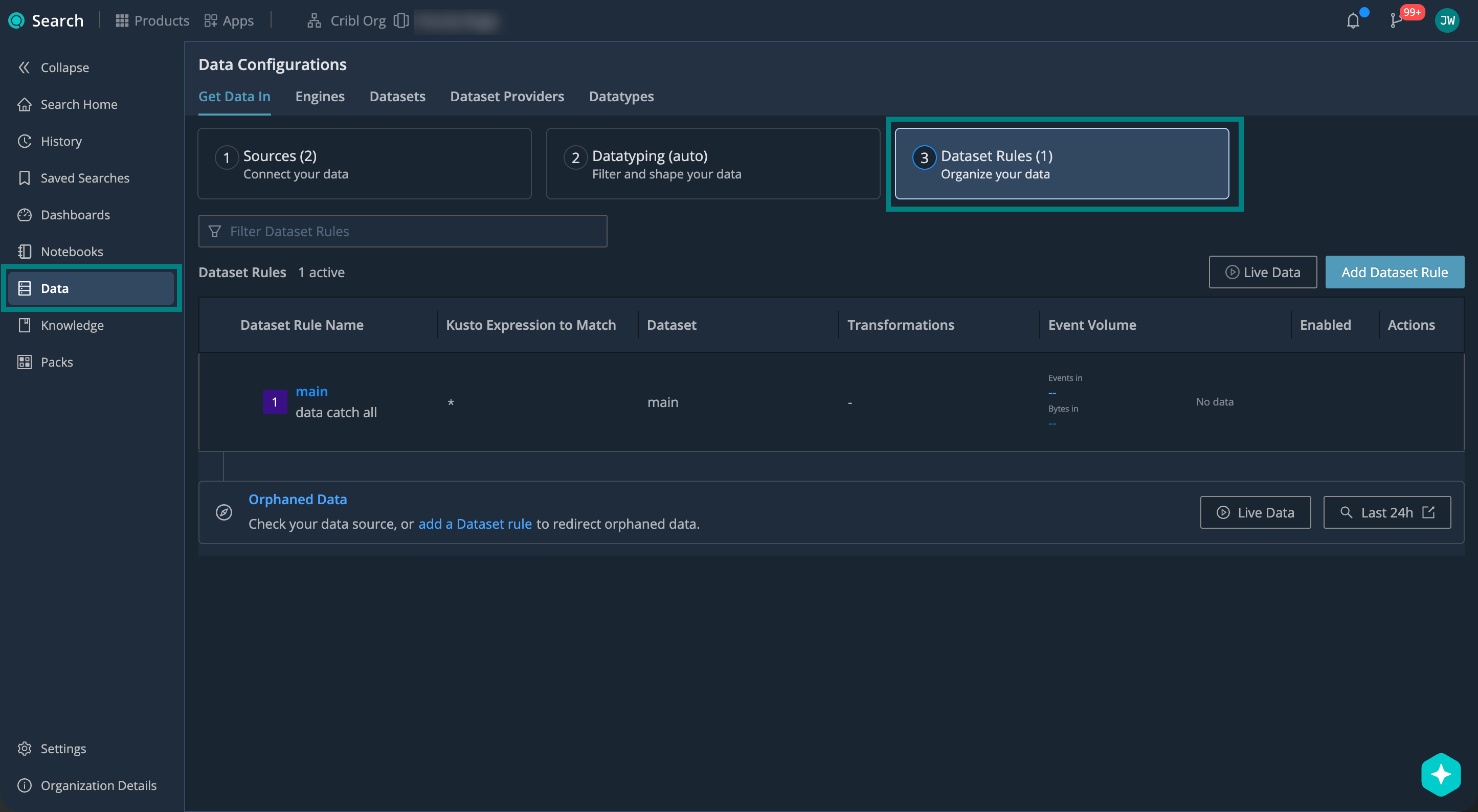
Add Log Dataset Rules
To add a new Log Dataset rule:
- On the Cribl.Cloud top bar, select Products > Search > Data > Get Data In > 3. Dataset Rules.
If the page shows tabs, select Log Rules. Labels and buttons then read Log Dataset Rule instead of Dataset Rule.
- Select Add Dataset Rule. Name and describe your rule.
- In Kusto expression to match, enter a KQL expression that matches the log events you want to route.
See Log Dataset Rule Expressions for syntax and examples.
- In Send data to, choose your target Log Dataset. This is where events matching the KQL expression will land.
You can also select Drop to instead discard the events.
- In Modify fields, you can perform Dataset-specific enrichment or normalization. See Modify Fields in Dataset Rules.
- Make sure that Enabled in the top right corner is checked, and confirm with Add.
If you add more rules, drag them to change the order. Rules run top-down, and the first match wins. Put more specific rules above broader ones.
Events that don’t match any rule, or match a rule pointing to a deleted Dataset, fall back to the
main Dataset.
Log Dataset Rule Expressions
Point your Log Dataset rule KQL expressions at these fields:
| Field | Description |
|---|---|
datatype | Datatype assigned through Datatyping. |
__inputId | Source identifier in type:id format.Supported types: cribl_http, datadog_agent, elastic, http_raw, open_telemetry, prometheus_rw, splunk, splunk_hec, syslog, tcp, tcpjson, wef, wiz_webhook.Example: syslog:my_source_id. |
You can copy
__inputIdor other fields from the arriving events. To see them, select Live Data to sample incoming events.
You can also filter by any other field in your parsed data.
Same as with Datatype rule expressions, you can:
- Create KQL expressions that evaluate to
true/falsefor matching events. - Set case-insensitive conditions using
=and wildcards (*). - Pipe into
| where ...,| find ..., or| search ...for richer logic.
But:
- You can’t use expressions that aggregate or reshape data (such as
statsorproject). - You can’t use
letorsetstatements.
Examples of Log Dataset Rule Expressions
See the examples below. For full reference on the Cribl Search implementation of KQL, see the KQL Reference.
Matches all events of Datatype apache_httpd_accesslog_common:
datatype = "apache_httpd_accesslog_common"Matches RFC 3164 syslog events from the my_source_id Source only. You can use rules like this to separate syslog from
one Source into its own Dataset:
datatype = "syslog_rfc3164" and __inputId = "syslog:my_source_id"Matches AWS VPC Flow Logs v2 events where the parsed host field equals vpc-flow-logs:
datatype = "aws_vpc_v2" | where host = "vpc-flow-logs"Matches all events from an OpenTelemetry Source with ID otel. You can use rules like this when you want one Dataset
per Source:
__inputId = "open_telemetry:otel"Matches healthcheck and heartbeat events, using custom Datatypes. You can route them to Drop to save storage:
datatype in ("healthcheck", "heartbeat")Verify Dataset Assignment
Check on your Log Datasets to make sure your log events are routed and retained as expected.
- Go to Logs: On the Cribl.Cloud top bar, select Products > Search.
- Under Available Datasets, select a Log Dataset you want to inspect.
Log Datasets are marked with the lakehouse icon
 .
. - In the resulting details panel, look at the Fields section.
If the Fields section is empty, select Retry to load the metadata.
If there’s no Fields section at all, you’re looking at a federated Dataset. Select a Log Dataset instead.
- Verify that the Dataset contains the fields you’d expect from your Datatyping configuration and Log Dataset
rules.
For more information, see Explore Fields in Log Datasets.
For more ways to explore your Datasets, see Inspect Your Log Datasets. To check where your metrics
landed, select a metrics Dataset in the Metrics Explorer.
Modify Fields in Dataset Rules
You can enrich or normalize events on their way into a specific Search Dataset, without affecting your upstream Datatyping rules. Use this to normalize timestamps, convert units, or reshape values, while preserving the Auto-Datatyping flow.
- On the Cribl.Cloud top bar, select Products > Search > Data > Get Data In > 3. Dataset Rules.
- Select Add Dataset Rule (or edit an existing one). For details, see Add Log Dataset Rules.
- Select Modify fields.
- In the text box, write a KQL
extendexpression to add or overwrite fields on matched events.
See the examples below. For full reference on the Cribl Search implementation of KQL, see the KQL Reference.
Offset _time based on the host field so that events from different regions align to the same timezone:
_time = case(host startswith "eastcoast", _time + 3h, host startswith "westcoast", _time + 6h, _time)Convert a bytes field to megabytes and store the result in a new field:
size_mb = bytes / 1048576.0Map verbose severity levels to a simplified priority field:
priority = case(level == "CRITICAL" or level == "FATAL", "high", level == "ERROR" or level == "WARN", "medium", "low")Override Dataset Rules
To bypass Dataset rules, add a dataset field to your log events before they reach Cribl Search. You can add this and
other override fields in Cribl Stream, or in any upstream sender.
| Field | What Cribl Search Does |
|---|---|
dataset | Skips Dataset rules and routes directly to the specified Dataset. If the Dataset doesn’t exist, routes to main with _dataset_reason = "does not exist". |
Add Metric Dataset Rules
Preview Feature
Cribl is still developing this Preview feature. We don’t recommend using it in a production environment, because the feature might not be fully tested or optimized for performance, and related documentation could be incomplete.
Please continue to submit feedback through normal Cribl support channels, but assistance might be limited while the feature remains in Preview.
Metric Dataset rules are the metrics counterpart to Log Dataset rules: they match incoming metrics and route them to a
metrics Dataset. To manage them, select Products > Search >
Data > Get Data In > 3. Dataset Rules on the Cribl.Cloud top bar, then select the Metric Rules tab.
By default, a single Metrics catch-all rule (*) sends all metrics to the primary metrics Dataset. To send a
Source to a different engine’s Dataset, add a rule that matches that Source and routes it to the target Dataset:
- Metric Dataset rules match on the internal
__inputIdfield, which has the form<sourceType>:<sourceId>- for example,prometheus_rw:in_prometheus_rwfor a Prometheus Remote Write Source,open_telemetry:otel_prodfor an OpenTelemetry Source that stores metrics,datadog_agent:datadog_agent_prodfor a Datadog Agent Source that stores metrics, orcribl_http:in_cribl_httpfor a Cribl HTTP Source that receives native metrics from Cribl Stream or Cribl Edge. - Rules run top-down and the first match wins, so place more specific rules above the catch-all.
Otherwise, Metric Dataset rules work like Log Dataset rules, with two differences:
- You can’t match on the
datatypefield, because Datatyping doesn’t apply to metrics. - Send data to offers only
metricsDatasets, one per lakehouse engine.
Metric Dataset rules apply to data as it arrives and aren’t retroactive. Set up your engine, Source, and rule before you start sending data. Metrics that arrive before a matching rule exists fall through to the catch-all and stay in the primary
metricsDataset.
To learn which Sources can store metrics, see Ingest Prometheus Metrics into Cribl Search, Ingest OpenTelemetry Data into Cribl Search, Ingest Datadog Agent Data into Cribl Search, and Ingest Cribl Stream/Edge Data into Cribl Search.
Next Steps
Now that your data is organized into Datasets, capture a sample of incoming events to verify they arrive and route as expected. See View Live Data in Cribl Search.