





View Search Results in Cribl Search
Explore your search results across three tabs, each tailored to a different type of output.
Highlights
- Results appear on the Events, Fields, or Chart tab, selected automatically based on the query type.
- Use Events for raw results, Fields for field statistics, and Chart for visualizations.
- Override the automatic tab selection by appending
| render tableor| render eventto your query.
Three Tabs for Different Result Types
Every search returns results on one of three tabs:
- Events shows raw log events, a histogram, and a field browser. Best for non-aggregated searches.
- Fields shows all returned fields with type, uniqueness, and presence statistics.
- Chart shows aggregated results as a visualization with a corresponding table. Best for queries that use
summarize,eventstats, ortimestats.
Cribl Search automatically selects the appropriate tab based on the query type. To override this, use the
render operator.
Track Search Progress
Once a search starts running, you can see its progress next to the Details indicator.

Select the double chevron
 to expand the toolbar. Depending on the type and state of your search,
you’ll see the following details:
to expand the toolbar. Depending on the type and state of your search,
you’ll see the following details:
- Name of the search (if it’s a saved search).
- Latest run: The timestamp of the most recent execution of that search.
If you opened the search from History, this tells you how old the displayed results are. - Total number of objects that Cribl Search has Discovered, successfully Scanned, or Skipped (for example, because they were in an unsupported Amazon S3 storage class).
- Number of results returned.
- Duration of the search.
Events Tab
The Events tab displays a table with the raw log events returned from the search, along with a histogram, and the field browser.
To display results in the Events tab regardless of the search’s type, append your query with
| render event.
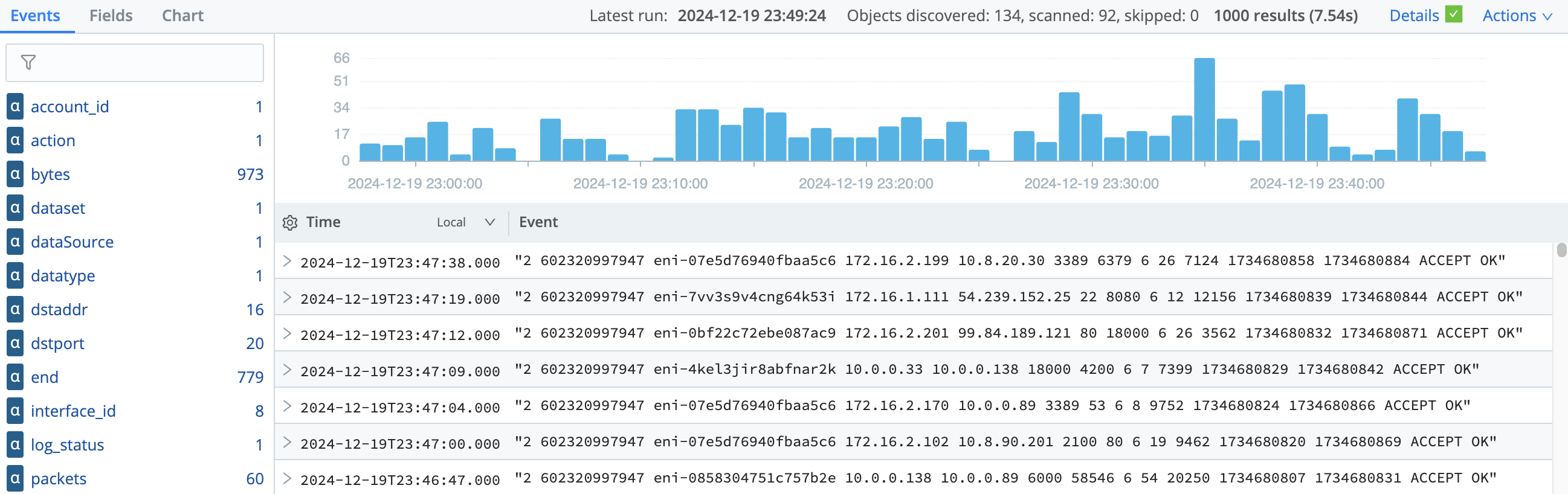
Select any of the rows to open the event details panel, which displays the fields of the selected event.
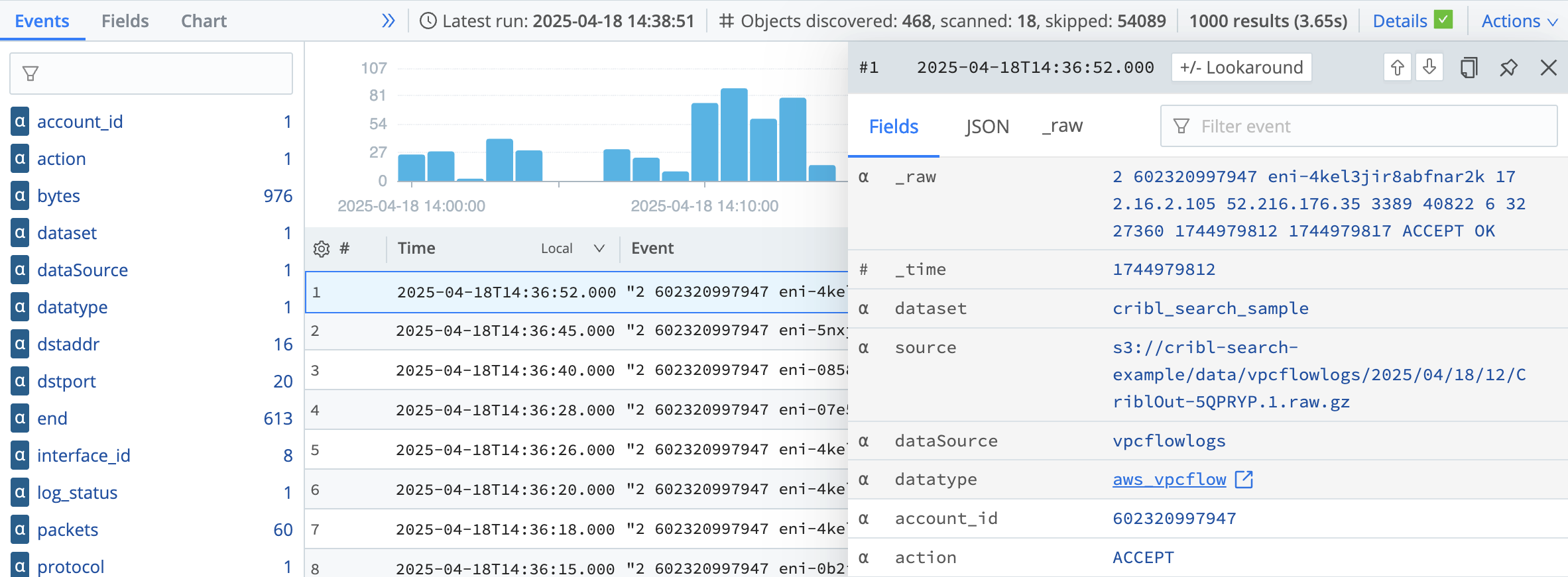
Now, you can navigate between events using your keyboard’s Up and Down arrow keys.
In the panel, you can:
- Filter the fields displayed. Type into the search bar at the top right.
- View the fields in JSON format. Select JSON at the top.
- View the
_rawfield, which contains the original event data. Select _raw at the top. - Look up events outside of the time frame of the current search. Use the Lookaround at the top.
- Copy the event’s JSON to the system clipboard. Select the copy icon at the top.
- Pin the panel open. Select the pin at the top right.
You can also quickly incorporate any of the fields into your next search. Select a field to see these options:
- Add field in search: Include this field name and value in the current query. If your query already includes this field, you’ll see the Remove field from search option.
- Exclude field from search: Exclude this field value in the query (for example,
action!="ACCEPT"). - New search with field: Open another Cribl Search window, and include this field name and value in the new query.
- Copy value to clipboard: Copy the value of this field to the system clipboard.
To close the panel, click anywhere outside of it, or select X at the top right.
Change the Event View Options
When viewing the Events tab, you can change how the results are displayed.
Select the gear button in the heading row (to the left of Time).
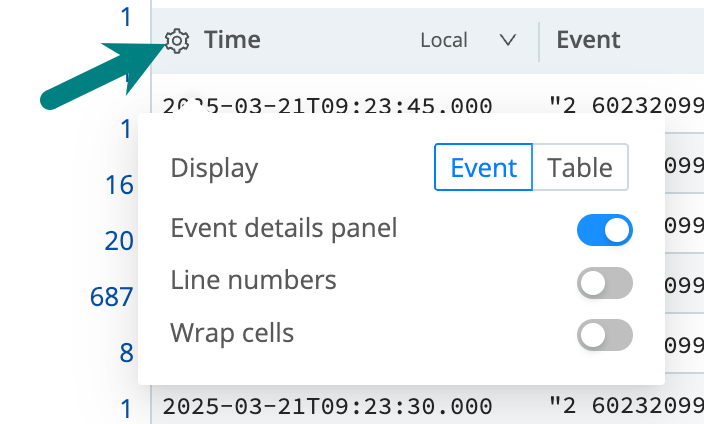
Here, you can:
- Toggle Event details panel off to disable it. You’ll now be able to view fields directly in the table, by selecting > at the left of an event row.
- Toggle Display to view the original Events, or a Table with only the returned fields.
(The Table option allows you to adjust the order of columns displayed. Select and drag a column to the desired location.) - Toggle Line numbers on or off to display or hide line numbers.
- Toggle Wrap cells on to prevent values from overflowing.
Events Shortcuts
In Events view, you can hover over field names in the sidebar to display an Add field to column button. Select these buttons to quickly build a custom Table view, showing only the fields that interest you.
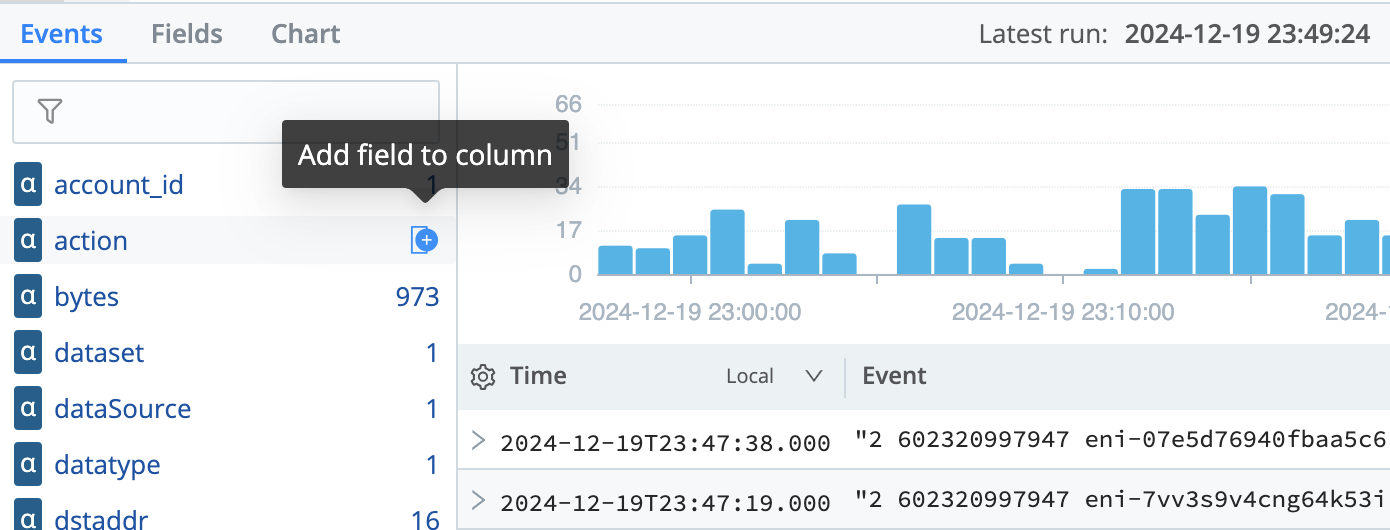
In Table view, you can hover over field names in the sidebar or heading row to display a close box. Select the x to remove their columns from the table.
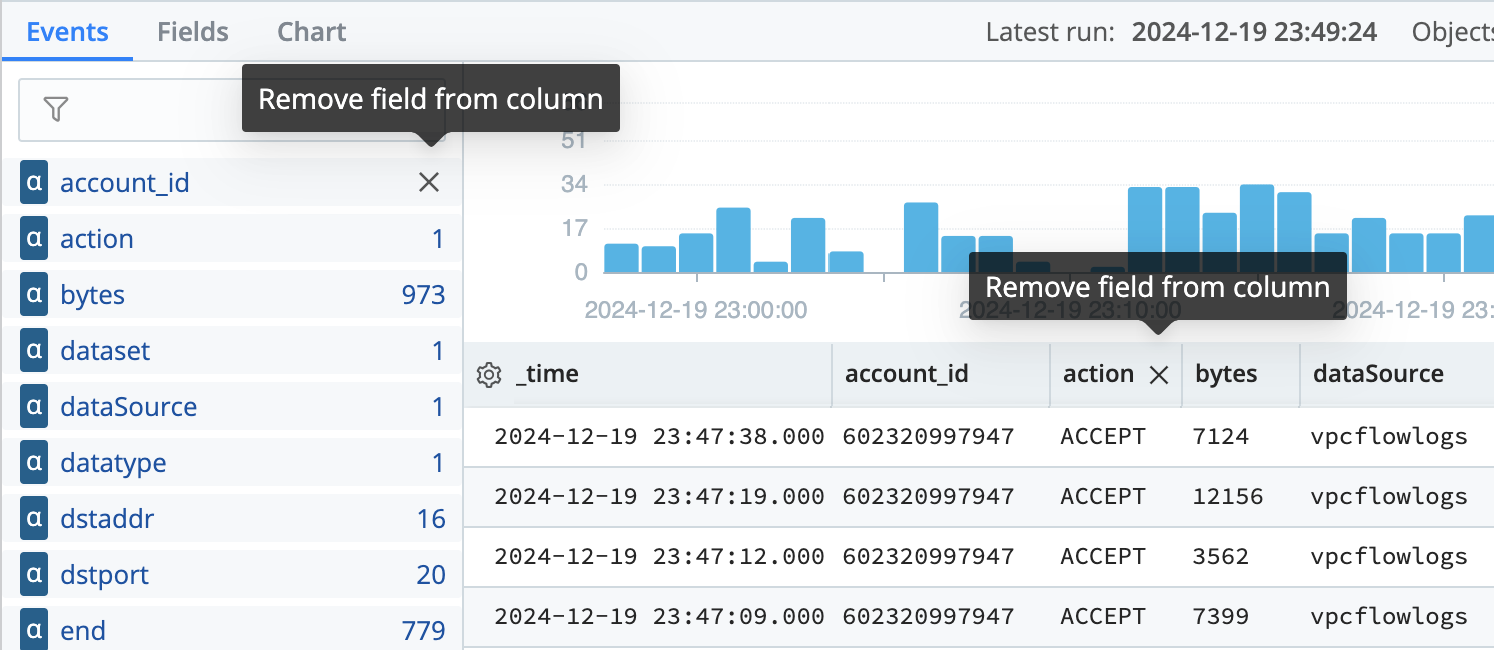
Columns that you hide using these shortcuts are not permanently hidden. They will reappear when you refresh the page or reload this search.
Histogram
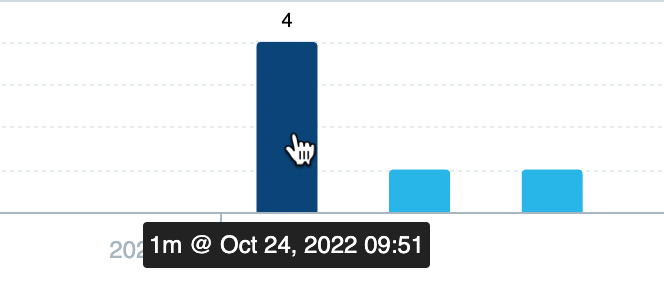
You can select bars in the histogram to view results for only the selected times. Use shift+select to select multiple bars.
Approximate Versus Precise Events Counts
In the Events field browser’s left column, and on the Fields tab, both covered below: The displayed event counts are approximations, and are not expected to be exact. Top-N lists are generated using probabilistic analysis, and are similarly not exact. However, you can compute precise results for a given field using a query of this form:
dataset=<DatasetName> | summarize count() by <fieldName>
Field Browser
The field browser on the Events tab allows you to easily identify information about the fields returned from your search. Use the search bar to filter the returned fields. The browser gives you the data type, the unique count of values the field has, and the percentage of log events returned with the field.
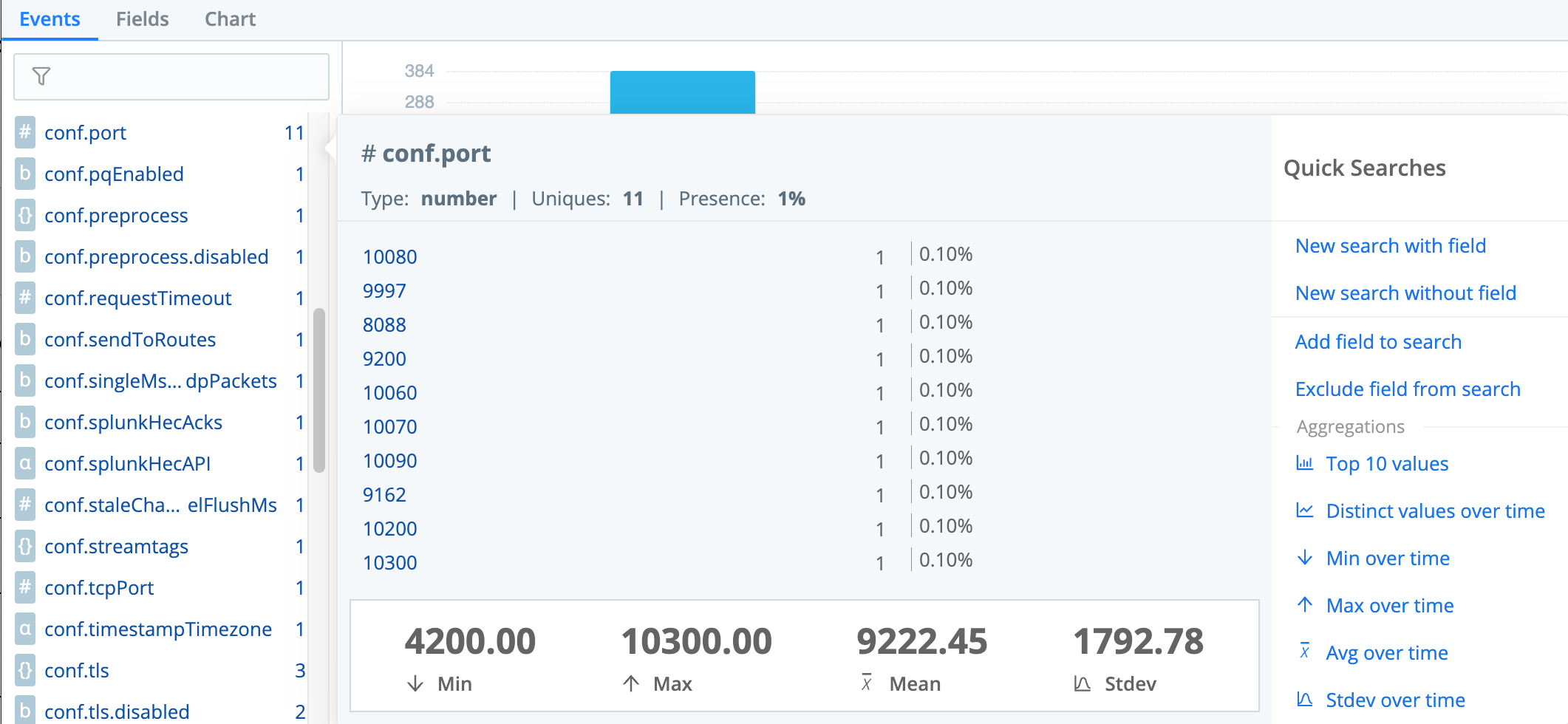
The options in the Quick Searches panel automatically generate and run a new search:
| Quick Search | Query Example |
|---|---|
| New search with field | response_time="*" |
| New search without field | response_time!="*" |
| Add field to search | dataset="cribl_search_sample" response_time="*" | limit 1000 |
| Exclude field from search | dataset="cribl_search_sample" response_time!="*" | limit 1000 |
| Top 10 values | dataset="cribl_search_sample" | limit 1000 | top-hitters 10 of response_time |
| Distinct values over time | dataset="cribl_search_sample" | limit 1000 | timestats dcount(response_time) |
| Min over time | dataset="cribl_search_sample" | limit 1000 | timestats min(response_time) |
| Max over time | dataset="cribl_search_sample" | limit 1000 | timestats max(response_time) |
| Avg over time | dataset="cribl_search_sample" | limit 1000 | timestats avg(response_time) |
| Stdev over time | dataset="cribl_search_sample" | limit 1000 | timestats stdev(response_time) |
See the Fields tab for a table of all of the returned fields.
Lookaround
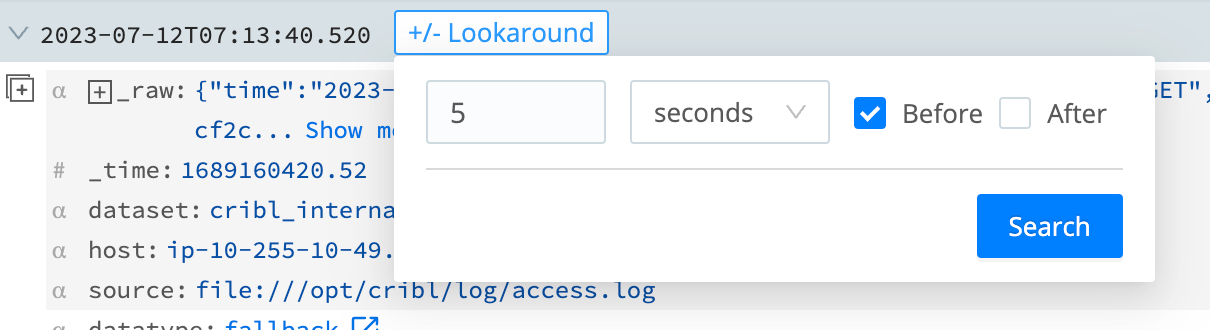
Lookaround allows you to filter search results by adding or subtracting seconds, minutes, hours, or days, enabling quick exploration of surrounding events.
Select an event’s Time field or expand a row and select +/- Lookaround to view the modal.
Export Results as NDJSON
You can export the raw results of any search in the Newline Delimited JSON (NDJSON) format.
- Run a search.
- At the bottom right of the query box, select Actions.
- Select Export results as NDJSON. The results are downloaded to your default download location.
Fields Tab
The Fields tab displays all of the returned fields on a table by the following dimensions:
- Type: Data type.
- Uniques: Number of unique values.
- Nulls: Number of
nullvalues. - Top Value Distribution: How often values occur using the standard cumulative beta distribution function.
- Presence: Percentage of results that contain the field.
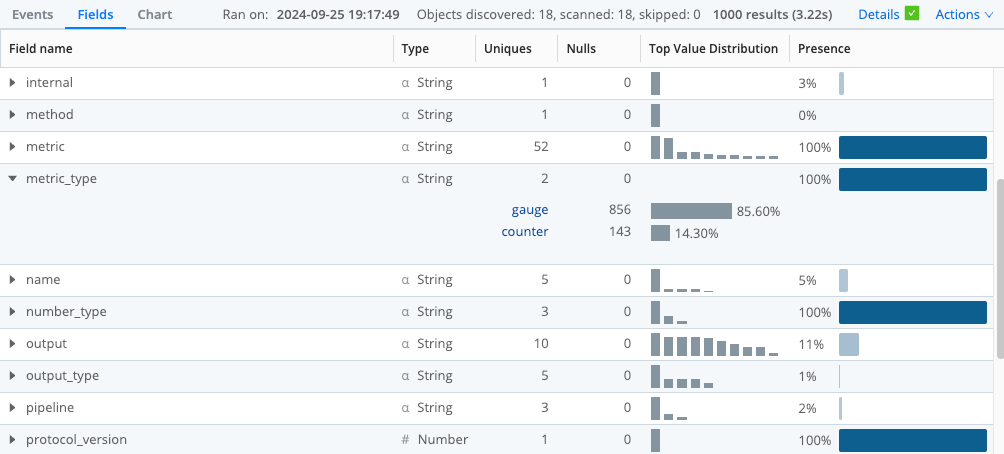
The table supports sorting and filtering, and allows you to adjust the order of columns.
- Select a column heading to change its sorting order.
- Hover over a column heading and select the funnel icon to define a filter.
- Select the triangle to the left of a Field name to expand and collapse the list of returned values.
See the note above about Approximate Versus Precise Events Counts.
Chart Tab
When you run the summarize, eventstats, or timestats operator along with
an aggregation function, the Chart tab automatically displays your results in a Chart, along with a corresponding
results table. You can select from various Chart types and color palettes, manipulate how your results are plotted, and
customize the results table display.
To display results in the Chart tab regardless of the search’s type, append your query with
| render table.
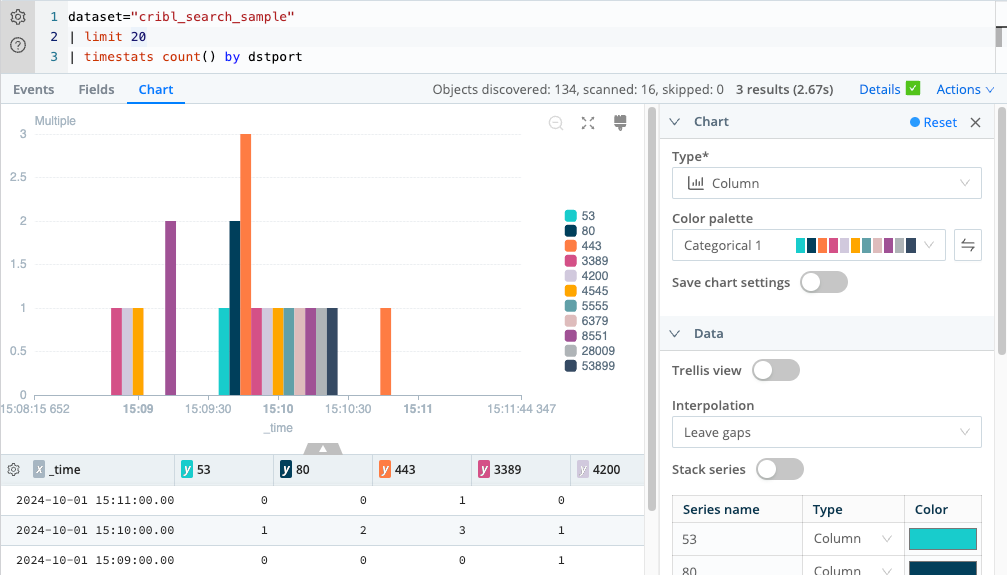
For detailed information about manipulating data and visualizations in aggregate search results, see Charts.
Display Multiple Series
Use multiple values in a summarize by clause to create a separate row for each combination of values:
dataset="cribl_search_sample" dataSource="access_combined"
 | limit 1000
| summarize count() by host, clientipDisplay a Time Series
The timestats operator aggregates events by time periods or bins, which is excellent for displaying a
time series. Here we slice the results into one-minute sections, or bins:
dataset="cribl_search_sample"
 | limit 1000
| timestats span=1mDisplay Results as Events or Tables
Use the render operator to display results as a list of events or a table.
To display results as a list of events under the Events tab:
dataset=$vt_dummy event<100
 | extend parity=iif(event%2==0, 'even', 'odd')
 | project event, parity
| render tableTo display results as a table under the Chart tab:
dataset=$vt_dummy event<100
 | extend parity=iif(event%2==0, 'even', 'odd')
 | project event, parity
 | render event