





Shape Data with Datatype Rules
Parse and structure data being ingested into Cribl Search, so you can search it fast from the start.
Highlights
- Try Auto-Datatyping first, then handle uncategorized events with your own Datatype rules.
- Point your rules at stock v2 Datatypes, or define custom Datatypes.
- For detailed info on how Datatyping works (with or without lakehouse engines), see Datatypes in Cribl Search.
Datatyping in Lakehouse Engines
When your data flows from Sources into a lakehouse engine, it’s parsed into structured events through a process called Datatyping. Here’s how you can use it to shape your data:
- Use Auto-Datatyping: Let Cribl Search assign Datatypes automatically.
- Check for uncategorized data: See if any events were missed.
- Define your own Datatype rules: To handle the uncategorized data, map specific patterns to the existing stock Datatypes.
- Add custom Datatypes: To parse data not covered by the stock Datatypes, edit or add entirely new Datatypes.

To manage Datatyping in lakehouse engines: from the Cribl.Cloud top bar, select Products > Search > Data > Get Data In > 2. Datatyping (auto).
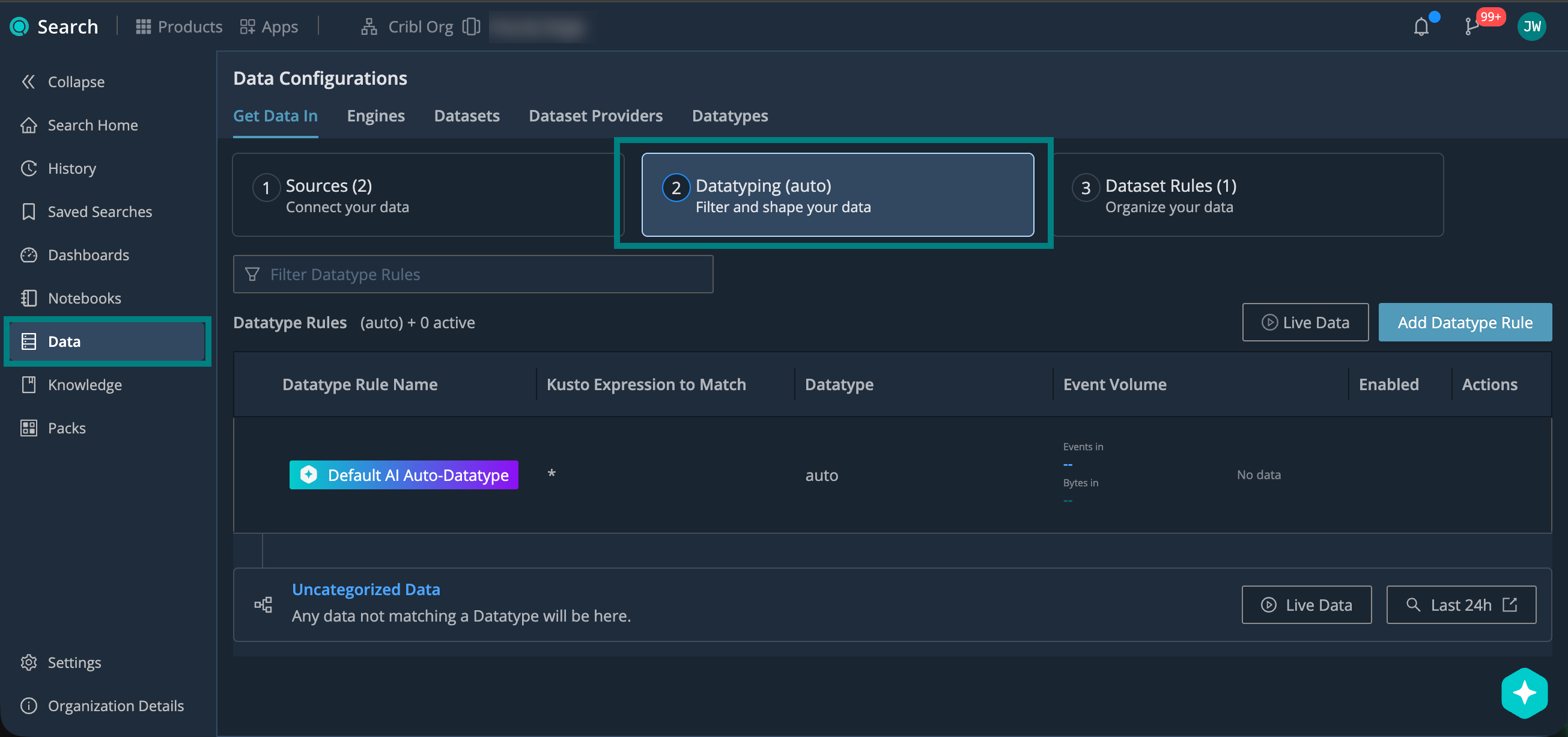
1. Parse Automatically (Auto-Datatyping)
By default, Cribl Search automatically analyzes incoming events and assigns a matching Datatype. This requires no configuration on your part, and covers many common log types and data formats.
For most types of data, Auto-Datatyping just works.
2. Check for Uncategorized Data
Data that doesn’t match any Datatypes displays as Uncategorized.
- On the Cribl.Cloud top bar, select Products > Search > Data > Get Data In > Datatyping.
- Under Uncategorized Data, select:
- View Live Data to see a sample of uncategorized data as it arrives. See Live Data for details.
- View Last 24h to run a search for uncategorized data from the past 24 hours.
3. Add Datatype Rules
To handle data uncategorized by Auto-Datatyping, define your own rules that map specific data patterns to stock v2 Datatypes or custom v2 Datatypes.
- On the Cribl.Cloud top bar, select Products > Search > Data > Get Data In > Datatyping.
- Select Add Datatype Rule. Name and describe your rule.
- In Kusto expression to match, enter a KQL expression that matches a subset of the uncategorized data.
For details, see Datatype Rule Expressions.
- From Datatype, select the Datatype to assign. You can choose from stock v2 Datatypes and your custom v2 Datatypes.
- Make sure that Enabled in the top right corner is checked, and confirm with Add.
If you add more rules, drag them to change the order. Rules run top-down, and the first match wins. Put more specific rules above broader ones.
Datatype Rule Expressions
Point your Datatype KQL expressions at the fields that are guaranteed to exist before Datatype assignment:
| Field | Description |
|---|---|
_raw | Raw event text before Datatyping. |
__inputId | Source identifier in type:id format.Supported types: cribl_http, datadog_agent, elastic, http_raw, open_telemetry, prometheus_rw, splunk, splunk_hec, syslog, tcp, tcpjson, wef, wiz_webhook.Example: syslog:my_source_id. |
You can copy
__inputIdor other fields from the arriving events. To see them, select Live Data on the Datatyping page.
You can:
- Create KQL expressions that evaluate to
true/falsefor matching events. - Set case-insensitive conditions using
=and wildcards (*). - Pipe into
| where ...,| find ..., or| search ...for richer logic.
But:
- You can’t use expressions that aggregate or reshape data (such as
statsorproject). - You can’t use
letorsetstatements.
See the examples below for typical use cases. For full reference on the Cribl Search implementation of KQL, see Language Reference.
_raw = "*failed login*"Matches events that contain failed login (case-insensitive) anywhere in their raw text:
# Event 1
Mar 19 12:01:44 auth0 sshd[2041]: failed login for user admin from 10.0.0.5

# Event 2
2026-03-19T08:15:00Z WARN Failed Login attempt on account jdoe__inputId = "syslog:my_source_id"Matches all events from a syslog Source with ID my_source_id.
_raw = "*timeout*" | where __inputId = "open_telemetry:otel"Matches events from an OpenTelemetry Source with ID otel that contain timeout (case-insensitive) anywhere in their
raw text:
# Event 1
{"severity":"ERROR","body":"upstream timeout after 30s","resource":{"service.name":"api-gw"}}

# Event 2
{"severity":"WARN","body":"connection timeout to redis-01:6379","resource":{"service.name":"cache"}}| where __inputId startswith "cribl_http:"Matches any event from all Cribl HTTP Sources, regardless of their ID.
_raw = "*sshd*" | search "Failed password" or "Invalid user"Matches events that contain sshd (case-insensitive) in their raw text and whose full text includes Failed password
or Invalid user, or both:
# Event 1
Mar 19 14:22:01 prod-01 sshd[3421]: Failed password for root from 203.0.113.14 port 54321 ssh2

# Event 2
Mar 19 14:22:03 prod-01 sshd[3422]: Invalid user deploy from 198.51.100.7 port 48291Combine these patterns to catch multiple log formats with a single rule:
_raw = "*HTTP*" | search (" 500 " or " 502 " or " 503 " or " 504 ") and not "/healthcheck"Matches HTTP 5xx server errors across Apache, Nginx, and AWS Application Load Balancer access logs with a single rule.
The and not "/healthcheck" clause filters out healthcheck endpoints that legitimately produce 5xx noise:
# Event 1 (Apache)
10.0.0.42 - alice [15/Apr/2026:09:14:23 +0000] "GET /api/users HTTP/1.1" 502 1247 "-" "curl/8.4.0"

# Event 2 (Nginx)
198.51.100.5 - - [15/Apr/2026:09:14:25 +0000] "POST /checkout HTTP/2.0" 503 891 "-" "Mozilla/5.0 (X11; Linux x86_64)" 0.182

# Event 3 (AWS ALB)
h2 2026-04-15T09:14:27.341Z app/prod-alb/abc123 10.0.1.55:48292 - 0.001 0.142 0.000 504 - 137 1024 "GET https://api.example.com/orders HTTP/2.0"| search "Out of memory" or "OOMKilled" or "java.lang.OutOfMemoryError" or "Cannot allocate memory"Matches memory-exhaustion events from Linux kernel, Kubernetes, JVM applications, and libc allocation failures with a single rule, regardless of how each subsystem formats its log line:
# Event 1 (Linux kernel)
Mar 20 03:14:22 prod-db-01 kernel: Out of memory: Killed process 24891 (mysqld) score 928

# Event 2 (Kubernetes)
2026-04-15T09:32:14Z kubelet[1024]: container "api-server" terminated, reason: OOMKilled, exit_code: 137

# Event 3 (JVM)
Apr 15 09:32:15 app-server-02 java[15234]: java.lang.OutOfMemoryError: Java heap space at com.example.Service.process(Service.java:142)4. Add Custom Datatypes
To handle uncategorized data that’s not covered by the stock v2 Datatypes:
- Add a custom v2 Datatype.
- Create a Datatype rule that points at your custom Datatype.
Fix Timezone Offsets
Cribl Search parses each event and interprets its timestamp. If the event includes timezone information, Cribl Search uses it. Otherwise, it assumes UTC.
You can deal with timezone offsets at different stages:
- Before ingestion: Set the
_timeoverride field before the event reaches Cribl Search. When Search finds a_timefield on an incoming event, it uses that value and skips its own timestamp parsing. - At Datatyping: Add a custom v2 Datatype in Cribl Search to fix the offset through your own timestamp extraction settings.
- At Dataset assignment: Use the Modify fields setting in your Dataset rules. This lets you adjust timestamps per Dataset while preserving the upstream Auto-Datatyping flow. For details, see Modify Fields in Dataset Rules.
Override Cribl Search Processing
To bypass Cribl Search timestamping, Datatyping, or Dataset rules, add override fields to your events before they reach Cribl Search. You can add these in Cribl Stream, or in any upstream sender.
| Field | What Cribl Search Does |
|---|---|
_time | Skips timestamp parsing and uses this value (in UTC) as the event time. |
datatype | Skips Datatype rules and applies the specified stock or custom v2 Datatype. If the Datatype doesn’t exist, falls back to Auto-Datatyping. |
isParsed(use with datatype) | Uses the fields already on the event instead of reparsing _raw.Always pair with datatype. Without it, events fall back to Auto-Datatyping.Use when data is fully shaped upstream. |
dataset | Skips Dataset rules and routes directly to the specified Dataset. If the Dataset doesn’t exist, routes to main with _dataset_reason = "does not exist". |
For pre-parsed events from Cribl Stream or Cribl Edge, set both
datatypeandisParsed. If you also route by Dataset upstream, setdataset, too. See Ingest Cribl Stream/Edge Data into Cribl Search.
Next Steps
Now that you’ve shaped your data, organize it into Datasets.