




Ingest Datadog Agent Data into Cribl Search
Collect metrics, traces, and logs via the Datadog API to store them in Cribl Search for fast analysis.
Before You Begin
You’ll need:
- Cribl.Cloud Enterprise. For details, see Pricing.
- Search Editor Permission, or higher. Learn who can do what at Cribl Search Permissions.
- Datadog Agent that can send data to Cribl Search over HTTP(S).
You don’t need Cribl Stream, Edge, or Lake. (Looking for the Datadog Agent Source in Cribl Stream instead?)
1. Add a Lakehouse Engine
See Lakehouse Engines in Cribl Search.
2. Set Up Your Search Datasets
Create the Search Datasets you’ll route events into, and set their retention. See Create Search Datasets.
If this Source will store metrics, you don’t need to create a Dataset for them. Cribl Search auto-provisions a metrics
Dataset for each lakehouse engine. See The metrics Dataset.
3. Add a Datadog Agent Source in Cribl Search
On the Cribl.Cloud top bar, select Products > Search > Data > Add Source > Datadog Agent.
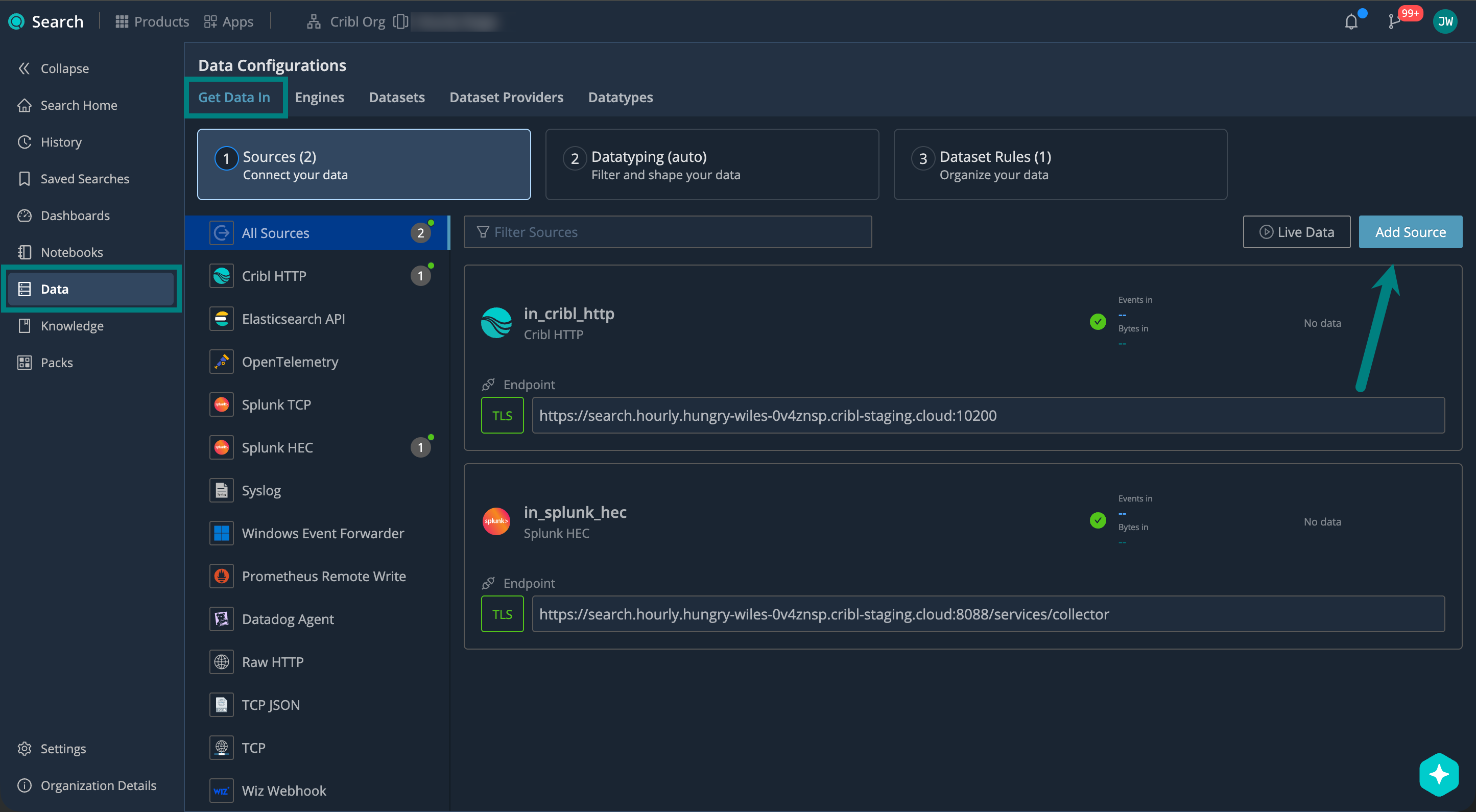
Under General, configure:
| Setting | Description | Example |
|---|---|---|
| ID | Source ID, unique across your Cribl.Cloud Workspace. Use letters, numbers, underscores, hyphens. | datadog_agent_prod |
| Description | Describe your Source so others know what it’s for. | Ingests Datadog Agent data |
| Address | Hostname (FQDN) that your Datadog Agent connects to. You’ll need this to set up your Datadog Agent. | search.main.foo-bar-abc123.cribl.cloud |
| Port | Network port to listen on. Keep the default unless it conflicts with another service. | 20000 (default) |
Choose Logs, Metrics, or Both
When you set up a Source, use the Store this source data as setting to choose what types of telemetry to keep: logs, metrics, or both. This setting appears only when metrics are enabled for your Organization.
See how each option handles your data:
| Option | Datadog metrics | Datadog logs, traces, and other events |
|---|---|---|
| Logs (default) | Dropped, except distributions. | Stored as events in your Search Datasets. |
| Metrics | Stored in the metrics Dataset of your lakehouse engine. | Dropped. |
| Both Logs and Metrics | Stored in the metrics Dataset of your lakehouse engine. | Stored as events in your Search Datasets. |
Keep these behaviors in mind:
- Both Logs and Metrics stores each metric once. Cribl Search doesn’t keep a second, event-shaped copy of a metric
that it stores in the
metricsDataset. - The Datadog Agent sends distributions as sketches, which Cribl Search doesn’t store as metrics. With Logs or Both Logs and Metrics, Cribl Search stores them as events in your Search Datasets. With Metrics, it drops them.
- Metrics stores metrics only. If you want to keep the logs, traces, and other events that the same Source receives,
select Both Logs and Metrics. A sender that emits only metrics, such as the Logstash
datadog_metricsoutput, can use Metrics. - A Source that you created before this setting existed behaves as Logs.
- Cribl Search extracts the individual data points from your Datadog metric payloads for you. You don’t need to configure an extraction setting.
Metrics is a Preview feature, and your metrics share the compute and storage of your lakehouse engine. To review the impact on your engine, see Explore Metrics in Cribl Search.
To learn which Datadog metric types Cribl Search stores, and how it handles tag keys, see Supported Datadog Metrics.
Set Up Encryption
TLS encryption protects your data in transit between the Datadog Agent and your Cribl Search Source. New Sources have TLS enabled by default, with TLS 1.2 as the minimum version.
Under Encrypt, you can review or adjust the Minimum TLS version you want to accept:
| TLS Version | When to Use |
|---|---|
| 1.3 | Provides the strongest security. Use when your clients support it. |
| 1.2 | The default. Use for broad client compatibility. |
| Older than 1.2 | Avoid if possible. These versions are no longer considered secure. |
Select Save to create the Source.
4. Set Up Datatyping
Datatyping applies to the logs, traces, and other events that take the event path. If this Source stores metrics only,
you can skip this step, because metrics route to a metrics Dataset through Metric Dataset rules
instead.
Configure Datatype rules to parse, filter, and normalize your data into structured fields. We call this process Datatyping.
On the Cribl.Cloud top bar, select Products > Search > Data > Datatyping (auto). Here, you can:
- Use Auto-Datatyping to parse your data automatically.
- Check for uncategorized data that didn’t match any Datatype rules.
- Handle the uncategorized data by adding custom Datatype rules.
See also:
- Datatypes in Cribl Search
- v2 Datatypes in Cribl Search
- List of Stock v2 Datatypes
- Add a Custom v2 Datatype
5. Set Up Dataset Rules
Configure Dataset rules to route the parsed events into your Search Datasets.
On the Cribl.Cloud top bar, select Products > Search > Data > Datasets: Organize Your Data, and see Organize Data with Dataset Rules for details.
Route Metrics with Metric Dataset Rules
If this Source stores metrics, Metric Dataset rules decide which metrics Dataset receives them. By default, a single
catch-all rule sends all metrics to the primary metrics Dataset. A rule for this Source matches
datadog_agent:<your-source-id> - for example, datadog_agent:datadog_agent_prod.
Metric Dataset rules apply to data as it arrives and aren’t retroactive, so add your rule before you start sending data. For details, see Add Metric Dataset Rules.
6. Set Up Your Datadog Agent
Configure the Datadog Agent to send data to Cribl Search.
You’ll need these details from your Source configuration:
| Name | Example |
|---|---|
| Address | search.main.foo-bar-abc123.cribl.cloud |
| Port | 20000 (default) |
To find these for an existing Source: On the Cribl.Cloud top bar, select Products > Search > Data > Sources, and select your Source.
Example (Datadog Agent > Cribl Search)
Replace the example address (search.main.foo-bar-abc123.cribl.cloud) and port (if you changed the default 20000)
with your Source values.
dd_url: 'https://search.main.foo-bar-abc123.cribl.cloud:20000'
apm_config:
  apm_dd_url: 'https://search.main.foo-bar-abc123.cribl.cloud:20000'
logs_config:
  logs_dd_url: 'https://search.main.foo-bar-abc123.cribl.cloud:20000'
use_v2_api:
series: falseexport DD_URL="https://search.main.foo-bar-abc123.cribl.cloud:20000"
export DD_APM_URL="https://search.main.foo-bar-abc123.cribl.cloud:20000"
export DD_LOGS_CONFIG_LOGS_DD_URL="https://search.main.foo-bar-abc123.cribl.cloud:20000"
export DD_USE_V2_API_SERIES=falseConfigure Datadog to Use Datadog API v1
The Source receives metrics only on the Datadog API v1 series endpoint (
/api/v1/series). Newer Datadog Agents send metrics to the v2 endpoint by default, and the Source rejects those requests. To send metrics to Cribl Search, setuse_v2_api.seriestofalse(orDD_USE_V2_API_SERIEStofalse), as in the preceding example. Otherwise, Cribl Search doesn’t receive your metrics, andAPI Key invalid, dropping transactionerrors appear in the Datadog Agent logs.
The Source answers 202 Accepted on /api/v1/series, the same as the Datadog API. Senders that require exactly 202,
such as the Logstash datadog_metrics output, depend on this. The other endpoints, such as the logs and service-check
endpoints, still answer 200.
7. Start Sending Data and Verify
Start sending events from the Datadog Agent, and verify that they’re successfully flowing into Cribl Search.
On the Cribl.Cloud top bar, select Products > Search > Data > Live Data.
Here, check for your Datadog Agent Source. For details, see Live Data.
Live Data shows the logs, traces, and other events that take the event path. To confirm that your metrics arrived, open the Metrics Explorer instead: on the Cribl.Cloud top bar, select Products > Search > Metrics, then select the metrics Dataset that your Metric Dataset rules target. For details, see Explore Metrics in Cribl Search.
Supported Datadog Metrics
This section applies when the Source stores metrics. See Choose Logs, Metrics, or Both.
Metric Types
Cribl Search maps each supported Datadog metric type to a Prometheus metric type that you can query with PromQL:
| Datadog metric type | Stored as | Temporality |
|---|---|---|
gauge | Gauge | None |
count | Counter | delta |
rate | Gauge | None |
counter | Counter | cumulative |
Keep these behaviors in mind:
- A
countis the change over the flush interval of the Datadog Agent, not a running total. Cribl Search stores it as a Counter withdeltatemporality, so that readers don’t treat it as a cumulative Counter. - A
rateis already a per-second value, so Cribl Search stores it as a Gauge. counterisn’t a Datadog v1 series type, but some SDKs and the Logstashdatadog_metricsoutput send it.- A data point with no type is stored as a Gauge.
Cribl Search doesn’t store distribution metrics, or any other Datadog metric type that isn’t in the table, as metrics:
- The Datadog Agent sends distributions as sketches. With Logs or Both Logs and Metrics, Cribl Search stores them as events in your Search Datasets. With Metrics, it drops them. See Choose Logs, Metrics, or Both.
- Some SDKs send a distribution as a series with the
distributiontype. This series has no single value to read, so Cribl Search drops it rather than storing it as a Gauge.
Your sender receives no error when Cribl Search drops a data point, so if a metric you expect is missing from the Metrics Explorer, check its type first.
Cribl Search also drops a data point whose timestamp falls outside the metrics Dataset’s expected time range. By
default, a metrics Dataset accepts timestamps up to 10 minutes in the future and has no lower bound, so a sender whose
clock runs fast loses data even though the data points themselves are valid. To change the window, open the metrics
Dataset and edit Earliest expected timestamp and Latest expected timestamp.
Metric and Label Names
Cribl Search handles Datadog metric names and tag keys as follows:
- In a metric name, a dot becomes an underscore. For example,
system.cpu.total.pctbecomessystem_cpu_total_pct. Cribl Search doesn’t add a_totalsuffix to Counters. - Datadog tags become labels, and Cribl Search keeps each tag key exactly as sent. This includes keys with dots
(
service.name), hyphens (http-status), or a leading digit (2xx). - The other fields on each series also become labels, such as
host,interval,device, andsource_type_name. For example, usehostto filter metrics by the host that reported them.
To use a label name that isn’t a plain PromQL name, put it in quotes. For example, to filter and group by service.name:
app_latency{"service.name"="checkout"}
sum by ("service.name") (app_latency)Keep these limits in mind when you query these keys:
- Quoted metric names aren’t supported. Only label names can be quoted.
- A selector with only labels and no metric name is rejected, whether or not the label is quoted.
- Some label functions reject label names that aren’t plain PromQL names:
label_replace,label_join, andsort_by_label. - Escape sequences in label values aren’t decoded.
Next Steps
Now that your data is in Cribl Search, you can start using it. For example: