





Cribl Search UI Tour
Find your way around the Cribl Search UI.
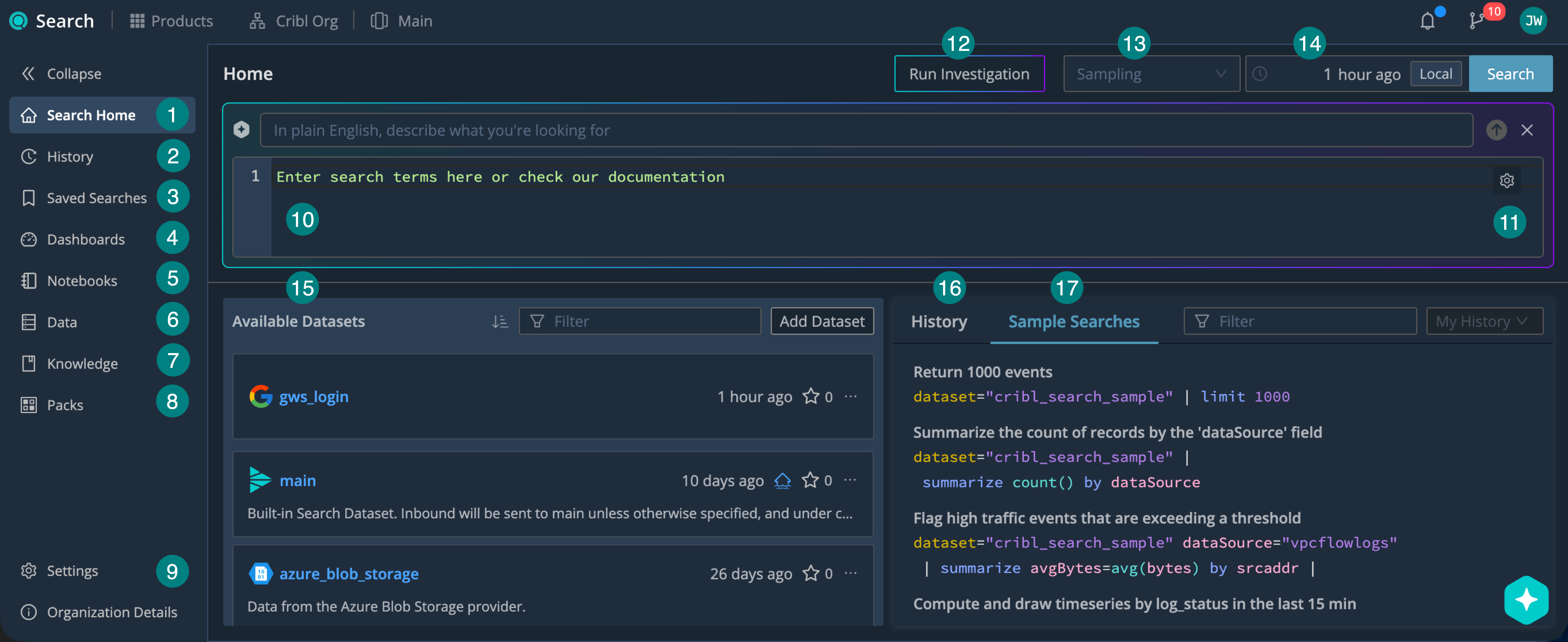
| Area | Description | More Info |
|---|---|---|
| 1 | Search Home is where you run your current search. | |
| 2 | History keeps previous searches so you can reuse them or check cached results. | View Search History |
| 3 | Saved Searches let you run queries on schedule and set up Notifications. | Save Searches |
| 4 | Dashboards visualize search results in a variety of ways. | Dashboards |
| 5 | Notebooks let you combine queries, visualizations, and notes on one tab. | Notebooks |
| 6 | Data is where Search Admins and Editors manage Engines, Sources, Datasets, Dataset Providers, and Datatypes. | Get Data Into Cribl Search Connect to External Data |
| 7 | Knowledge contains your lookups, Parsers, regexes, Grok patterns, and Macros. | Knowledge Libraries |
| 8 | Packs let Search Admins and Editors import, export, and share knowledge objects. | Packs |
| 9 | Settings is where Search Admins set Notification targets, Usage Groups, and limits. | Usage Settings |
| Area | Description | More Info |
|---|---|---|
| 10 | Query Box is where you build your searches in Kusto Query Language (KQL). Select Build Query to use natural language instead. | |
| 11 | Select the gear button to change query box options or see the KQL reference. | Language Reference |
| 12 | Run Investigation starts an AI-powered investigation session. | Run Investigation |
| 13 | Sampling reduces the number of results for quick, exploratory searches. | Sampling |
| 14 | Time Range narrows down your search to a specific time period. | Time Range |
| Area | Description | More Info |
|---|---|---|
| 15 | Available Datasets let you inspect your data before running a search. Cribl-hosted Search Datasets are marked with the lakehouse icon  | Inspect Your Datasets |
| 16 | History tab shows a quick overview of recent searches. | View Search History |
| 17 | Sample Searches help you get started with running queries. | Common Query Examples |