





Grok
The Grok Function extracts structured fields from unstructured log data, using modular regex patterns.
Usage
Filter: Filter expression (JavaScript) that selects data to feed through the Function. Defaults to true, meaning it evaluates all events.
Description: Optional description of this Function’s purpose in this Pipeline. Defaults to empty.
Final: Toggle on to stop feeding data to the downstream Functions. Default is toggled off.
Pattern: Grok pattern to extract fields.
You can use a Grok pattern from any of the configured files.
Click the Expand button at right to open a preview/validation modal.
Syntax supported: %{PATTERN_NAME:FIELD_NAME}.
Select Add pattern to chain more patterns.
Source field: Field on which to perform Grok extractions. Defaults to _raw.
Management
You can add and edit Grok patterns via @{product}’s UI by selecting Knowledge > Grok Patterns. Pattern files are located at: $CRIBL_HOME/(default|local)/cribl/grok-patterns/
Example
Example event:
{"_raw": "2020-09-16T04:20:42.45+01:00 DEBUG This is a sample debug log message"}Pattern: %{TIMESTAMP_ISO8601:event_time} %{LOGLEVEL:log_level} %{GREEDYDATA:log_message}
Source Field: _raw
Event after extraction:
{"_raw": "2020-09-16T04:20:42.45+01:00 DEBUG This is a sample debug log message",
  "_time": 1600226442.045,
  "event_time": "2020-09-16T04:20:42.45+01:00",
  "log_level": "DEBUG",
  "log_message": "This is a sample debug log message",
}Note the new fields added to the event: event_time, log_level, and log_message.
References
Syntax for a Grok pattern is
%{PATTERN_NAME:FIELD_NAME}. Example:%{IP:client} %{WORD:method}.Useful link for creating and testing Grok patterns: http://grokconstructor.appspot.com
Additional patterns are available here: https://github.com/logstash-plugins/logstash-patterns-core/tree/main/patterns
Available Grok Patterns
@{product} ships common Grok Patterns for basic scenarios that you can use with the Grok Function, organized as a collection of files.
You can refer to a single pattern in multiple Grok Functions in different Pipelines. When editing them, be aware that any change will affect all places it is used in.
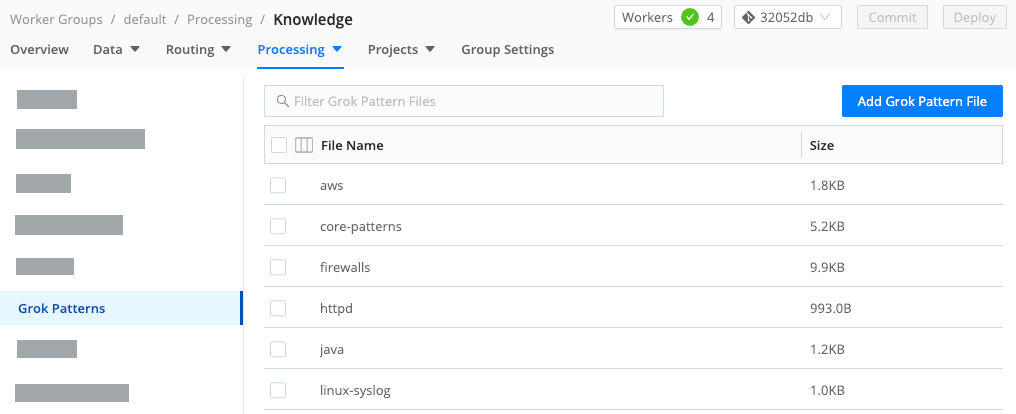
To find the patterns, select @{group}s from the sidebar, and choose a @{group}. Then, on the @{group}s submenu, select @{menu-processing}, then Knowledge, then Grok Patterns.
Add a Grok Pattern File
To add a new Grok pattern file, follow these steps:
- In the sidebar, select @{group}s from the sidebar, and choose a Worker Group or Fleet.
- On the @{group}s submenu, select @{menu-processing}, then Knowledge, then Grok Patterns.
- Select Add Grok Pattern File.
- Enter a unique File name.
- Paste the content of the Grok file into Content.
- Select Save.