





Commit and Deploy Changes
In Cribl Stream, you use the commit and deploy workflow to push configuration changes from the Leader Node (the control plane) to your Worker Groups (the data plane). See The Cribl Three-Plane Model for an explanation of the Cribl architectural model if needed.
The commit and deploy workflow ensures that changes are versioned, auditable, and synchronized. It also allows you to revert and roll back changes as needed.
Only users with Admin or Editor permissions have the ability to view and commit configuration changes. See Permissions for more information about roles and abilities.
The Commit and Deploy Lifecycle
The Leader Node acts as the central configuration management hub and is the single authority for all configurations. When you deploy changes from Cribl Stream, it uses a local Git repository to track and version control all configuration changes for that Leader.
The lifecycle of a configuration change follows a specific order of operations:
Version Control: Every time you commit in the UI, Cribl Stream performs a Git commit to the local repository on the Leader. This captures a point-in-time snapshot of your settings, including the user who made the change and a description of the update.
Worker Notification: When you deploy, the Leader increments the configuration version and notifies all Workers in the targeted Worker Group that a new version is ready.
Pull Mechanism: Workers do not have configurations pushed to them. Instead, they pull the latest bundle from the Leader over the management channel. This ensures that even Workers with intermittent connectivity eventually synchronize to the source of truth: the Leader.
See How Worker Nodes and the Leader Node Work Together for a more detailed technical explanation of the architecture.
Global Commit vs. Worker Group Commit
Distributed mode includes Worker Group-specific Commit and Deploy controls. These controls function differently from the global Commit button because they have a different scope.
The global Version Control button:
- Scope: Commits changes for all Worker Groups and the Leader Node simultaneously.
- Result: Changes are versioned but not deployed.
The Worker Group Commit and Deploy buttons:
- Scope: Commits and deploys changes for only the currently selected Worker Group.
- Result: Allows for a single-click Commit and Deploy, making changes live for that specific group immediately.
These controls will appear slightly differently depending on whether you have changes committed but not yet deployed, and on whether you’ve enabled the Collapse actions setting.
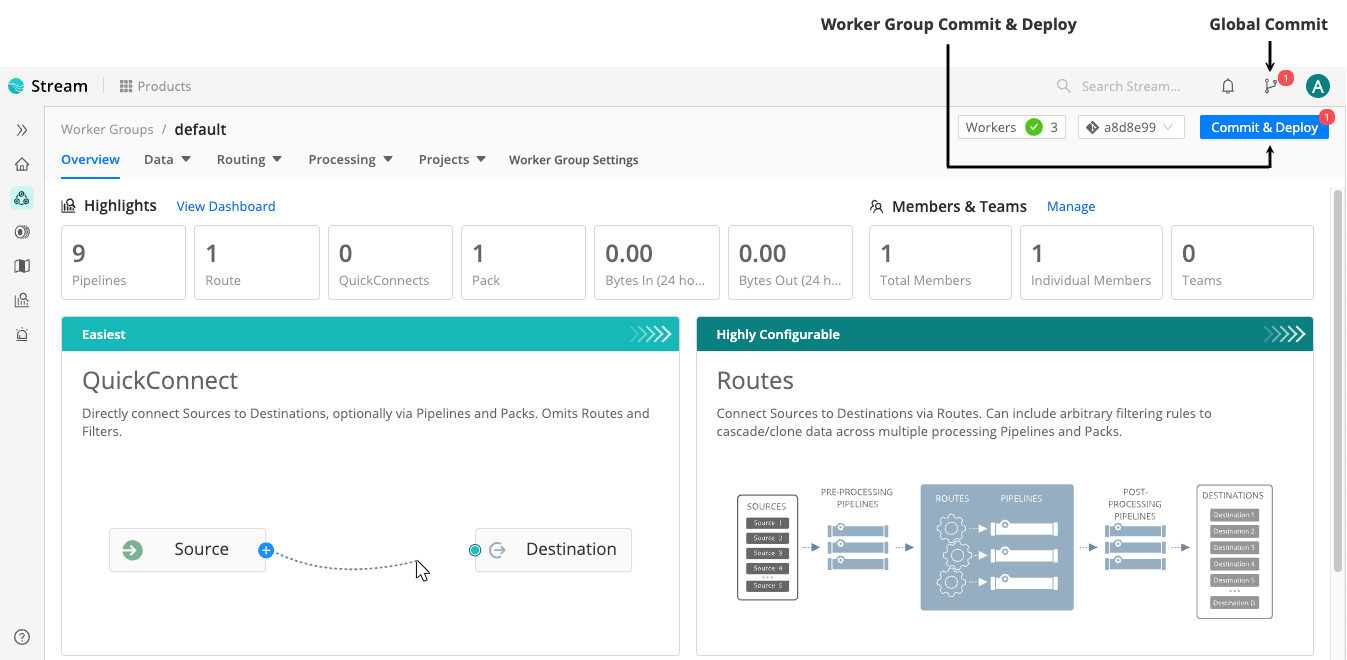
Commit and Deploy Changes
You make configuration changes directly through the Cribl UI or using direct API calls to the Leader Node. The Leader distributes the configuration bundle to Worker Groups upon a manual commit and deploy.
You can also use the Cribl API to automate commit and deploy commands. Read Commit and Deploy Changes in the API documentation for more information.
To commit and deploy configuration changes in the UI:
Check the top bar to determine if you have any pending changes to commit. Pending commits have a red dot indicator.
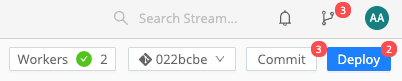
Changes pending commit Select Commit to commit pending changes.
Ensure you select the correct button for your intended scope: either the specific Worker Group or the Global (all Groups and Leader) level. See Global Commit vs. Worker Group Commit for an explanation of the differences in scope and which buttons to use.
In the Git Changes modal, verify the configuration changes. Optionally, clear the check boxes for individual files to exclude them from the commit. If needed, select Undo All Changes to reverse the changes instead of committing them.
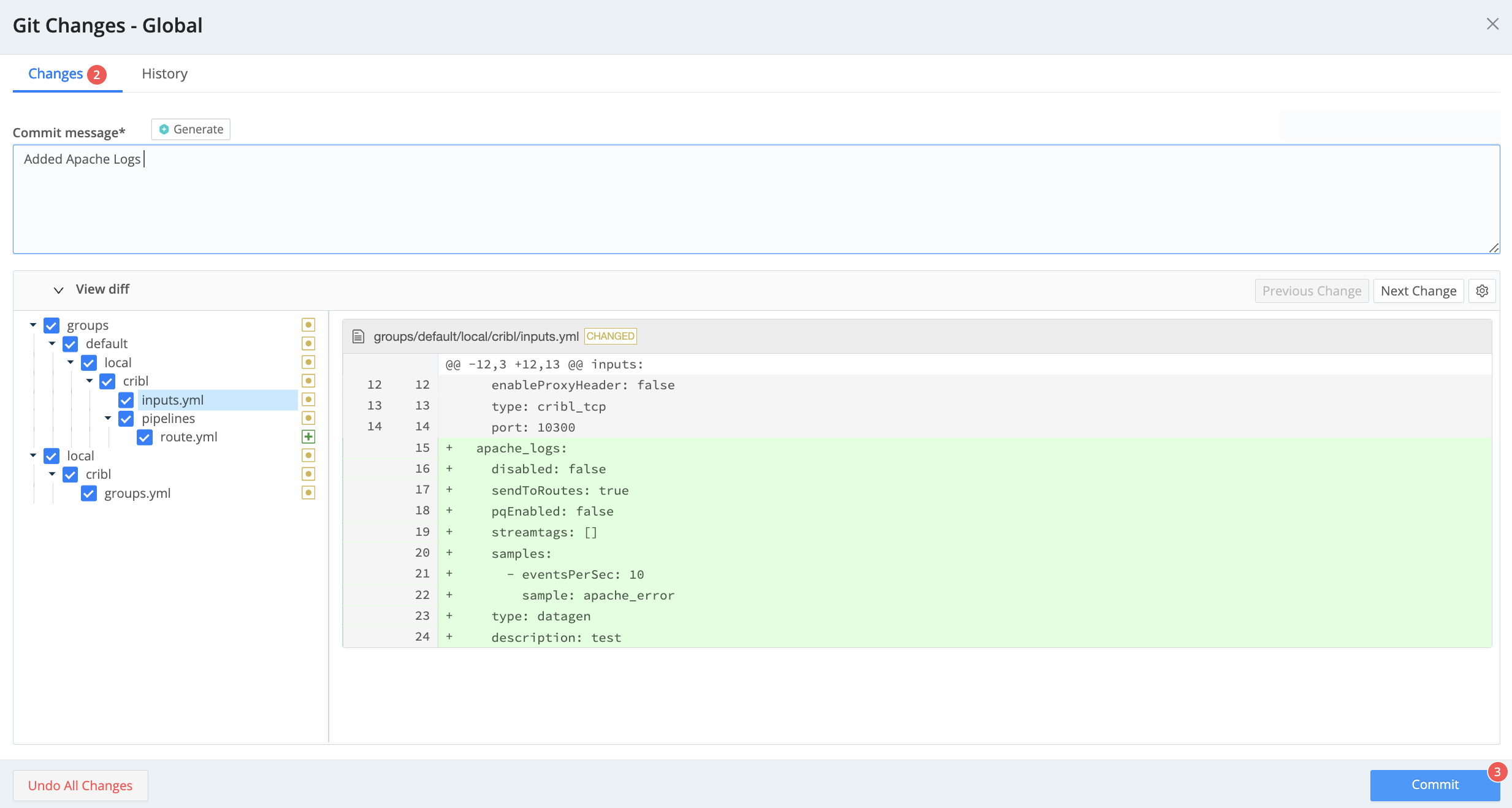
Review the pending commit Enter a commit message, or select Generate to have Cribl Copilot create a message for you, if enabled.
Commit your changes, depending on your scope:
Button Scope Result Commit Global: Commits changes for all Worker Groups and the Leader Node simultaneously. Changes are versioned but not deployed. Commit Only Worker Group: Commits configurations for only the currently selected Worker Group. Changes are versioned but not deployed. Commit & Deploy Worker Group: Commits configurations for only the currently selected Worker Group. Commits and deploys configuration for only the currently selected Worker Group.
If the commit was successful, you will see a Commit successful confirmation message.
View and Revert Committed Changes
To view committed changes in the UI:
- Worker Groups: Select Commit from the top bar and select the History tab in the Git Changes modal to cycle through the most recent commits.
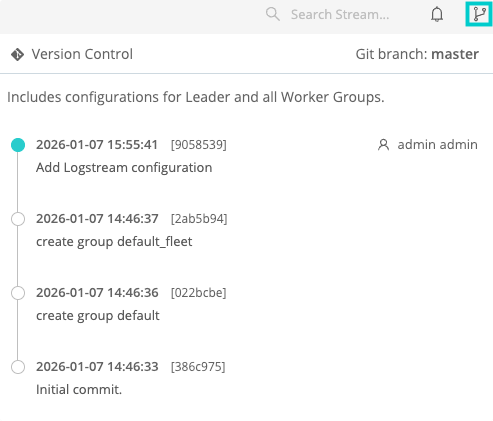
- Global: Select the global Version Control icon from the top bar to see a list the most recent changes. Select a change to view it in the Git History modal.
Revert Commits in the UI
Reverting a commit in the UI proceeds slightly differently for Single-instance and for Distributed deployments. In a Distributed deployment, you revert commits for each Worker Group separately.
To revert a commit in the UI:
If you are on a Distributed deployment, in the sidebar, select Worker Groups, then select the Worker Group you want to revert the commit for.
Select the commit you want to revert.
In the resulting Git History modal, verify the diffs in the configuration changes and select Revert to.
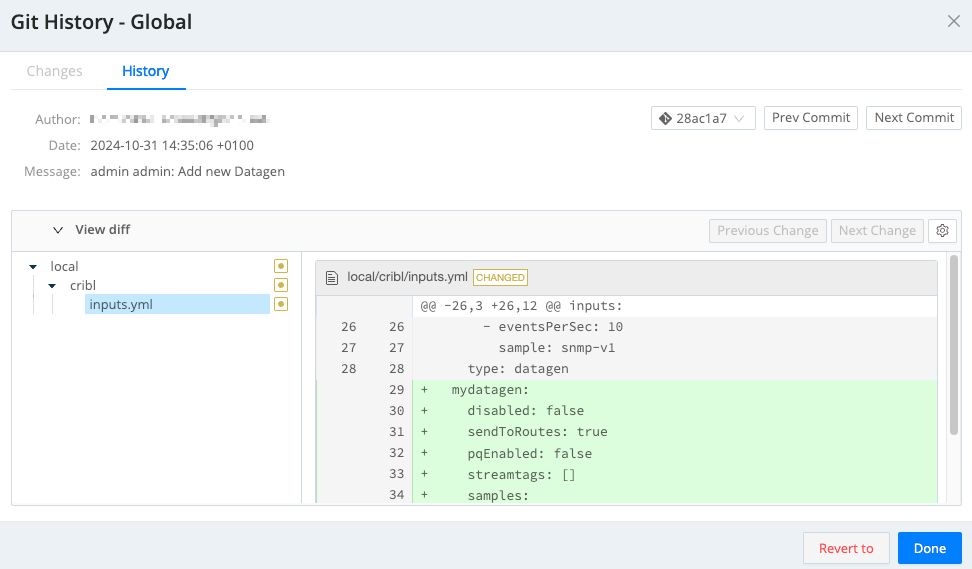
Diff preview before reverting a commit Confirm the revert. This will cause Cribl Stream to restart.
Revert Commits Using the CLI
To revert a commit using the CLI:
Make sure you have committed all your recent configuration changes.
Stop Cribl Stream.
In your terminal, navigate to your
$CRIBL_HOMElocation (typically,/opt/cribl).Run
git logto get a list of most recent commits and find the hash of the commit you want to revert.Run
git revert <commit-hash>to revert this commit.If you want to revert more than one commit, list all their hashes as arguments for
git revert.Running
git revertwill create one or more new “Revert” commits that record the change in your git history.Restart Cribl Stream.