





Event Breakers
Event Breaker Rulesets are ordered collections of event-breaking rules that help you define the boundaries and structure of raw log data. Once you have converted unstructured raw data into structured events, you can then send them through Pipelines for further routing and data processing.
An Event Breaker Ruleset is a reusable knowledge object stored in the Knowledge Library. It acts as a parsing policy that bundles one or more individual Event Breaker rules into a single configuration that can be applied to Sources or Pipelines using the Event Breaker Function.
Each Ruleset contains a series of event breaking rules. Cribl compares incoming raw data against the filter condition for each rule in turn, based on the order that the rules appear in the Ruleset. For the first rule that matches the raw data, Cribl applies the event-breaking logic defined for that rule.
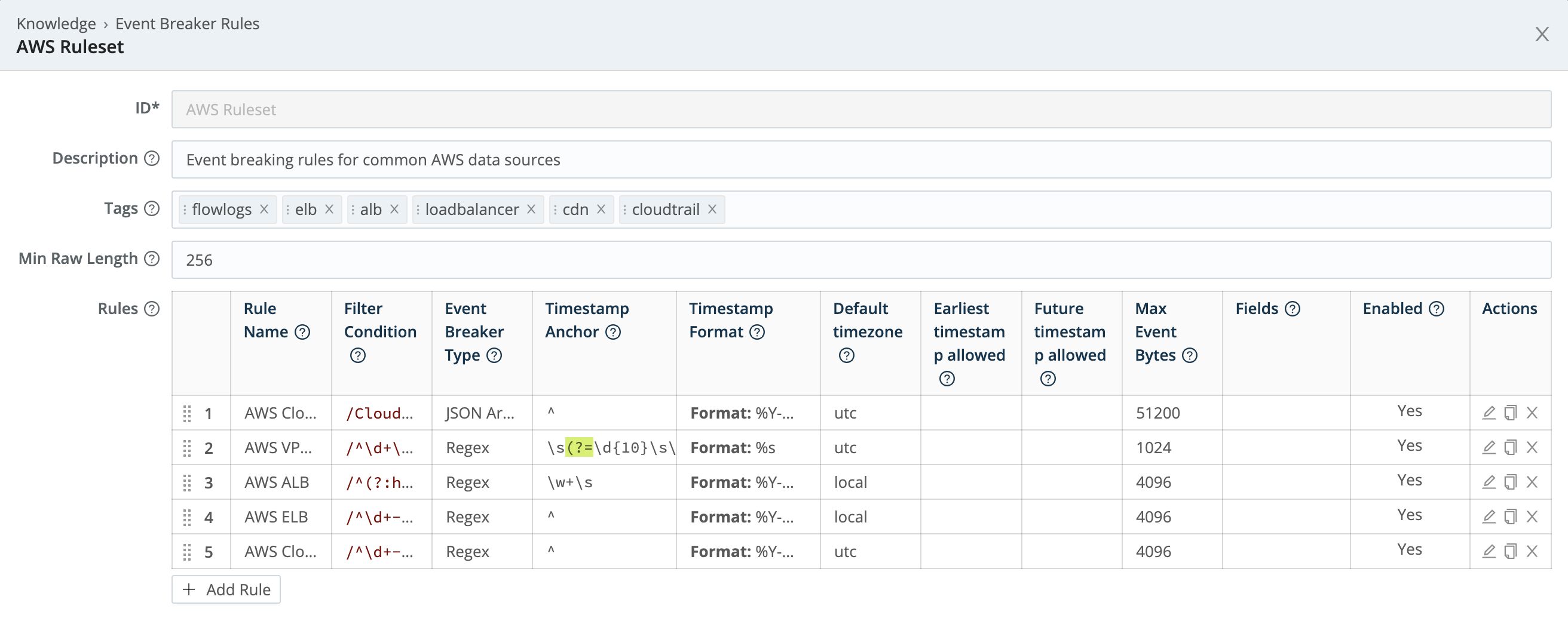
Cribl provides several standard Event Breaker Rulesets for commonly used Sources out-of-the-box:
- Azure Blob Storage
- AWS
- Apache
- Bro
- Cisco
- Cribl
- Cribl Search
- CSV
- Office 365
- Palo Alto
- Splunk Search
- Wiz
You can adjust these standard Rulesets or you can create your own custom Rulesets as needed. Event Breaker rulesets shipped by Cribl will be listed under the Cribl tag, while user-built rulesets will be listed under Custom. In the case of an ID or Name conflict, the Custom pattern takes priority in listings and search.
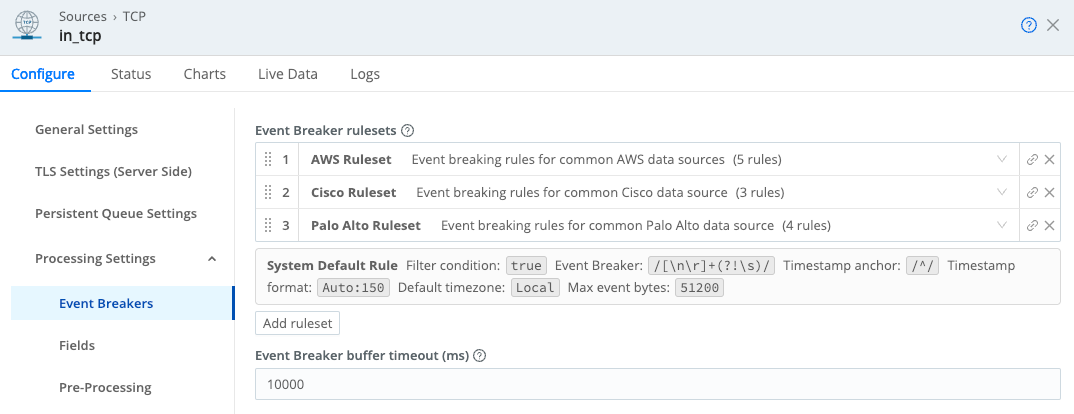
How Event Breakers Work
Event Breakers consist of rulesets that can be applied to raw data one of two ways:
- Directly on the Source: For Event Breaker support for specific Sources, consult the documentation for that Source.
- Using the Event Breaker Function: You can apply event breaking directly in a Pipeline using the Event Breaker Function.
If a Source supports event breaking, you should apply Event Breaking Rulesets there. For Sources that do not support event breaking, use the the Event Breaker Function instead.
When a stream of raw data arrives at a Source or Event Breaker Function, it is processed through the Event Breaker Ruleset in a specific order of operations:
Filter Condition: When data enters the system, the engine checks it against each filter expression in sequence. If the expression evaluates to
true, the rule configurations engage for the entire duration of that stream. Otherwise, the engine evaluates the next rule down the line. Different Source types define data streams differently:- TCP Sources: A stream equates to a single incoming TCP connection. The stream begins when the socket connection is established and ends when that connection closes.
- HTTP Sources: A stream equates to a single HTTP request, with connections potentially being reused across different requests instead of corresponding to the entire connection lifecycle.
- File-based Sources: For Sources like File Monitor or Journal Files, each ingested file is treated as a distinct and complete stream, evaluated independently against filters.
- Sources that support multiplexed data: For Sources like Splunk S2S protocol, Cribl Stream demultiplexes the incoming stream based on channels. Each channel (which typically maps to a unique
source:sourcetype:hostcombination in Splunk Sources) retains the same Event Breaker configuration applied consistently across its entire processing lifecycle.
Remember that Event Breaker Rulesets are evaluated in order, and the first matching rule is applied. If you define a rule with a broad or overly permissive filter, it may capture events that were intended for a more specific rule lower in the list. This means a broadly filtered rule placed high in the list can capture and incorrectly process events that were intended for a more specific rule below it.
To avoid this risk, order your rules from specific to general.
The System Default Rule: The System Default Rule is a built-in, uneditable set of Event Breaker rules that resides at the end of the ruleset order of operations. It is not displayed in the Event Breakers interface, but it automatically goes into effect for any data event that does not match the filter condition of any rule in your custom Event Breaker Ruleset. Its primary purpose is to ensure that streams of unstructured logs are broken into structured data:
Setting Value Explanation Filter Condition trueA condition of trueguarantees that every event that makes it past your custom rules will be processed by the default rule.Event Breaker [\n\r]+(?!\s)Breaks the event at a newline or carriage return, unless the following character is a whitespace ( \s). This pattern can handle simple, single-line log formats while attempting to avoid breaking multiline events (like stack traces) where the subsequent lines are indented.Timestamp Anchor ^Starts scanning for a timestamp at the beginning of the event ( ^).Timestamp Format AutoUses the Auto Timestamp algorithm to automatically detect the timestamp format. This allows the default rule to handle the widest variety of logs without a pre-defined format. Scan Depth 150 bytes This limits how far into the event (150 bytes) the Auto Timestamp will look. It optimizes performance by reducing time scanning massive logs for a timestamp that should be near the front. Max Event Bytes 51200This sets the maximum size (50 KB) that an un-broken event can reach before Cribl forces a break, which handles events that have no newline or timestamp. It prevents a single event from consuming excessive memory. Default Timezone LocalIf the timestamp does not contain timezone information, Cribl defaults to using the Worker Process’s local timezone when assigning the _timefield.
Limitations
Event Breaker Rulesets can be applied to raw data either directly on the Source or using the Event Breaker Function in Pipelines. These two methods have some limitations, as explained here.
Event Breaking in Sources
Event Breakers are directly accessible only on Sources that require incoming events to be broken into a better-defined format. For Event Breaker support for specific Sources, consult the documentation for that Source.
Always validate event breaking before turning on a Source.
Event Breaker Function
The Event Breaker Function has these limitations:
- The Event Breaker Function operates only on data in
_raw. For other events, move the array to_rawand stringify it before applying the Function. - The largest event that this Function can break is about about 128 MB (
134217728bytes). Events exceeding this maximum size will be split into separate events, but left unbroken. Cribl Stream will set the__isBrokeninternal field tofalseon these events.
Configure Event Breaker Rulesets
You can add, edit, or customize Event Breaker Rulesets directly in Sources or Packs. You can also configure them in the Knowledge Library.
To access the Event Breakers Rulesets from the Knowledge Library:
Navigate to Products > Cribl Stream > Worker Groups.
Select a Worker Group, then go to Processing > Knowledge > Event Breaker Rulesets.
On the resulting Event Breaker Rulesets page, you can edit, add, delete, search, and tag Event Breaker rules and rulesets, as necessary.
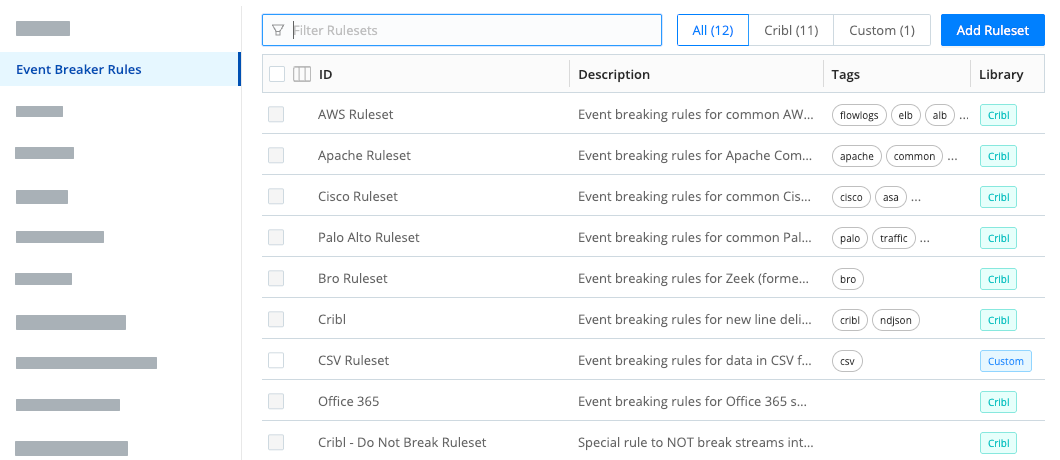
Event Breaker Rulesets page Select Add Ruleset to create a new Event Breaker Ruleset. Enter the Rulset name and an optional description. Then select Add Rule within a ruleset to add a new Event Breaker.
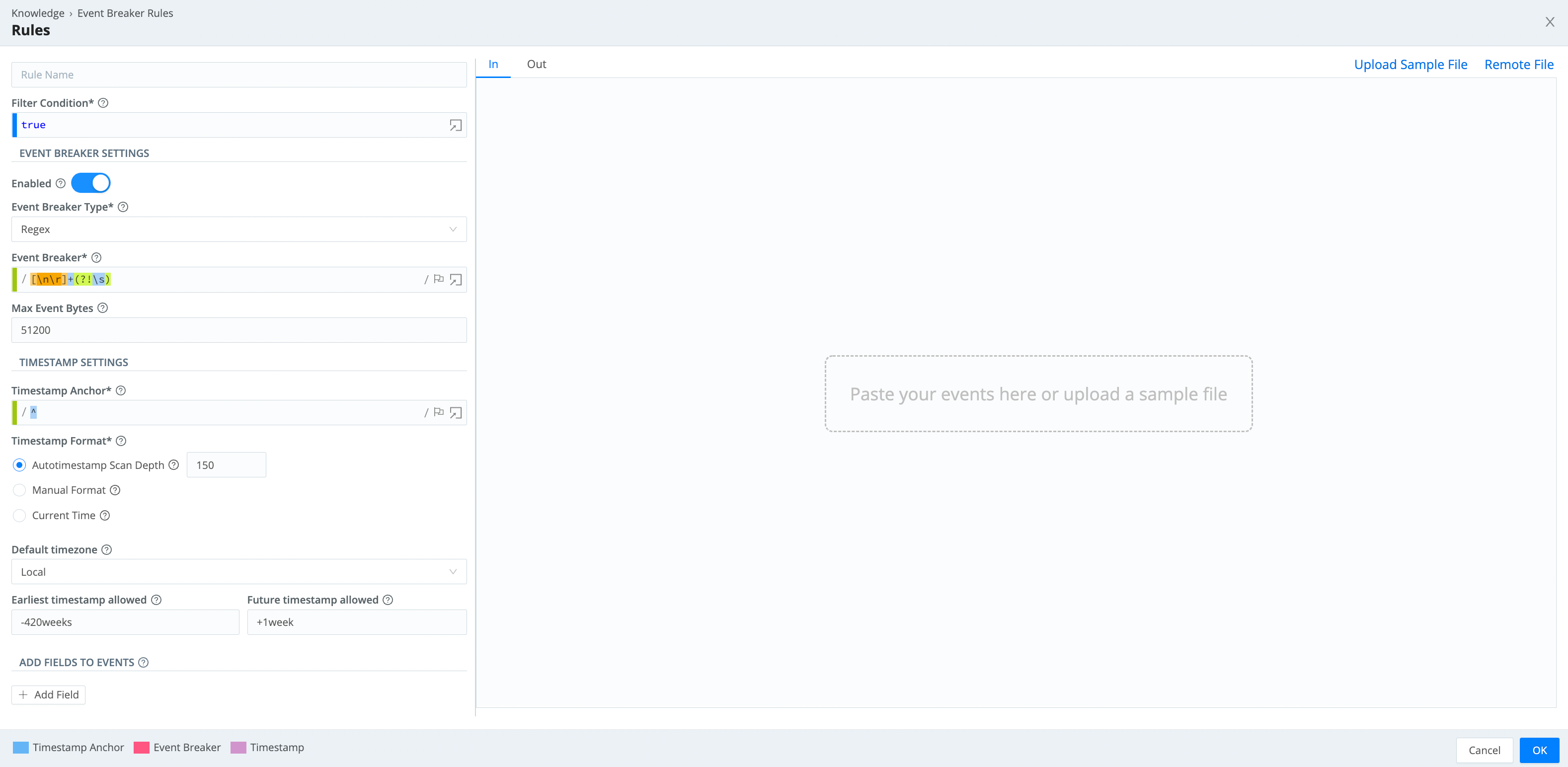
Adding a new Event Breaker rule In the Rules modal, configure the following settings:
Name: Enter a unique name for the rule.
Filter condition: When data enters the system, the engine checks it against each filter expression in sequence. If the expression evaluates to
true, the rule configurations engage for the entire duration of that stream. See How Event Breakers Work for more detailed information about how this setting works.
In the Event Breaker Settings section, configure the following settings:
Enabled: By default this is toggled on. Toggle off to turn this rule off and stop it from being applied for event breaking.
Event Breaker type: Select one of the available Event Breaker types from this menu. After you select a breaker pattern, it will apply on the data stream continuously. See Event Breaker Types for guidance on selecting an appropriate Event Breaker type. Specific Event Breakers might have additional settings, so consult the documentation for your selected type for more information.
Max Event Bytes: A break will automatically occur if the accumulated event size reaches this configured byte limit, regardless of whether the regex pattern has been matched.
The highest Max Event Bytes value that you can set is about 128 MB (
134217728bytes). Events exceeding that size will be split into separate events, but left unbroken. Cribl Stream will set these events’__isBrokeninternal field tofalse.
In the Timestamp Settings section, configure event timestamp settings. See Timestamp Settings for details about each setting.
In the Add Fields to Events section, you can add one or more fields to events as key-value pairs. In each field’s Value Expression, you can fully evaluate the field value using JavaScript expressions.
Event Breakers always add the
cribl_breakerfield to output events. Its value is the name of the chosen ruleset. Some examples on this page omit thecribl_breakerfield for brevity, but in real life the field is always added.
Once the rule is configured, validate it using the Data Preview window in Pipelines to see how incoming events are structured after breaking.
Timestamp Settings
Cribl Stream timestamps events after they are synthesized from streams, ensuring accurate time representation for event processing and analysis.
- If an Event Breaker has set an event’s
_timeto the current time - rather than extracting the value from the event itself - it will mark this by adding the internal field__timestampExtracted: falseto the event. - Cribl Stream truncates timestamps to three-digit (milliseconds) resolution, omitting trailing zeros.
Anchor: Cribl Stream first identifies a timestamp anchor within the event. This anchor serves as the starting point for timestamp extraction. The end of the first regex match is the start of the timestamp.
The closer an anchor is to the timestamp pattern, the better the performance and accuracy - especially if multiple timestamps exist within an event.

Format: Starting from the anchor, the engine attempts the following methods, stopping after a successful timestamp extraction:
- Autotimestamp: Scans up to a configurable depth within the event, attempting to automatically identify and parse a timestamp. This uses the same algorithm as the Auto Timestamp Function and the
C.Time.timestampFinder()native method. - Manual: Select a
strptimeformat to parse the timestamp immediately following the anchor. The anchor must lead the engine right before the timestamp pattern begins. - Current time: The event is timestamped with the current time.
Default timezone: Assigns a timezone to timestamps that lack timezone information.
Earliest timestamp allowed and Future timestamp allowed: Constrain the parsed timestamp to prevent unrealistic values, setting timestamps outside these bounds to the default time.
Example Rule
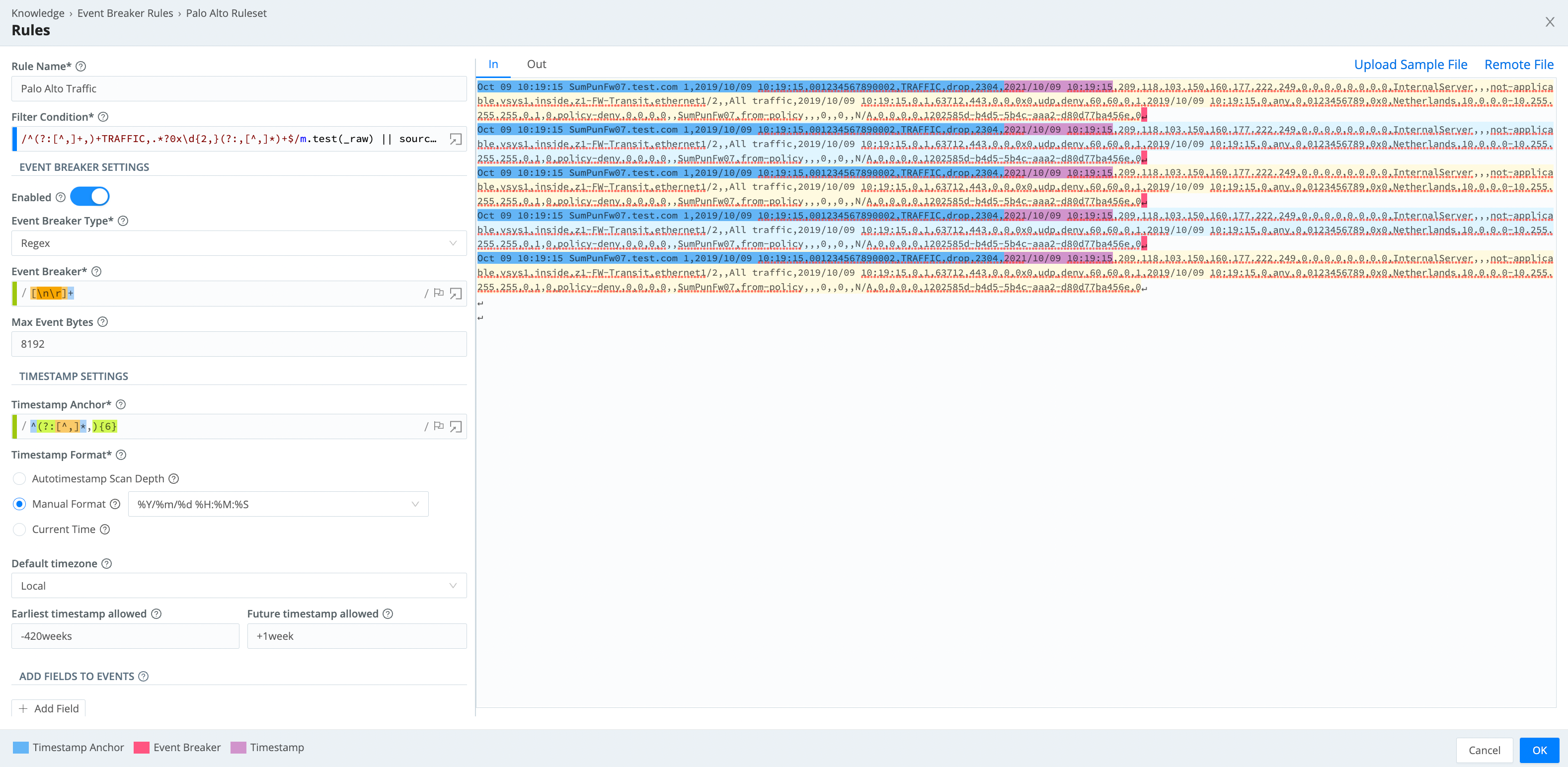
This example rule breaks on newlines and uses Manual timestamping after the sixth comma, as indicated by this pattern: ^(?:[^,]*,){6}.
Export and Import Rulesets
You can export and import Event Breaker Rulesets as JSON files. This facilitates sharing Rulesets among Worker Groups or Cribl Stream deployments.
To export a Ruleset:
Select to open an existing ruleset, or create a new ruleset.
In the resulting modal, select Advanced Mode to open the JSON editor.
Select Export, select a destination path, and name the file.
To import any Ruleset that has been exported as a valid JSON file:
Create a new ruleset.
In the resulting modal, select Advanced Mode to open the JSON editor.
Select Import, and choose the file you want.
Select OK to get back to the New Ruleset modal.
Select Save.
Every Ruleset must have a unique value in its top
idkey. Importing a JSON file with a duplicateidvalue will fail at the final Save step, with a message that the ruleset already exists. You can remedy this by giving the file a uniqueidvalue.
Build Event Breakers From Files (Edge Only)
You can use Cribl Edge to apply and author Event Breakers while exploring files, including files that you have not saved as sample files. This option includes remote files that are viewable only from Edge. See Exploring Cribl Edge on Linux or Exploring Cribl Edge on Windows.
Troubleshoot Event Breakers
If you notice fragmented events, check whether Cribl Stream has added a __timeoutFlush internal field to them. This diagnostic field’s presence indicates that the events were flushed because the Event Breaker buffer timed out while processing them. These timeouts can be due to large incoming events, backpressure, or other causes.
Specify Minimum _raw Length
If you notice that the same Collector or Source is applying inconsistent Event Breakers to different datasets - such as intermittently falling back to the System Default Rule - you can address this by adjusting Breakers’ Min Raw Length setting.
When determining which Event Breaker to use, Cribl Stream creates a substring from the incoming _raw field, at the length set by rules’ Max Event Bytes parameters. If Cribl Stream does not get a match, it checks whether the substring of _raw has at least the threshold number of characters set by Min Raw Length. If so, Cribl Stream does not wait for more data.
You can tune this Min Raw Length threshold to account for varying numbers of inapplicable characters at the beginning of events. The default is 256 characters, but you can set this as low as 50, or as high as 100000 (100 KB).