





Grok
The Grok Function extracts structured fields from unstructured log data, using modular regex patterns.
Usage
Filter: Filter expression (JavaScript) that selects data to feed through the Function. Defaults to true, meaning it evaluates all events.
Description: Optional description of this Function’s purpose in this Pipeline. Defaults to empty.
Final: Toggle on to stop feeding data to the downstream Functions. Default is toggled off.
Pattern: Grok pattern to extract fields.
You can use a Grok pattern from any of the configured files.
Click the Expand button at right to open a preview/validation modal.
Syntax supported: %{PATTERN_NAME:FIELD_NAME}.
Select Add pattern to chain more patterns.
Source field: Field on which to perform Grok extractions. Defaults to _raw.
Management
You can add and edit Grok patterns via Cribl Stream’s UI by selecting Knowledge > Grok Patterns. Pattern files are located at: $CRIBL_HOME/(default|local)/cribl/grok-patterns/
Example
Example event:
{"_raw": "2020-09-16T04:20:42.45+01:00 DEBUG This is a sample debug log message"}Pattern: %{TIMESTAMP_ISO8601:event_time} %{LOGLEVEL:log_level} %{GREEDYDATA:log_message}
Source Field: _raw
Event after extraction:
{"_raw": "2020-09-16T04:20:42.45+01:00 DEBUG This is a sample debug log message",
  "_time": 1600226442.045,
  "event_time": "2020-09-16T04:20:42.45+01:00",
  "log_level": "DEBUG",
  "log_message": "This is a sample debug log message",
}Note the new fields added to the event: event_time, log_level, and log_message.
References
Syntax for a Grok pattern is
%{PATTERN_NAME:FIELD_NAME}. Example:%{IP:client} %{WORD:method}.Useful link for creating and testing Grok patterns: http://grokconstructor.appspot.com
Additional patterns are available here: https://github.com/logstash-plugins/logstash-patterns-core/tree/main/patterns
Available Grok Patterns
Cribl Stream ships common Grok Patterns for basic scenarios that you can use with the Grok Function, organized as a collection of files.
You can refer to a single pattern in multiple Grok Functions in different Pipelines. When editing them, be aware that any change will affect all places it is used in.
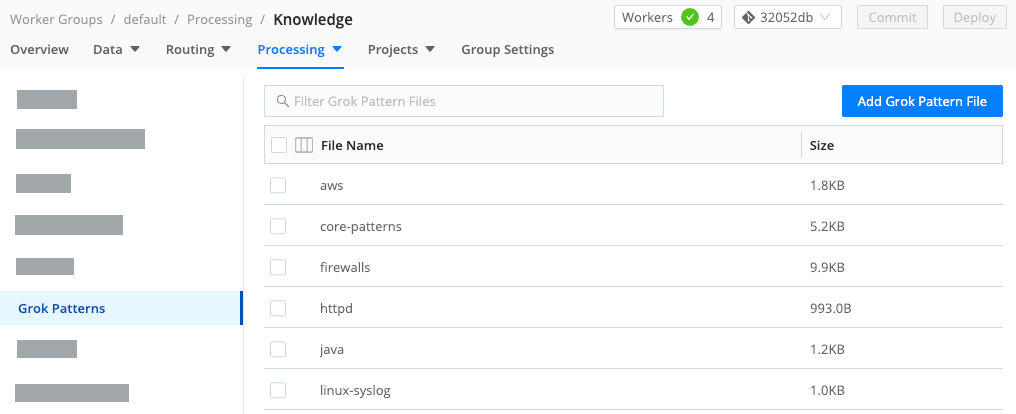
To find the patterns, select Worker Groups from the sidebar, and choose a Worker Group. Then, on the Worker Groups submenu, select Processing, then Knowledge, then Grok Patterns.
Add a Grok Pattern File
To add a new Grok pattern file, follow these steps:
- In the sidebar, select Worker Groups from the sidebar, and choose a Worker Group or Fleet.
- On the Worker Groups submenu, select Processing, then Knowledge, then Grok Patterns.
- Select Add Grok Pattern File.
- Enter a unique File name.
- Paste the content of the Grok file into Content.
- Select Save.