





Manage Cribl Outpost
Control, diagnose, and upgrade your Cribl Outposts.
View Outposts
The Outposts page displays all Outposts configured in your deployment, including those that are currently disconnected.
On the top bar, select Products, and then select Stream.
In the sidebar, select Outposts. You will see a list of all Outpost Groups.
Select any group to see its Outposts, including disconnected ones.
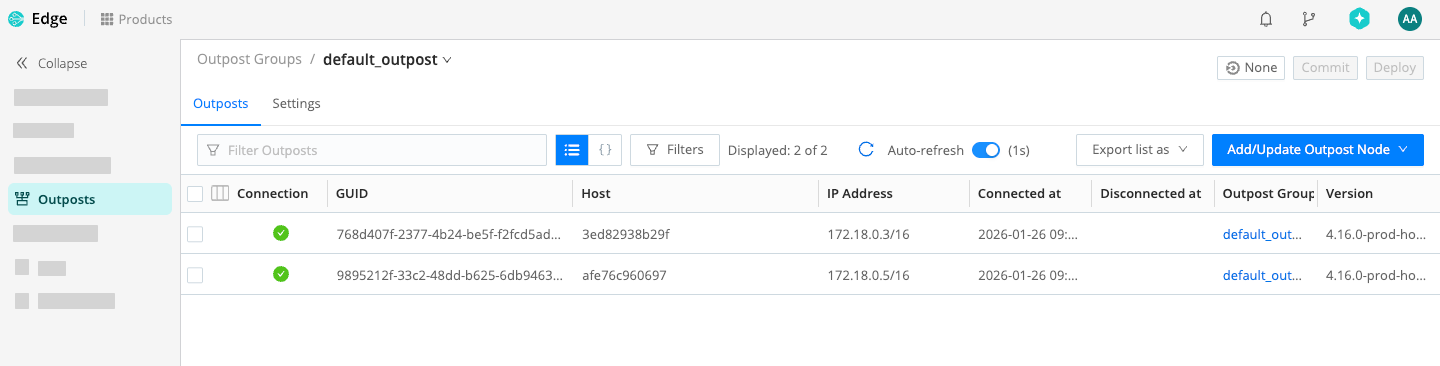
List of Outposts Select any row in the table to see detailed information about the Outpost.
Alternatively, select List View
 above the Outpost Group table to view all Outposts in all groups.
To export the filtered list of Outposts in JSON or CSV format, select Export list as above the table.
Check Outpost Activity
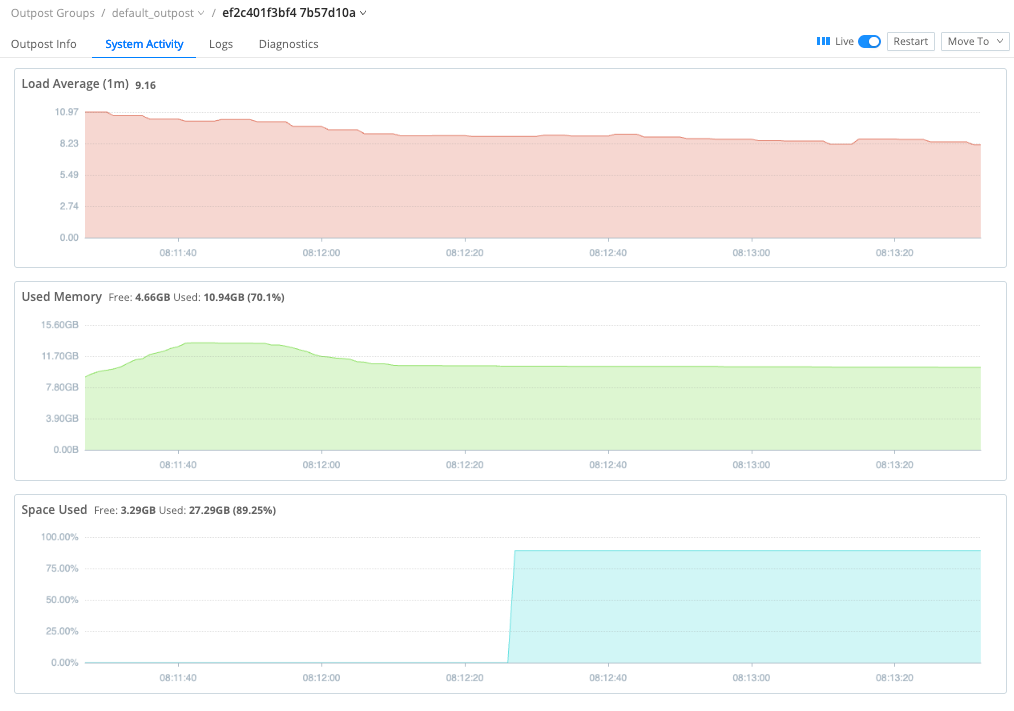
To view the data flow through an Outpost Node, select an Outpost Group and an individual Outpost, then select the System Activity tab. This tab displays charts for:
- Load Average (1m)
- Amount of memory used
- Amount of disk space used
View Outpost Logs
To view Outpost logs, consult the Logs tab in the Outpost screen. For more information about Outpost logs, see Internal Logs.
Create Outpost Diagnostic Bundle
In the outpost screen you also create a diagnostic bundle to share with Cribl Support as help in diagnosing any issues. To do so, on the Diagnostic tab, select Create Diagnostic Bundle. To learn more about diagnostic bundles, see Diagnose Issues.
You can also create diagnostic bundles by using the
diagcommand.
Restart an Outpost
Required Permission: Admin/Owner
To restart an Outpost:
- On the top bar, select Products, and then select Stream.
- In the sidebar, select Outposts, then select one of the Outpost Groups.
- Select the check box in the row of the Outpost or Outposts you want to restart and select Restart Selected.
- Confirm with Restart.
Manage Outpost Groups
Outpost Groups let you manage configurations for Outposts in bulk. The Settings tab in Outpost Group view lets you configure preferences for the group. The settings available are a subset of the settings for a Worker Group (in Cribl Stream) or an Edge Fleet (in Cribl Edge).
Outposts created in versions older than 4.16.0 will always stay in the
default_outpostgroup. To move those Outposts between groups, first upgrade them to version 4.16.0 or newer.
Outpost Connectivity
You can configure how long the Leader should keep track of disconnected Outposts by configuring the Time to keep disconnected Outposts Outpost Group setting. By default the Leader retains information about disconnected Outposts for one day. You can set it to any value between 0 (which means Outposts are removed within a few minutes) and 90 days.
Outpost Upgrades
Defining a target version for an Outpost Group lets you upgrade all Outposts from that group in bulk. See Upgrade Outpost for more information.
Move Outpost to Another Group
You can move an Outpost to another group by selecting its check box and selecting Move To below the Outpost table.
Moving an Outpost to another group can temporarily disconnect it from the Leader. If the new group has a target software version selected, the Outpost will upgrade to that version on move.
Moving an Outpost via the Move To button will be impossible for Outposts that have any DIST_ environment variables set.