





Version Control Packs in External Git Repos
You can track and version-control Packs in an external Git repository, such as GitHub, GitLab, and Bitbucket. Tracking a Pack using an external Git repository establishes Git as the single source of truth for Pack configurations. This allows you to track configuration changes in a central, company-owned repository. It also makes it easier to integrate your Cribl deployment into your company’s existing change management workflows.
Best Practices for External Pack Repositories
When tracking Packs in an external Git repository, keep these considerations in mind:
- Each Pack needs its own Git repository. To easily import and export Packs to an external Git repository, set up a separate Git repository for each Pack you want to version control.
- Use branches for two-way synchronization: While you can import a Pack from either a Git branch or a tag, tags are immutable and do not support pushing changes back to the remote repository. To enable a bidirectional workflow (where you both pull updates and push your local changes), you must use a branch.
- Always pay attention to the Pack version. Whenever you develop or export a Pack, get in the habit of checking the Pack version number in the Pack settings. When you make a change, check that you increased the version of the Pack before exporting. Cribl Stream only updates Packs when the version number has increased.
- Consider protecting branches to prevent accidental deletions. Set appropriate merge rights on these branches as needed.
- Document what the Pack does: If storing the Pack in an external Git repository, include README files and comments within components that explain what kind of data the Pack handles, which environment is it intended for, and whether there are any Sources/Destinations shared across Packs.
Export a Pack to an External Git Repository
After you have built your initial Pack, you can export it to an external Git repository and begin tracking it with Git version control tools. To get started, set up the connection between the Pack in your local environment and the version-controlled Pack in a Git repository.
Export a Pack
The first step is to export your Pack:
In Cribl Stream, navigate to the Packs page and open the Options ••• menu on the row of your Pack.
Select Export and choose the Merge export mode.
Confirm with Export and save the file locally.
Add the Pack to an External Git Repository
Now that you exported your Pack, you can add it to a new Git repository. You can use a public or private repository in any common Git hosting service, such as GitHub, GitLab, or Bitbucket. Regardless of whether your repository is public or private, you need to set up a personal access token for this repository, as explained in a later step: Set up a Personal Access Token and Import the Pack.
To add the Pack to an external repository:
Create an empty private repository in any hosting platform.
Optionally, create branches for your development, testing, and production branches. For example,
dev,test,prod.Clone the new repository to your local computer.
Extract the
.crblfile into the root repository directory.Because they are gzipped, you can extract
.crblfiles using thetarutility. For example:tar -xvzf WebdataStorage_0.0.1.crbl.Add, commit, and push the Pack content to your upstream Git repository.
Import and Update a Pack
In this step, you’ll set up the connection between the Pack in your local Cribl Stream environment and the version-controlled Pack in a Git repository so that you can push and pull to branches from inside Cribl Stream.
You’ll authenticate the connection by setting up a personal access token to connect Cribl Stream. Then, you’ll make a change to the original Pack and push those changes to a development branch in your Git repository.
Set Up a Personal Access Token and Import the Pack
To import a Pack from Git into Cribl Stream, generate a personal access token for your Git hosting service:
Create a personal access token.
Using GitHub as an example, create a personal access token with the
reposcope.For GitHub only: You must authorize your personal access token to access the organization identity if you:
- Enabled SSO (single sign-on) authentication for your personal access token, and
- Are using a classic personal access token (as opposed to fine-grained).
See the GitHub documentation about Authorizing a personal access token for use with single sign-on for specific instructions.
In Cribl Stream, select a Worker Group and navigate to the Packs page.
Select Add Pack at the upper right and select Import from Git.
Enter the repository’s URL. Provide your username and the token in this format:
https://<username>:<token>@github.com/<username>/<repo_name>.git.In Branch or tag, provide the name of your branch in the remote repository.
Choose your import source carefully. While you can import from a tag or a branch, only branches support pushing changes back to the remote repository.
- Branches: Use these for two-way synchronization (pull and push).
- Tags: Use these for read-only snapshots.
To switch from a tag to a branch, or to target a different branch for exports, you must delete the Pack and re-import it with the correct branch.
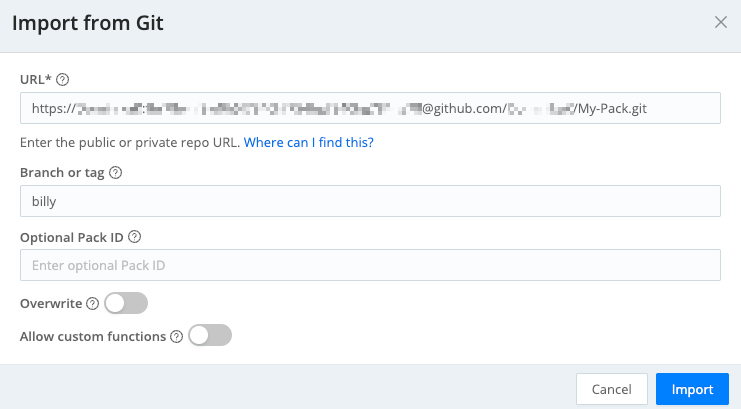
Importing a Pack from a Git repository Select Import to confirm.
If the Pack you are importing binds variables to any fields, you will see a Configure Variables button in the notification about successful import. Select it to go to the Variables page, where you can configure the values for the variables for your deployment.
Check that the Pack is working correctly with your current environment based on its scope:
- If the scope of your Pack contains Sources and Destinations, verify data flow between everything included in the Pack.
- If your Pack only contains Routes and Pipelines, verify data flow by connecting the Pack to a Worker Group that has the necessary Sources and Destinations.
Verify data flow between Sources and Destinations both inside and outside the Pack.
For on-prem deployments, it is possible to authenticate using SSH rather than personal access tokens. See Authenticate With SSH for more information.
Modify the Pack and Push Changes to Git
Now you can customize the Pack. Modify the Pack in some way by editing the Pack’s configuration objects. For example, try making an edit to a Source, Destination, Route, Pipeline, Event Breaker, or Knowledge Object. For your first time using an external Git repository, keep the changes small. Then, publish your changes to the remote Git repository:
Navigate to the Packs page and open the Options ••• menu on the row of your Pack.
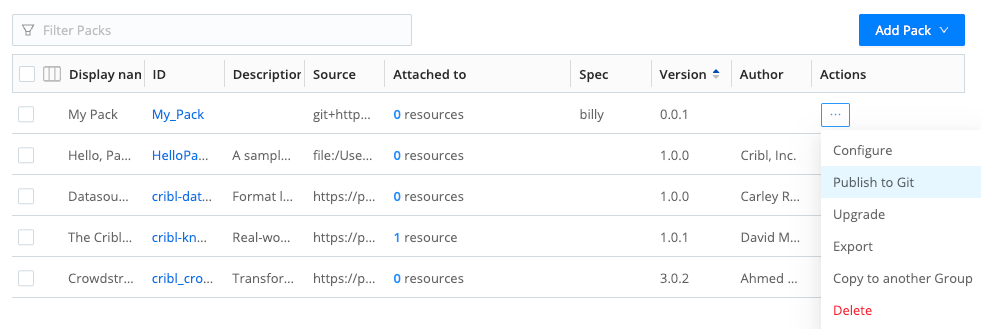
Publishing a Pack to Git Select Publish to Git, and in the modal window, confirm with Publish to Git again.
Your Pack’s branch in the remote repository updates with your changes.
The repository maintainer can now synchronize the main branch with your branch in their preferred way (for example, by creating a pull request).
When you use Publish to Git, all files in the repository are overwritten except for hidden files and directories located at the repository root. This means that any non-hidden files not managed by Cribl (such as documentation, scripts, or CI/CD workflows) will be deleted.
To preserve important files, ensure they are stored as hidden files by prefixing their names with a
.For example use.githubfor GitHub workflows.
Authenticate With SSH (On-Prem Only)
For on-prem deployments, you can connect Packs to external Git repositories using SSH instead of HTTPS. This approach allows you to avoid embedding personal access tokens in your import URLs.
To authenticate with SSH:
Add your private SSH key to the Leader Node. See Connect to a Remote with SSH for more information.
This SSH key must also have the necessary permissions (Read/Write) on your Git host provider (GitHub, GitLab, Bitbucket).
Select Add Pack at the upper right and select Import from Git.
Enter the repository’s URL.
When using SSH, the URL format differs slightly from the standard SSH Clone string provided by Git UI buttons. Specifically, you must use a
/(slash) instead of a:(colon) after the domain. For example:Authentication Method URL Syntax Standard HTTPS URL (with personal access token) https://<username>:<token>@github.com/<org>/<repo>.gitOptimized SSH URL ssh://git@github.com/<org>/<repo>.gitIn Branch or tag, provide the name of your branch in the remote repository.
Select Import to confirm.
The alternative SSH authentication is not supported in Docker-based sandbox or ephemeral environments. For containerized deployments, continue authenticating with a personal access token.