JSON Schemas
Cribl Stream uses JSON schemas for validating JSON events.
You can use the built-in Cribl Schema or create custom ones
and use them to validate any fields by using the C.Schema expression.
JSON schemas are based on the popular JSON Schema standard, and Cribl Stream supports schemas matching that standard’s Drafts 0 through 7.
You can refer to a single JSON schema in multiple expressions. When editing them, be aware that any change will affect all places it is used in.
Cribl Stream supports two kinds of schemas:
- JSON schemas for validating JSON events, described on this page.
- Parquet schemas for writing data from a Cribl Stream Destination to Parquet files.
These schemas serve different purposes. By default,
C.Schemavalidates against a JSON schema. To validate against a Parquet schema, set the schema kind toparquet. For details, see Validate Events Against a Parquet Schema.
Validate an Object Against the Schema
To validate an object against a schema, use the C.Schema expression:
C.Schema('<schema_name>').validate(<object_field>).
You can call this method anywhere in Cribl Stream that supports JavaScript expressions. Typical use cases for schema validation include:
- Making a decision before sending an event down to a Destination.
- Making a decision before accepting an event (for example, dropping an event if invalid).
- Making a decision to route an event based on the result of validation.
Ignore Internal and System Fields
Cribl Stream adds internal fields and system fields to events. A JSON schema that disallows additional properties fails on those fields before it checks the rest of the event. A Function in the Pipeline cannot remove cribl_pipe, because Cribl Stream adds that field after the last Function.
To validate the event and leave those fields in place, set ignoreSystemFields to true:
C.Schema('schema1', { ignoreSystemFields: true }).validate(__e)validate() and explain() skip the omitted fields and still report a missing required field, a wrong type, or an extra field in your data. The event keeps the internal and system fields. For the field list, see C.Schema.
To hide system fields while you read a preview, turn off the Show System Fields toggle in Data Preview. That control changes the preview display and leaves the C.Schema result unchanged.
Add New Schema
To add a new JSON schema:
- In the sidebar, select Worker Groups and choose a Worker Group.
- In the Worker Groups submenu, select Processing.
- If you are adding the schema to a Pack, select Packs and choose your Pack.
- Select Knowledge, then Schemas.
- Select Add Schema.
- Enter an ID for the regex and an optional Description.
- In Schema, paste the JSON schema content.
- Select Save.
JSON Schema Example
To add this example JSON Schema, enter the following into New Schema fields:
- ID:
schema1. - Description: (Enter your own description here.)
- Schema: Paste the following schema.
{
  "$id": "https://example.com/person.schema.json",
  "$schema": "http://json-schema.org/draft-07/schema#",
  "title": "Person",
  "type": "object",
  "required": ["firstName", "lastName", "age"],
  "properties": {
    "firstName": {
      "type": "string",
      "description": "The person's first name."
    },
    "lastName": {
      "type": "string",
      "description": "The person's last name."
    },
    "age": {
      "description": "Age in years which must be equal to or greater than zero.",
      "type": "integer",
      "minimum": 0,
      "maximum": 42
    }
  }
}Assume that events look like this:
{"employee":{"firstName": "John", "lastName": "Doe", "age": 21}}
{"employee":{"firstName": "John", "lastName": "Doe", "age": 43}}
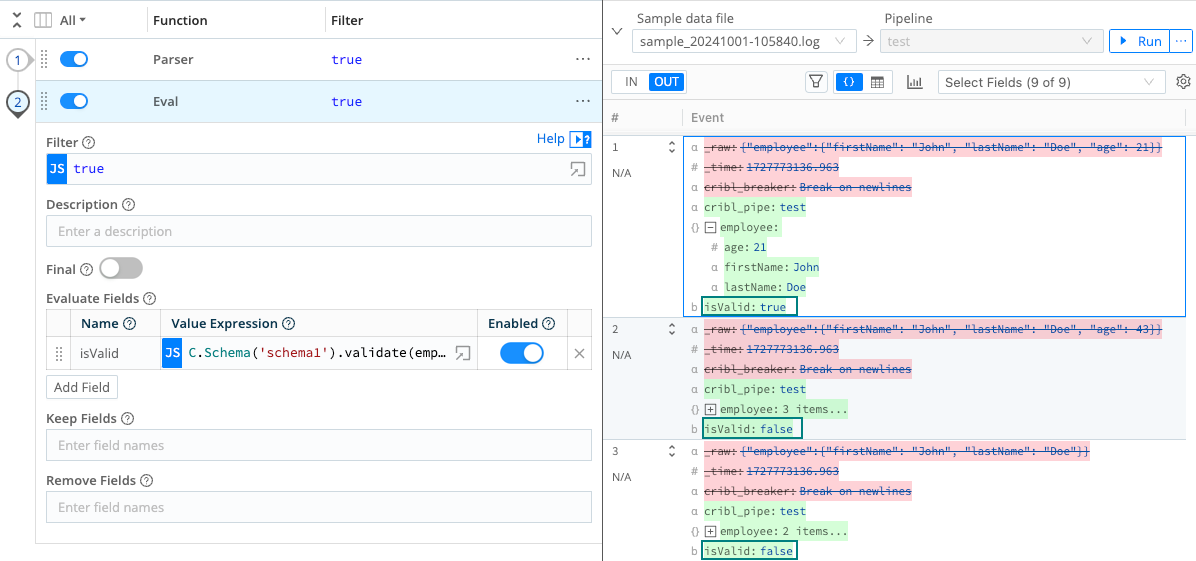
{"employee":{"firstName": "John", "lastName": "Doe"}}To validate whether the employee field is valid per schema1, we can use the following:
C.Schema('schema1').validate(employee)
Results:
- First event is valid.
- Second event is not valid because
ageis greater than the maximum of42. - Third event is not valid because
ageis missing.