





Add Users to Projects
As a Stream admin, you control Members’ access to individual Projects by assigning Permissions to those Members, as outlined below.
Breaking Change
In Cribl Stream 4.2 and newer, Projects and Subscriptions rely entirely on the fine-grained Members/Permissions access control first introduced in Cribl Stream 4.2. The v.4.1.x
project_userRole andProjectSourceSubscribePolicy, which provided access to all Projects, are now retired. To migrate Projects configured in v.4.1.x, you’ll find those projects’ users visible in Cribl Stream as Members. Assign them appropriate new Permissions, as outlined here.
Share a Project (Example)
To share a Project with an eligible Cribl Stream Member or Team:
- Select Settings > Stream > Members and Teams.
- Make sure each applicable Member or Team has the
UserWorkspace Permission, and theUserStream Permission. (Select an existing Member’s row to adjust their Permissions.)
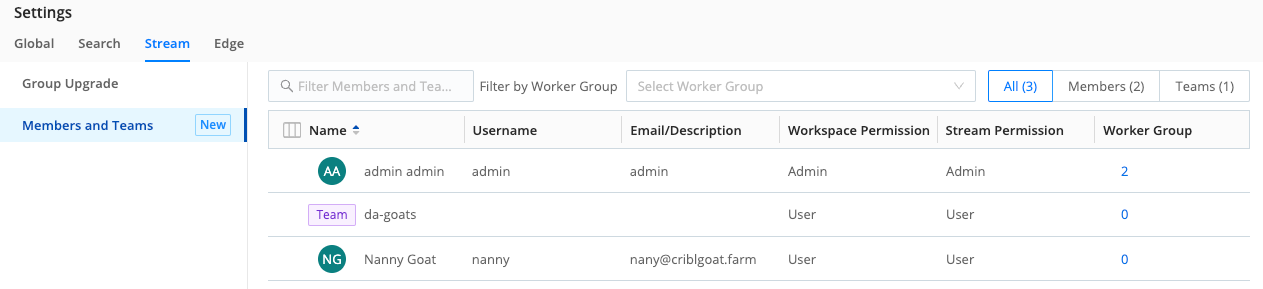
- Select each applicable Member and Team’s row to open their details drawer.
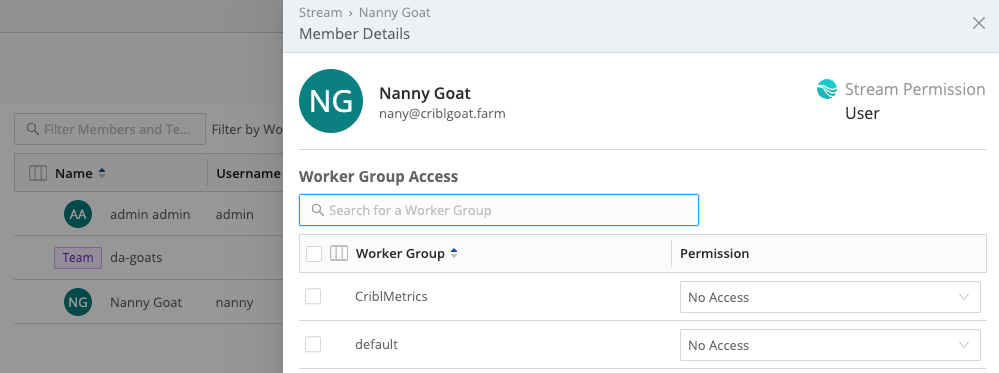
- Grant the Member or Team a
UserPermission on the applicable Project’s parent Worker Group. (Higher Permissions offered on this drop-down are not applicable to Project editors.) - In the sidebar, select Worker Groups and select the same Worker Group.
- Select Projects > Data Projects > View all.
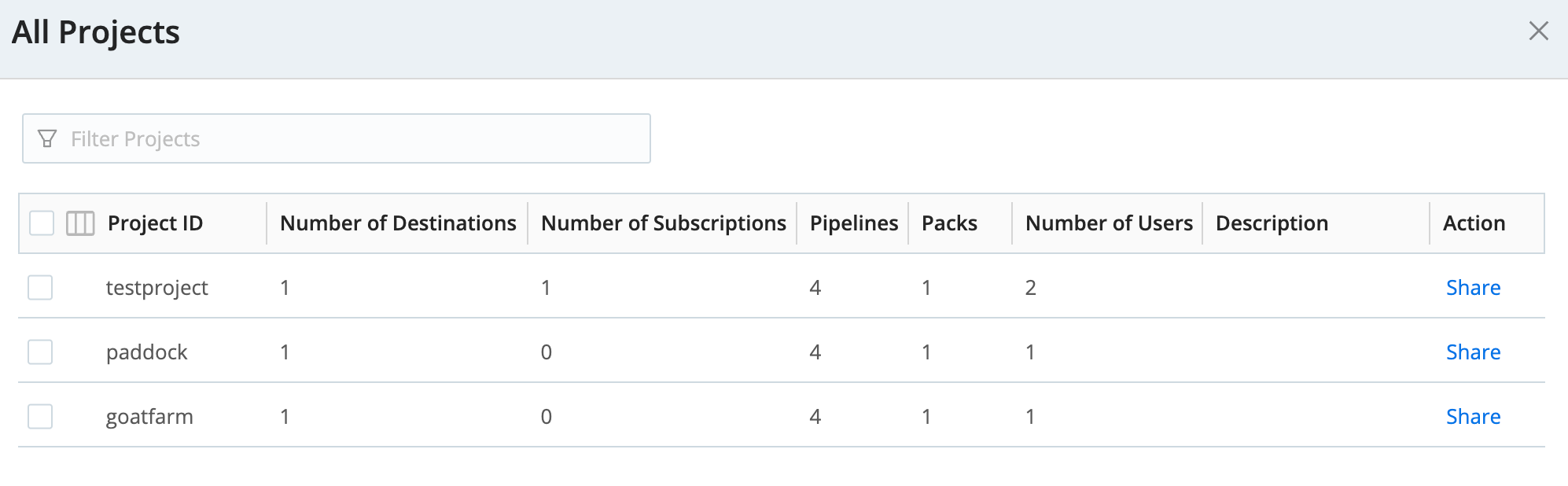
Select the Project’s Share link to open the Project Members and Teams drawer. Here, you can see all the Group’s Members and Teams with whom this Project can be (or has been) shared.
You can also open an individual Project’s Sharing drawer directly from the Project view. Give this Project focus in the Project view, then select the Members and Teams link at the top.
Grant each applicable Member or Team an
EditorPermission on the Project. (The alternativeRead OnlyPermission is intended for support users. It does not enable configuring connections or Pipelines.)
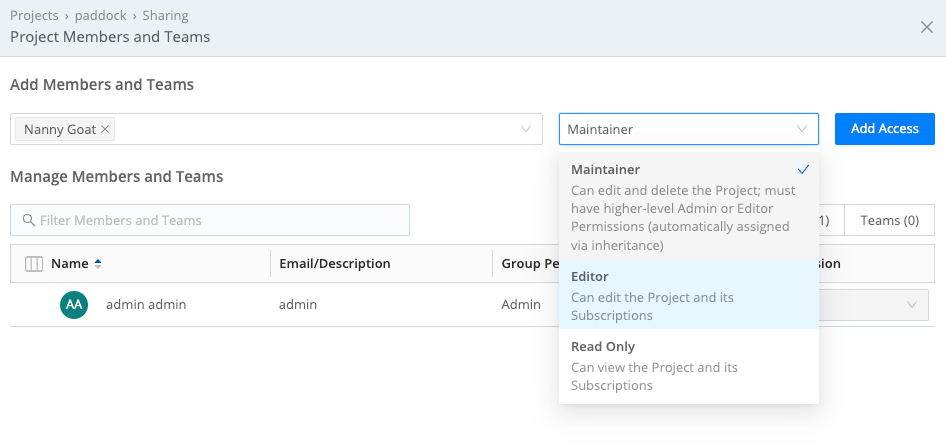
Editor Permission- Select Save to confirm your changes, then select outside the drawer to close it.
- Commit your changes, and deploy the Group if prompted.
These Members and Teams who now have Project Editor Permissions - and no higher Stream Permissions - view data filtered through the Projects UI. They also have read access to Cribl Stream Data Monitoring and Notifications.
You can reopen the same drawer to modify Members’ Permission levels. To remove a Member from the Project, assign them
No Access.