





Amazon Bedrock Source
Cribl Stream supports collecting Amazon Bedrock model invocation logs and CloudTrail audit logs by polling an Amazon SQS queue connected to an S3 bucket. When Amazon Bedrock writes log data to S3, S3 sends event notifications to the SQS queue, which Cribl Stream polls to retrieve and process the log files.
Type: Pull | TLS Support: YES | Event Breaker Support: YES
Data Collected
You can configure the Amazon Bedrock Source to collect the following log types. Each log type requires its own SQS queue and S3 bucket, and a separate Source instance configured for each queue.
Model invocation logs: Capture the input and output of each request sent to a Bedrock model. Each log entry includes the model ID, request and response bodies, token counts, and latency. Enable these logs using Amazon Bedrock’s built-in model invocation logging setting.
CloudTrail audit logs: Capture API activity in your AWS account related to Amazon Bedrock, including administrative actions such as creating agents and modifying guardrails, and data plane operations such as agent invocations and async jobs. Enable these by routing AWS CloudTrail events to an S3 bucket.
Prerequisites
Before configuring the Source in Cribl Stream:
Model invocation logs: Enable model invocation logging in Amazon Bedrock, with S3 as a logging destination.
CloudTrail audit logs: Configure AWS CloudTrail to deliver Amazon Bedrock API events to an S3 bucket.
S3 event notifications: For each S3 bucket that receives Bedrock logs, configure an SQS queue to receive
s3:ObjectCreated:*event notifications. See Amazon’s documentation on configuring S3 event notifications for details. Each log type requires its own SQS queue.IAM permissions: Grant the IAM user or role that Cribl Stream uses the following permissions:
On the S3 bucket:
s3:GetObjects3:ListBucket
On the SQS queue:
sqs:ReceiveMessagesqs:DeleteMessagesqs:ChangeMessageVisibilitysqs:GetQueueAttributessqs:GetQueueUrl
To collect encrypted Bedrock logs, also add
kms:Decryptto the relevant KMS Key Policy. See Amazon’s documentation on Key Policies for details.
For a complete walkthrough of the required AWS setup steps, including SQS queue configuration, S3 event notifications, and IAM role creation, see the AWS Bedrock Invocation Logs Pack.
Configure Cribl Stream to Receive Amazon Bedrock Logs
- On the top bar, select Products, and then select Cribl Stream. Under Worker Groups, select a Worker Group. Next, you have two options:
- To configure via QuickConnect, navigate to Routing > QuickConnect. Select Add Source and select the Source you want from the list, choosing either Select Existing or Add New.
- To configure via the Routes, select Data > Sources. Select the Source you want. Next, select Add Source.
- In the New Source modal, configure the following under General Settings:
- Input ID: Enter a unique name to identify this Source definition. For example,
bedrock_invocation_logsorbedrock_cloudtrail. If you clone this Source, Cribl Stream will add-CLONEto the original Input ID. - Description: Optionally, enter a description.
- Queue: The name, URL, or Amazon Resource Name (ARN) of the SQS queue to read events from. When specifying a non-AWS URL, use the format
{url}/<queueName>. This value must be a JavaScript expression (which can evaluate to a constant), enclosed in single quotes, double quotes, or backticks.
- Input ID: Enter a unique name to identify this Source definition. For example,
- Configure the following Optional Settings:
- Filename filter: Regex matching file names to download and process. Defaults to
.*, which matches all files. This regex is evaluated against the S3 key’s full path. - Region: AWS Region where the S3 bucket and SQS queue are located. Required unless the Queue entry is a URL or ARN that includes a Region.
- Tags: Optionally, add tags to filter and group Sources in Cribl Stream’s UI. These tags aren’t added to processed events. Use a tab or hard return between tag names.
- Filename filter: Regex matching file names to download and process. Defaults to
- Optionally, configure the Authentication, Assume Role, Processing, and Advanced settings, or Connected Destinations described in the sections below.
- Select Save, then Commit & Deploy.
Authentication
Share credentials for SQS and S3: When toggled on (default), the same credentials are used for both SQS and S3 requests. Toggle off to supply independent credentials for each service.
Use the Authentication method drop-down to select an AWS authentication method.
Auto: This default option uses the AWS SDK for JavaScript to automatically obtain credentials in the following order of attempts:
- Environment Variables: Loaded from environment variables
AWS_ACCESS_KEY_IDandAWS_SECRET_ACCESS_KEY. - IAM Identity Center (SSO): Loaded from AWS IAM Identity Center configuration.
- Shared Credentials File: Loaded from the shared credentials file (
~/.aws/credentials). - IAM Roles for Amazon EC2/ECS: Loaded from AWS Identity and Access Management (IAM) roles attached to an EC2 instance or ECS container.
- JSON File on Disk: Loaded from a JSON file on disk.
- Other Credential-Provider Classes: Other credential-provider classes provided by the AWS SDK for JavaScript.
The Auto method works both when running on AWS and in other environments where the necessary credentials are available through one of the above methods.
Azure-based Cribl.Cloud Worker Groups do not have AWS credentials, so Auto finds none and authentication fails. On an Azure-based Worker Group, select another authentication method and supply your own AWS credentials.
SSO Providers
When using the auto authentication method, you can leverage SSO providers like SAML and Okta to issue temporary credentials. These credentials should be set in the environment variables
AWS_ACCESS_KEY_IDandAWS_SECRET_ACCESS_KEY. The AWS SDK will then use these environment variables to authenticate.
Manual: Enter a static set of user-associated IAM credentials directly or by reference. The Manual option exposes these additional fields:
Access key: Enter your AWS access key. If not present, falls back to the
env.AWS_ACCESS_KEY_IDenvironment variable, or to the metadata endpoint for IAM role credentials.Secret key: Enter your AWS secret key. If not present, falls back to the
env.AWS_SECRET_ACCESS_KEYenvironment variable, or to the metadata endpoint for IAM credentials.
The values for Access key and Secret key can be a constant or a JavaScript expression. Store credentials as secrets and reference them with C.Secret(): use `${C.Secret('myKeyPair', 'keypair').apiKey}` for the access key and `${C.Secret('myKeyPair', 'keypair').secretKey}` for the secret key. Enclose values that contain special characters (like /) or JavaScript expressions in single quotes or backticks.
Secret: Supply a stored secret that references an AWS access key and secret key. The Secret option exposes this additional field:
- Secret key pair: Use the drop-down to select a secret key pair that you’ve configured in Cribl Stream’s internal secrets manager or (if enabled) an external KMS. Follow the Create link if you need to configure a key pair.
Assume Role
Use these settings to have Cribl Stream assume an AWS IAM role when accessing S3 and SQS resources.
Enable for Amazon S3: Toggle on to enable role assumption for S3 requests.
Enable for Amazon SQS: Toggle on to enable role assumption for SQS requests.
Share AssumeRole ARN settings: When toggled on (default), the same role ARN, External ID, and duration are used for both S3 and SQS. Toggle off to configure each service independently.
AWS account ID: The AWS account ID that owns the SQS queue. Leave empty if the queue is in the same account as the assumed role.
AssumeRole ARN: The ARN of the IAM role to assume. When running on Cribl.Cloud Worker Groups, configure your AWS role’s trust policy to allow the Worker role ARN to assume it. To get the Worker role ARN, see Worker Group Details.
External ID: Optional external ID to include when assuming the role. Required if the role’s trust policy enforces one.
Duration (seconds): Duration of the assumed role session, in seconds. Defaults to 3600 (1 hour).
Processing Settings
Custom Command
Enabled: Default is toggled off. Toggle on to enable the custom command.
Command: Enter the command that will consume the data (via stdin) and process its output (via stdout).
Arguments: Select Add Argument to add each argument to the command.
Event Breakers
Event Breaker rulesets: A list of event breaking rulesets applied to the input data stream before data is sent through the Routes. Defaults to System Default Rule.
Event Breaker buffer timeout: How long (in milliseconds) the Event Breaker waits for new data before flushing the stream. Minimum 10 ms, default 10000 (10 sec), maximum 43200000 (12 hours).
Fields
In this section, you can define new fields or modify existing ones using JavaScript expressions, similar to the Eval function.
- The Field Name can either be a new field (unique within the event) or an existing field name to modify its value.
- The Value is a JavaScript expression (enclosed in quotes or backticks) to compute the field’s value (can be a constant). Select this field’s advanced mode icon (far right) if you’d like to open a modal where you can work with sample data and iterate on results.
This flexibility means you can:
- Add new fields to enrich the event.
- Modify existing fields by overwriting their values.
- Compute logic or transformations using JavaScript expressions.
Include notification metadata: Toggle on to add the S3 event notification payload to a __sqsMetadata field on every event from the corresponding S3 file. This is useful for measuring processing latency (compare the object’s eventTime to the event’s _time) or for region-based routing using the awsRegion field in a Pipeline.
Pre-Processing
In this section’s Pipeline drop-down list, you can select a single existing Pipeline or Pack to process data from this input before the data is sent through the Routes.
Advanced Settings
Enable checkpointing: When toggled off (default), Cribl Stream always starts processing a file from the beginning. Toggle on to resume processing from the point of interruption after an error or restart. When turned on, the following additional setting is available:
- Retries: The number of times Cribl Stream retries processing a file after an error or restart. Ignored if Skip file on error is enabled.
Endpoint: S3 service endpoint. If empty, defaults to AWS’s Region-specific endpoint. Use this to point to an S3-compatible endpoint. Use path-style URL format. See AWS’ Path-Style Requests for details.
Message limit: Maximum number of messages SQS returns in a single poll request. Acceptable values: 1 to 10. Defaults to 1.
Visibility timeout seconds: Duration (in seconds) that received messages are hidden from subsequent retrieve requests after being retrieved. Defaults to 600.
Cribl Stream automatically extends this timeout until the initial request’s files have been processed, which is useful for large Bedrock log files.
Number of receivers: Number of receiver processes to run. Higher values improve throughput at the expense of CPU overhead. Defaults to 1.
Poll timeout (secs): How long to wait for events before polling again. Minimum 1 second, default 10, maximum 20. Short durations increase the number (and cost) of requests sent to AWS.
Socket timeout: Socket inactivity timeout in seconds. Increase this value if retrievals time out during backpressure. Defaults to 300 seconds.
Parquet chunk size limit (MB): Maximum size for each Parquet chunk. Defaults to 5 MB. Valid range is 1 to 100 MB.
Parquet chunk download timeout (seconds): Maximum time to wait for a Parquet chunk to download. Defaults to 600 seconds. Valid range is 1 to 3600 seconds.
Skip file on error: Toggle on to skip files that trigger a processing error (for example, corrupted files). Defaults to toggled off, which enables retries.
Reuse connections: Whether to reuse connections between requests. Toggling on (default) can improve performance.
Reject unauthorized certificates: Whether to reject certificates that cannot be verified against a valid CA. Defaults to toggled on.
Encoding: Character encoding to use when parsing ingested data. Defaults to UTF-8. Ignored for Parquet files.
Environment: If you’re using GitOps, optionally use this field to specify a single Git branch on which to enable this configuration. If empty, the config will be enabled everywhere.
Connected Destinations
Select Send to Routes to enable conditional routing, filtering, and cloning of this Source’s data via the Routing table.
Select QuickConnect to send this Source’s data to one or more Destinations via independent, direct connections.
Internal Fields
Cribl Stream uses a set of internal fields to assist in handling of data. These meta fields are not part of an event, but they are accessible, and Functions can use them to make processing decisions.
Fields for this Source:
__final__inputId__source_time
Troubleshooting
The Source’s configuration modal has helpful tabs for troubleshooting:
Live Data: Try capturing live data to see real-time events as they are ingested. On the Live Data tab, click Start Capture to begin viewing real-time data.
Logs: Review and search the logs that provide detailed information about the ingestion process, including any errors or warnings that may have occurred.
You can also view the Monitoring page that provides a comprehensive overview of data volume and rate, helping you identify ingestion issues. Analyze the graphs showing events and bytes in/out over time.
VPC Endpoints
VPC endpoints for SQS and for S3 might need to be configured in your account. Check with your administrator for details.
Common Issues
“InvalidClientTokenId” or “The security token included in the request is invalid”
Can occur when using AssumeRole to access resources in a non-default AWS region (for example, eu-central-2 / Zurich). This happens because:
- Instance profile credentials are typically minted by the global STS endpoint.
- Non-default regions (those disabled by default on AWS accounts) do not accept STS tokens minted by the global endpoint.
Recommendation
Set the CRIBL_AWS_STS_REGION environment variable to a default region that will accept your source credentials (for example, eu-central-1 or eu-west-1), or set CRIBL_AWS_STS_ENDPOINT explicitly (for example, https://sts.eu-west-1.amazonaws.com).
Tokens minted by a regional STS endpoint are valid in any region, including non-default regions. For more information, see Troubleshooting STS in Non-Default AWS Regions.
“Inaccessible host: ‘sqs.us-east-1.amazonaws.com’. This service may not be available…”
Full Error Text: "message":"Inaccessible host: 'sqs.us-east-1.amazonaws.com'. This service may not be available in the 'us-east-1' region.","stack":"UnknownEndpoint: Inaccessible host: 'sqs.us-east-1.amazonaws.com'. This service may not be available in the 'us-east-1' region.
If this is persistent rather than intermittent then it could be caused by TLS negotiation failures. For example, AWS SQS currently does not support TLS 1.3. If intermittent then a network-related issue could be occurring such as DNS-related problems.
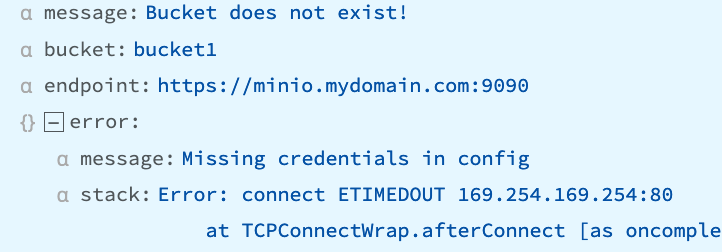
“Missing credentials in config” or “stack:Error: connect ETIMEDOUT 169.254.169.254:80”
Can occur when Authentication is set to Auto, but no IAM role is attached.
Recommendation
Change to Manual Authentication; attach an IAM role; or if using IMDv2, switch to IMDv1 (if possible).
“Bucket does not exist - self signed certificate”
Example Error Text:
message: Bucket does not exist - self signed certificate
stack: Error: self signed certificate
    at TLSSocket.onConnectSecure (node:_tls_wrap_1535:34)
    at TLSSocket.emit (node:events:513:28)
    at TLSSocket.emit (node:events:489:12)
    at TLSSocket._fini... Show more
tmpPath: /opt/cribl/s3_bucket/cribl/2023/03/28/CriblOut-XTNGh5.0.json.tmpCan occur when:
- the Destination uses a self-signed cert that has not yet been trusted by Cribl Stream.
- the user does not have appropriate permissions to view the bucket.
- the authentication token generated by your computer has a timestamp that is out of sync with the server’s time, resulting in an authentication failure.
Recommendation
Disable Advanced Settings > Reject unauthorized certificates or; get the sender’s cert and add it to the NODE_EXTRA_CA_CERTS path for validation; or verify that the user has appropriate permissions.